DataReportal counted 5.24 billion social media user identities worldwide, equal to 63.9% of the global population, in its Digital 2025 analysis. For a small business or creator, that scale has a practical implication: reaching people online means coordinating content across platforms, not just remembering to post on one account.
A social media post scheduler can help you plan and publish from a more organized workflow. But a calendar full of scheduled posts doesn't guarantee the right content reaches the right audience, or even that every post publishes successfully. The useful questions are what to schedule, how to adapt it for each platform, and what your tool does when a connection fails.
Table of Contents
- What a Social Media Post Scheduler Does
- Must-Have Features in a Social Media Post Scheduler
- Why Manual Posting Drains Your Week
- How a Scheduler Fits Into Your Daily Workflow
- Choosing the Right Time Slots Without Copy-Paste Calendars
- The Reliability Gap Most Users Never Notice
- How to Evaluate Schedulers Without Falling for Bloat
- Your 30-Day Adoption Plan and Quick Answers
What a Social Media Post Scheduler Does
A creator may turn one product tip into three posts: a visual caption for Instagram, a shorter version for X, and a fuller explanation for LinkedIn. Managing each version separately can mean switching accounts, checking different calendars, and risking a copy-and-paste mistake. A shared workflow keeps the work together while leaving room to tailor each post.
Audience habits support that approach. DataReportal estimates that 94.2% of internet users use social media, and connected adults use an average of 6.83 social platforms per month, according to its Digital 2025 global overview. Those figures describe broad usage, not where any one business's audience is most active. Use your own platform analytics to see where followers engage, then plan content around that behavior rather than treating every network as equally important.
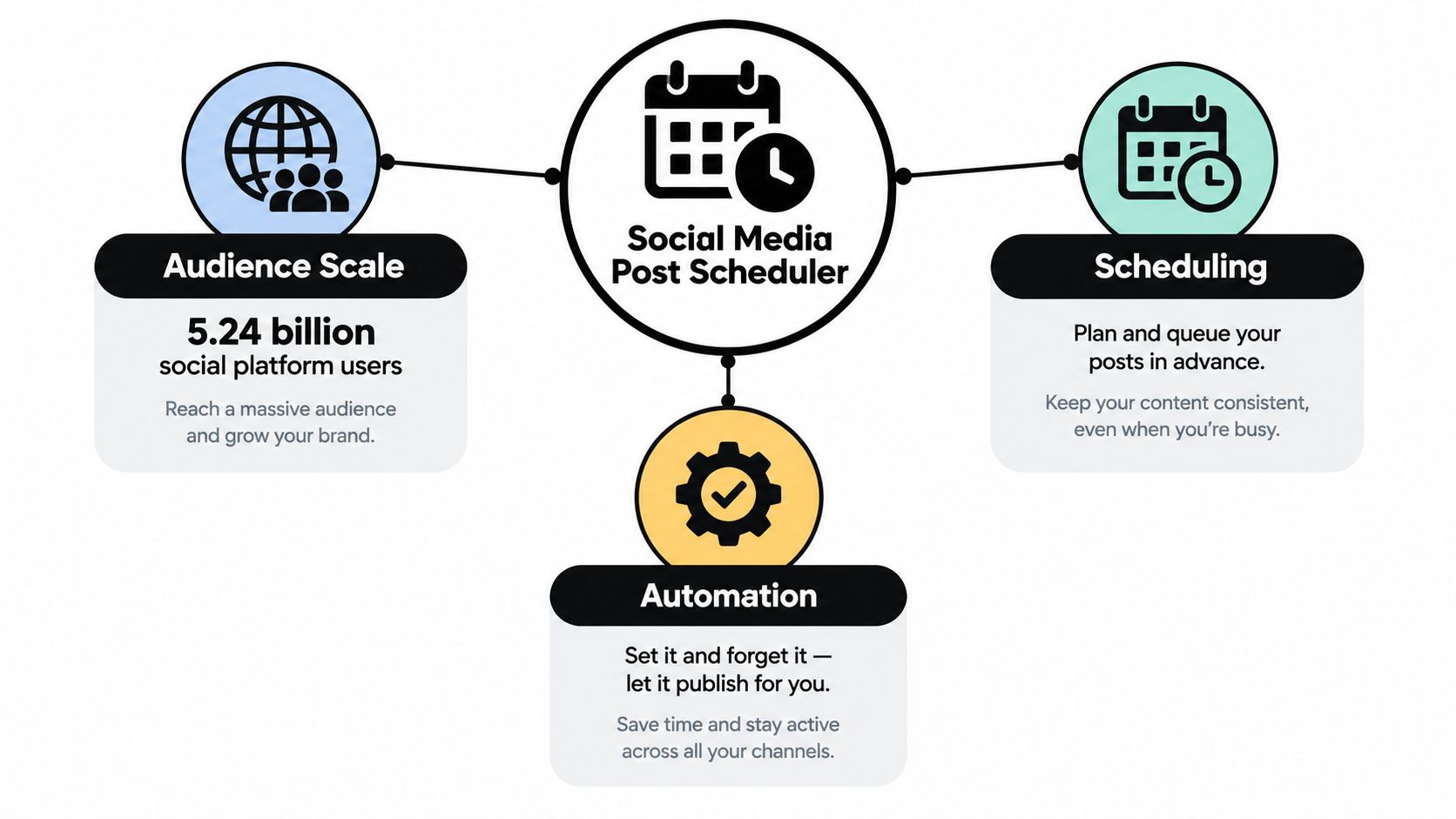
A social media post scheduler is software for preparing posts, assigning publishing times, and managing connected accounts from one dashboard. Unlike a basic calendar, it can store platform-ready copy and media, organize posts in queues, and publish to connected accounts when the platform and tool support it. Some schedulers also include analytics and approval workflows.
The difference is practical. A calendar reminder can tell you when to post, but it may not check whether media fits a platform's requirements or whether an account connection needs attention. A scheduler can reduce account-switching and keep planned posts moving, though scheduled publishing still depends on platform support and a working connection. You remain responsible for adapting content to the audience and replying when a timely conversation calls for it. The tool organizes delivery; your judgment shapes the post.
Must-Have Features in a Social Media Post Scheduler
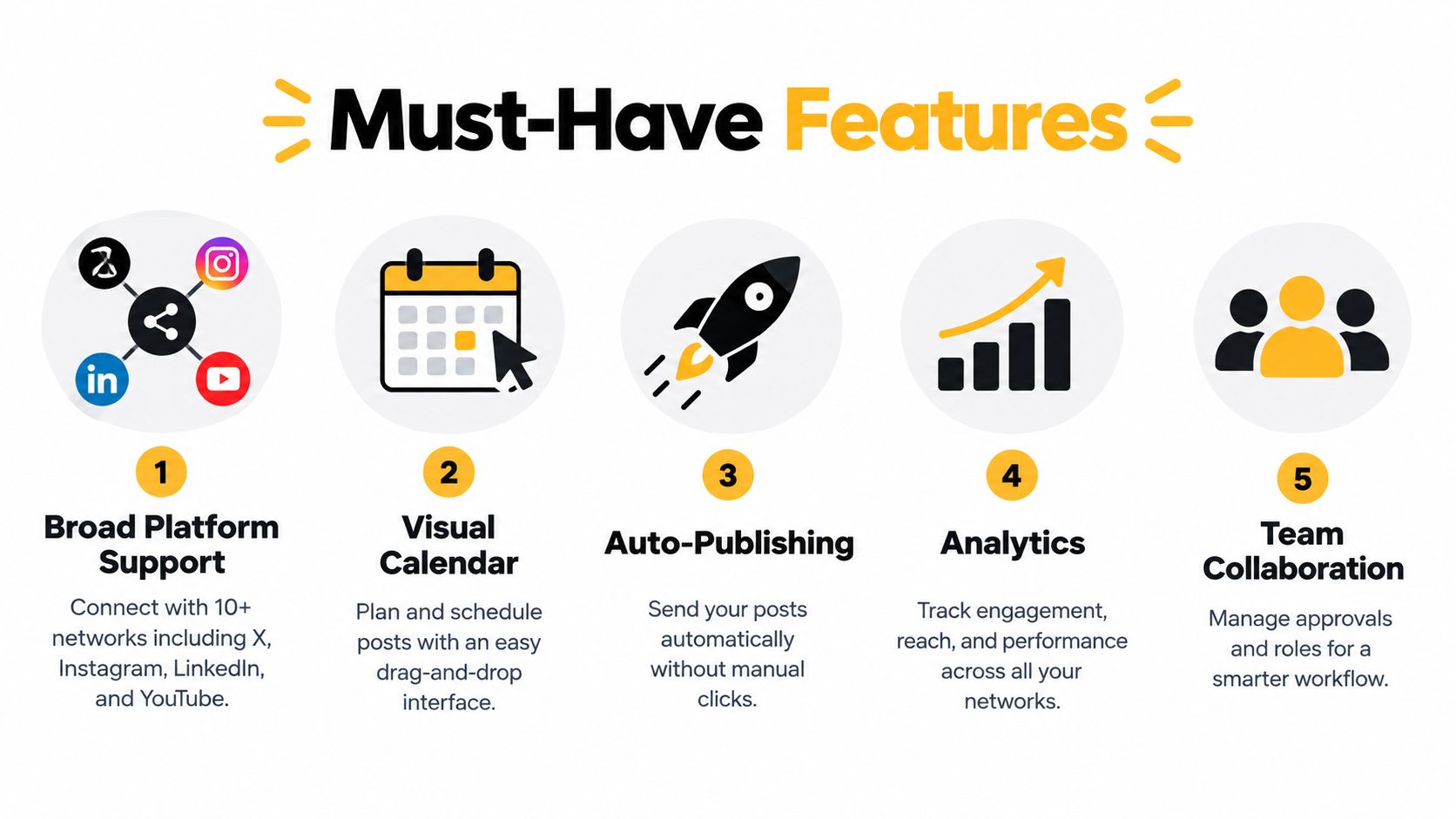
Start with platform coverage, but don't stop at a long list of logos. Check that the tool supports the networks you use, and confirm which post formats it can publish to each one. A scheduler might support Instagram and YouTube, for example, but handle their video formats or account types differently.
Adapt posts before they go live
Per-platform customization helps you avoid sending identical copy everywhere. A short caption might suit Instagram, while a LinkedIn post needs more context. Look for controls that let you change text and media by destination without rebuilding the whole post.
A visual calendar and queues make it easier to spot gaps, crowded days, or posts that need moving. A queue places approved content into available slots; recurring-post controls can repeat a campaign or evergreen message. Make sure you can pause or edit those repeats, rather than letting old material publish unattended.
Check the operational details
Analytics should help you understand what happened after publication, including engagement and reach where available. Don't assume every platform provides identical metrics. Compare the scheduler's reporting with the native platform when an important decision depends on the numbers.
Media handling matters when you work with videos, carousels, or large files. Ask about upload limits, storage, previews, and whether each destination needs a separate version. An image and a large video don't place the same demands on your workflow.
An AI writing assistant can turn a prompt or link into a starting draft, but you still need to check accuracy, tone, and platform fit. Use it to get unstuck or create variations, not to publish unreviewed copy.
Use this checklist when comparing tools:
- Coverage: Does it support your accounts and the formats you publish?
- Customization: Can you tailor copy and media per platform?
- Control: Can you review queues, recurring posts, and approvals?
- Reporting: Are the metrics useful and clearly explained?
- Operations: Are media limits, permissions, and publishing failures visible?
Why Manual Posting Drains Your Week
Scheduling isn't valuable because audiences spend time on social platforms. It's valuable because teams have to prepare and publish content in an environment where audiences move between platforms and keep consuming content throughout the week.
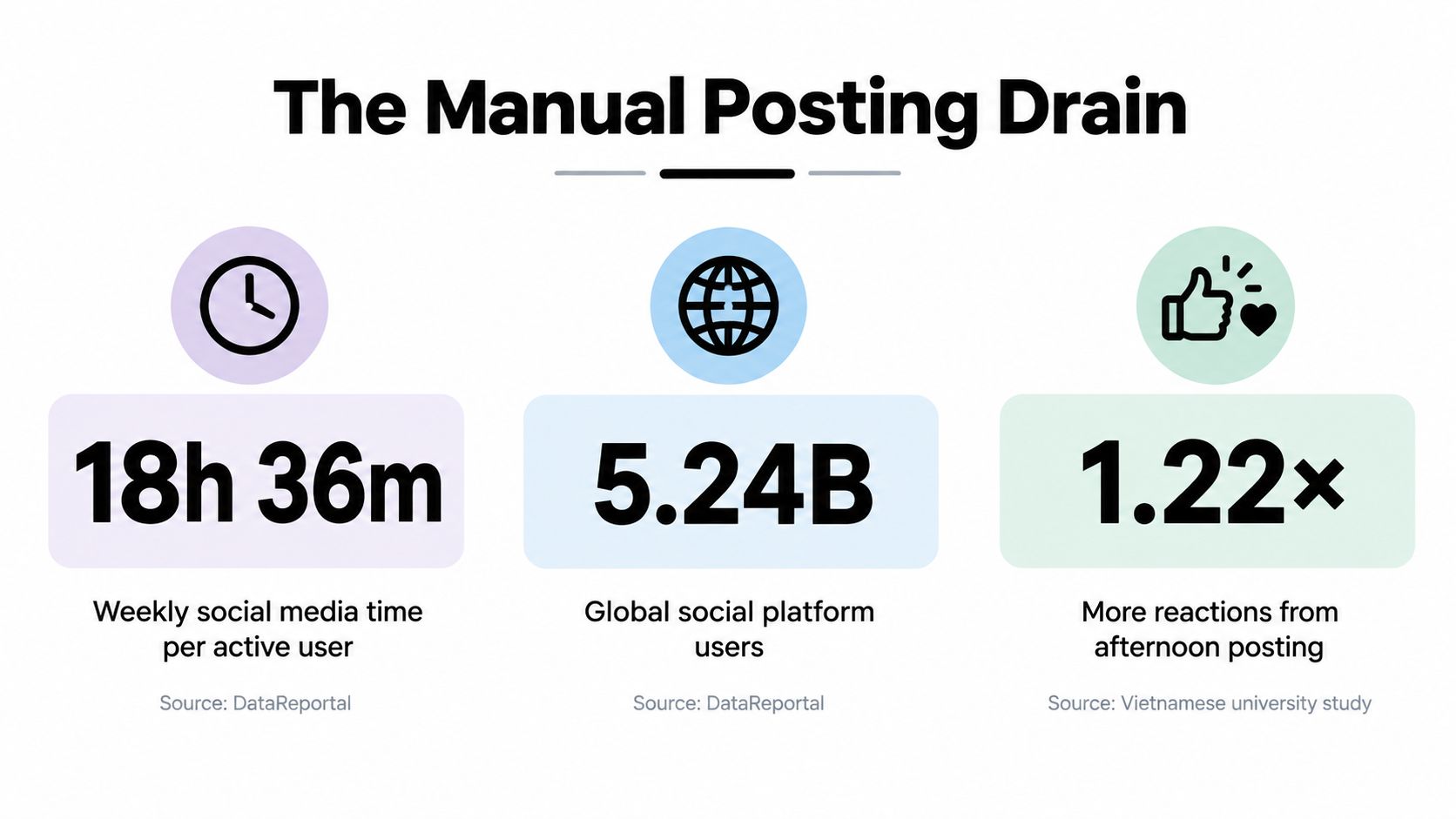
DataReportal reports that the typical social media user visits an average of 6.5 platforms each month and spends approximately 18 hours and 36 minutes per week using social media, including browsing networks and watching online video, according to its social media user data. That measures audience activity, not the hours a marketer spends working. Still, it helps explain why a small team may need to maintain a presence across several channels rather than relying on occasional posts.
Manual publishing creates repeated small tasks. You open an app, find the right account, adjust the copy, upload the media, check the time zone, and confirm the post. Repeat that for each channel, and your content work gets broken into interruptions. The cost isn't only the time spent clicking. It's the attention lost when you switch between drafting, publishing, and other responsibilities.
Practical rule: Track the work before you buy a tool. Note how long you spend preparing, adapting, and publishing a batch of posts, then compare that with the time required after you centralize the workflow.
A simple before-and-after check can be qualitative: list every step you repeat by hand, then identify which steps the scheduler removes. If you still have to reformat every asset, troubleshoot failed connections, and copy analytics into a separate document, the tool may shift the work rather than eliminate it. For a practical way to organize the time you reclaim, use this social media time-management guide.
How a Scheduler Fits Into Your Daily Workflow
A scheduler works best when it supports a routine, not when it becomes another place to store unfinished ideas. Start by choosing a content theme for the coming period, such as product education, customer questions, or behind-the-scenes updates. That gives you a reason for each post before you start filling empty calendar slots.
Draft in batches, then adapt each post to its destination. A short video might need an opening line that works without sound, while a text post for LinkedIn may need a fuller explanation. If you're building a visual asset from scratch, these starryai image generation tips can help you think through the creative process before you upload and schedule it.
Put each task in the right place
After review, add approved posts to platform-specific queues. Use analytics to see which themes and formats are worth developing further. If a post performs well, consider whether it deserves a new version or a repeat, rather than automatically reposting the identical asset.
For an overview of how content planning differs from setting publication times, see this guide to scheduling versus planning.
| Task | Inside the Scheduler | Outside (Native App) |
|---|---|---|
| Drafting | Prepare copy and attach media | Check platform-specific context |
| Adapting | Create destination-specific versions | Verify the final post in the native interface |
| Queuing | Choose a slot or queue position | Handle formats the scheduler doesn't support |
| Publishing | Schedule and monitor status | Confirm or publish manually when required |
| Replying | Review engagement if an inbox is available | Respond to comments and conversations in real time |
The scheduler handles planned distribution. The native app remains useful for checking how a post appears and for responding to people. Don't confuse a full calendar with a complete social strategy: publishing is only one part of the work.
Choosing the Right Time Slots Without Copy-Paste Calendars
A universal best time is a convenient shortcut, not a dependable strategy. Your audience's habits, the platform, and the content itself can all affect when a post earns attention. Copying the same timestamp across every account may save a moment during setup, but it doesn't test whether that time suits each network.
A study of 5,825 posts from 155 Vietnamese university Facebook pages found afternoon posts produced 1.22 times more reactions, 1.52 times more comments, and 1.56 times more shares than morning posts. The results, reported in the study of posting time and engagement on university Facebook pages, are a reason to test afternoon slots, not a promise that the same pattern will apply to every business or creator.

Build your own test. Choose a platform and audience, then compare different time slots while keeping the content format and topic broadly similar. Review results against reach where you can, not just raw reactions. If you change the posting time, content type, and caption style at once, you won't know which change mattered.
Create separate queues when the evidence supports them. A B2B team planning professional content can use this social media schedule for B2B as a planning reference, then adapt its approach to its own audience. For more on using account-specific evidence to select a slot, consult this guide to the best time to post on social media.
The Reliability Gap Most Users Never Notice
A scheduled post isn't always stored as a scheduled post by the social network itself. Technical documentation indicates that Instagram, Threads, X, LinkedIn, TikTok, Pinterest, Bluesky, and Telegram generally lack a native scheduling field in their publishing APIs. Third-party tools commonly hold the post and send an immediate-publish request when its chosen time arrives, as described in the platform scheduling support documentation.
That difference matters because the third-party service has to be able to publish at the exact moment. An account token may expire, an API rule may change, or a connection may fail. A calendar confirmation alone doesn't prove that the post went live.
A dependable schedule needs a visible publishing record, not just a reassuring calendar tile.
Before committing to a tool, ask how it reports failures, whether it retries, how it prevents duplicates, and whether it converts time zones clearly. Check that you can see each destination's publishing status and identify posts that need a manual action. If your work involves clients, keep a record of approvals and any changes made after approval.
Use a preflight check before relying on a queue:
- Connection: Are the social accounts still authorized?
- Content: Are copy, media, and platform-specific versions correct?
- Timing: Is the selected local time clear for the account?
- Status: Can you tell whether each destination published?
- Recovery: Is there a straightforward way to retry or publish manually?
When changing tools, export or copy queued posts before disconnecting the old service, then reconnect accounts and check the new queue before relying on it. This reliable posting guide can help you think through the failure-handling details.
How to Evaluate Schedulers Without Falling for Bloat
Evaluate tools against the work you do. A solo creator may care most about fast editing and clear queues, while an agency may need permissions and approval records. A large dashboard isn't automatically a better fit if you won't use its extra features.
| Criteria | What to Check |
|---|---|
| Platform coverage | Does it connect to the networks you need? |
| Customization | Can you change copy and media by destination? |
| Queue controls | Can you pause, reorder, and review recurring posts? |
| Analytics | Are the results clear enough to guide decisions? |
| Media library | Are storage, upload limits, and previews suitable? |
| AI assistance | Can you review and edit generated drafts before scheduling? |
| Reliability | Does it show failures, retries, and publication status? |
| Team needs | Are roles and approvals available if you need them? |
| Cost and trial | Are the plan limits clear, and can you test the workflow? |
Ask vendors what “unlimited” means in practice. It may refer to scheduled posts, connected accounts, team members, storage, or something else. Check the plan terms rather than assuming the label covers every part of your workflow. If you manage several accounts, estimate the cost at the size you expect to reach, not only at the starting tier.
Accessibility should be part of this review. A 2025 survey found that 87% of arts, heritage, and entertainment organizations used social media, but only 33% of those users included accessibility features such as image descriptions or captions in the survey results on communications accessibility. Ask whether your scheduler stores alt text, captions, and other accessibility details, and whether those fields can be customized for each platform.
When comparing a lightweight scheduler with broader suites such as Buffer- or Hootsuite-style products, score each against the same needs. If you're evaluating visual planning tools in a different industry, this guide to comparing virtual staging features offers a useful example of comparing functions against use cases. SleekPost is one option for scheduling and publishing across multiple platforms, with queues, recurring posts, auto-reposts, and per-platform copy and media customization. For a wider look at how connected tools fit into a workflow, see this guide to third-party social media tools.
Your 30-Day Adoption Plan and Quick Answers
Keep the rollout small enough to learn from. Begin with the accounts you use most, then add complexity once you know the scheduler handles your formats and connections reliably.
- Week one: Audit your accounts, post formats, approval needs, and recurring tasks. Remove channels you don't actively use.
- Week two: Import evergreen ideas and prepare platform-specific versions. Review accessibility details before adding posts to a queue.
- Week three: Test different time slots and compare the results by platform. Don't change every part of the content at once.
- Week four: Add recurring campaigns where repetition makes sense, then review analytics and publishing failures before expanding the workflow.
How is a recurring post different from an auto-repost? A recurring post follows a repeat pattern you set. An auto-repost republishes selected content under the tool's rules, so review its timing and whether the repeated version still fits the moment.
What does “unlimited posts” mean? It depends on the plan. Check whether the limit applies to scheduled posts, accounts, users, or media storage before you rely on it.
Will a free trial show whether the tool fits? Use the trial to test your real workflow, including account connections, the formats you publish, and what happens when a post fails. Don't judge it only by the calendar view.
How do you migrate without losing drafts? Save or export queued content first, reconnect accounts in the new tool, and verify each post's status and time zone. Check token access before trusting the first scheduled batch.
A scheduler earns its place when one organized workflow makes publishing clearer without hiding platform-specific edits or failures.
SleekPost offers a single dashboard for scheduling and publishing across multiple social platforms, with queues, recurring posts, and per-platform customization. If you want to reduce the repeated work of manual publishing while keeping control over what goes live, visit SleekPost to explore the workflow.