If your week involves copying a caption from Google Docs into Instagram, resizing the same graphic for LinkedIn, checking a spreadsheet to see what already went live, then opening one more add-on just to pull analytics, you're already using a third-party workflow. It may not feel like a “system.” It probably feels more like tabs everywhere and a low-level fear of forgetting something.
That's normal for creators, small businesses, and social media managers. Teams don't start with a neat stack. They start with one native app, add one helper tool, then another, then an extension, then a scheduler, then a reporting app because the first platform's analytics weren't enough.
The tricky part isn't just security. It's workflow design. Every new tool can save time in one place while adding friction somewhere else. A caption generator may speed up drafting, but if it breaks your approval process, you haven't really improved the workflow. A scheduler may reduce manual posting, but if nobody remembers who connected which account, you've created hidden risk.
That's why third party tools deserve a clearer explanation than “they're useful but be careful.” They shape how your team works every day. They decide where content lives, who has access, how data moves, and how much context switching your work requires.
If you're trying to build a cleaner setup, this guide is for you. It's written for solo creators, small teams, agencies, and social media managers who want speed without chaos. If your current process includes scheduling, repurposing, approvals, analytics, or automation, you're in the right place. If content operations are part of your week, this overview of what content scheduling means in practice is a useful companion.
Table of Contents
- Introduction to Third Party Tools in Modern Workflows
- What Third Party Tools Are and How They Work
- Common Use Cases for Third Party Tools in Social Media Workflows
- Benefits and Risks You Should Weigh Before You Connect
- How to Evaluate and Integrate Third Party Tools Safely
- Workflow Examples for Creators and Small Businesses
- Strategies to Reduce Tool Sprawl Without Losing Power
Introduction to Third Party Tools in Modern Workflows
A local shop owner shoots a product video on a phone before lunch. By the end of the day, that same video has passed through an editor, a cloud folder, a scheduler, a design app for the thumbnail, and the social platform itself for comments and replies. Nothing about that routine feels unusual, but it reveals something important. Modern content work often runs through a chain of outside tools, not one home base.
Creators and small teams build these stacks gradually. One app solves editing. Another helps with planning. A third makes approvals less messy. Soon the workflow starts to feel like a kitchen with great appliances spread across three rooms. Each tool may be useful on its own, but the walking back and forth is what tires people out.
That is why third party tools matter. They are not just a security topic or a software shopping list. They are a workflow design choice.
Analysts at Forrester point to growing interest in independent software support as companies deal with support costs, cloud transitions, and long upgrade programs in its report on independent third-party software support. On the ground, that same pattern shows up in smaller ways. Small teams often rely on a mix of schedulers, design apps, analytics add-ons, storage tools, and automation helpers to keep work moving.
Used well, third party tools buy back time. Used carelessly, they scatter work across too many dashboards and logins. A caption app might speed up drafting but slow down approvals. A scheduler might save posting time but create confusion about who connected which account. Speed and control pull against each other unless you plan for both.
A better starting question is simple: which tasks should stay inside the native platform, which should move to outside tools, and what should act as the hub?
That hub does not need to be complicated. For many creators and SMBs, it is just one place where the team plans, reviews, and tracks content while specialized tools handle editing, design, or publishing. If you want a clearer picture of where scheduling fits into that system, this guide to what content scheduling means in real workflows is a helpful companion.
A practical rule helps here. Do not judge a tool by feature count. Judge it by how much switching, copying, chasing, and rework it removes from a normal week.
Teams get into trouble when every new app is treated as a separate purchase. The healthier approach is to treat your stack like a small workshop. Each tool can stay, but it should have a clear job, a clear owner, and a clear reason to connect.
What Third Party Tools Are and How They Work
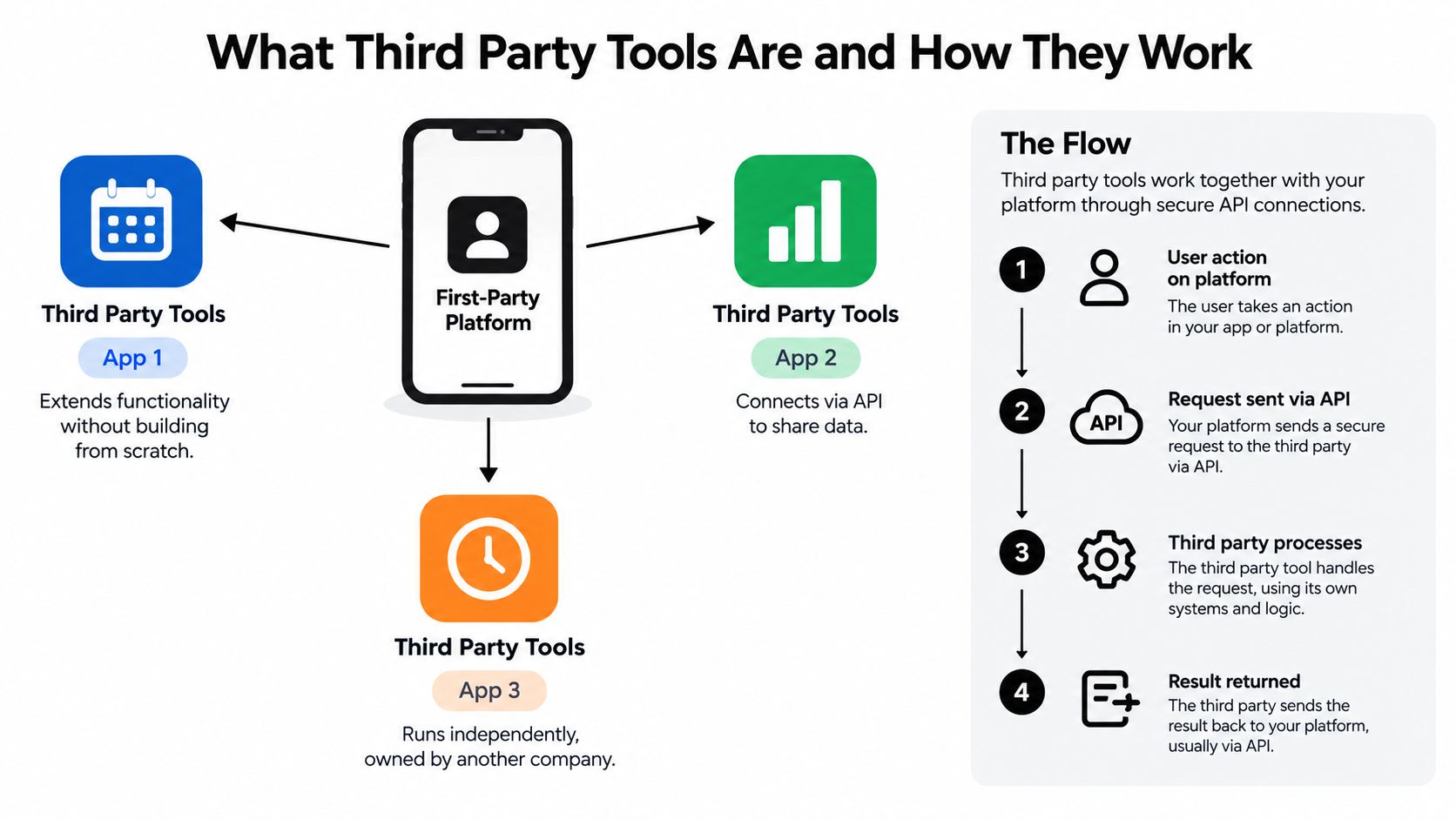
A third party tool is software made by one company that connects to a platform owned by another company.
In plain terms, Instagram builds Instagram. Shopify builds Shopify. Google builds Google Workspace. When another company creates a scheduler, analytics dashboard, approval app, or plug-in that works with those platforms, that outside product is a third party tool.
The easiest way to understand it is to separate the roles.
- First party tools come from the platform owner.
- Second party usually refers to a direct partner in a business relationship.
- Third party tools come from another company and add a function around the main platform.
That definition matters because these tools do more than add features. They reshape how work moves.
If your team drafts in one app, reviews in another, stores assets in a third, and publishes from a fourth, each connection becomes part of your workflow design. The question is not only "Is this tool safe to connect?" It is also "Does this connection reduce handoffs, or add another stop?"
How the connection usually works
Most third party tools connect in three common ways.
API access
The platform provides a structured way for another tool to request or send information. A scheduler can send a post to a social platform through that connection, if the platform allows it.Extensions or plug-ins
The tool runs inside or beside another app. Browser extensions, Shopify apps, and design add-ons fit here.Embedded integrations
One app appears inside another through an app marketplace, an official connector, or an account sync.
From the user side, the process is usually simple. You click "Connect account," sign in, and approve a set of permissions. Behind that short setup, the two tools agree on what data can move, what actions are allowed, and how often they sync.
A useful analogy is a small workshop. The platform is the workbench. Third party tools are the specialized attachments. A good attachment helps you finish a job faster and with less manual effort. Too many attachments, or the wrong ones, clutter the bench and slow you down.
Why teams use them
Creators and small businesses use third party tools because native platforms rarely cover the whole job from planning to publishing to reporting. One tool may be better for drafting. Another may be better for approvals. Another may be better for pulling performance data into one place.
That is why third party tools are best viewed as workflow choices, not just software purchases.
For example, if campaign data lives in separate ad accounts, site dashboards, and reporting tabs, tools with unified tracking integrations can pull those signals together so the team spends less time switching screens and copying numbers by hand.
The same logic applies earlier in the process. A clear planning hub helps you decide which tasks belong in a native app and which should happen elsewhere. If you are sorting out that boundary, this guide to choosing a content planning tool can help clarify where planning should live before you add more execution tools.
A good third party tool does not just add capability. It removes friction from a repeated task and fits into a system your team can still control.
Common Use Cases for Third Party Tools in Social Media Workflows
Social media work is where third party tools become easy to understand, because the pain is visible. You need to publish often, adapt content to different platforms, keep assets organized, and still know what performed well. Native apps can do pieces of that. They rarely handle the full routine cleanly.
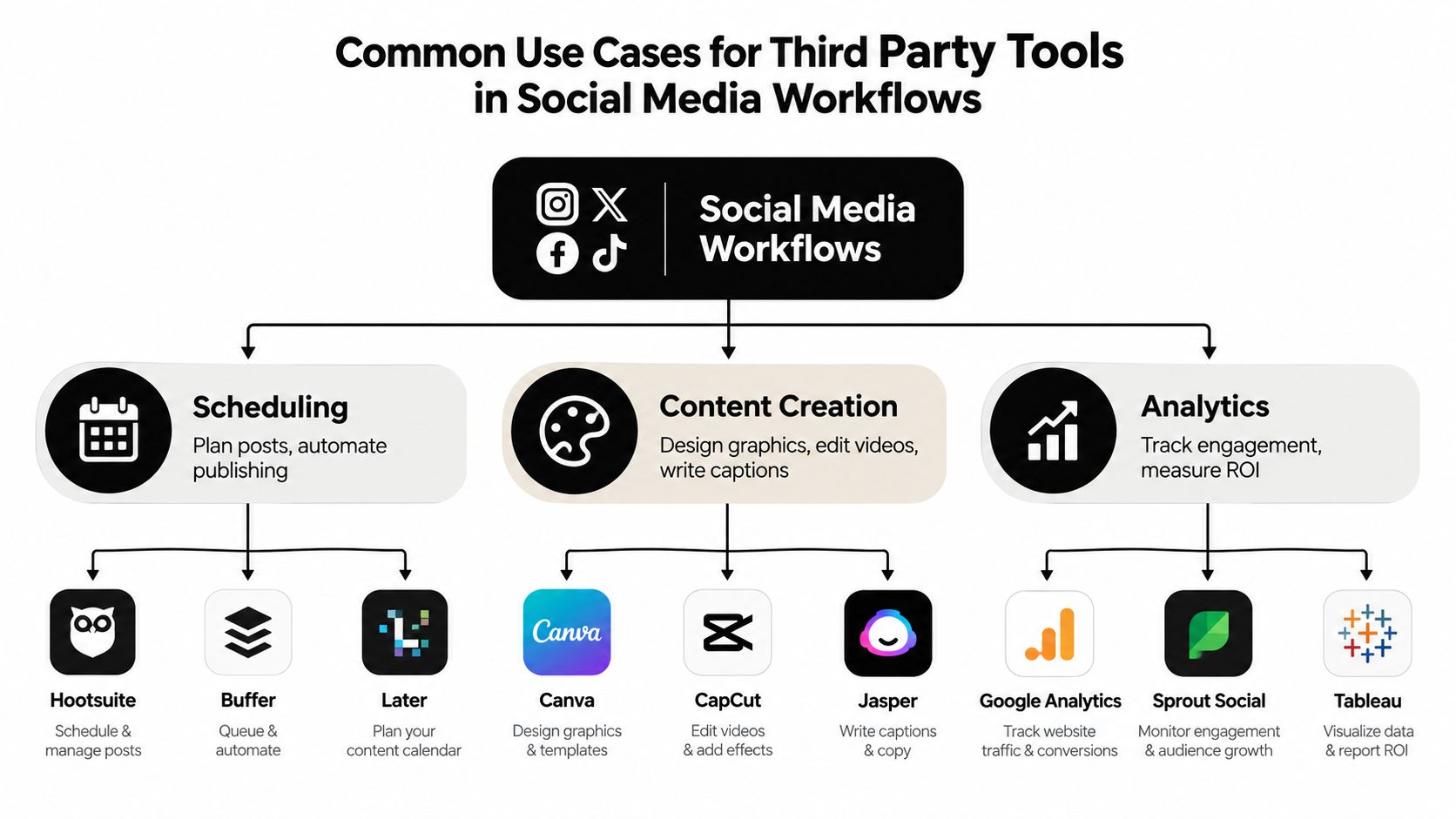
Scheduling and cross-platform publishing
The most common use case is simple: one draft, several destinations.
A creator records one short video, then needs different captions, thumbnails, and post timing for Instagram, TikTok, LinkedIn, and YouTube Shorts. A third party scheduler helps batch the work, assign times, and avoid manual posting from every native app.
This matters most when consistency is harder than creativity. Many people can come up with ideas. Fewer can publish them on time across several channels for weeks in a row.
If short-form video is part of your stack, practical guides on how to schedule Instagram Reels can help clarify where native posting stops being enough and where a third party scheduler starts saving time.
Content creation and repurposing
Another major category sits upstream from publishing. Design apps, caption assistants, clip editors, asset libraries, and AI helpers all count as third party tools when they connect to your wider workflow.
Typical examples include:
- Design tools like Canva for graphics, carousels, and story assets
- Video tools like CapCut or Descript for trimming and repurposing clips
- Writing assistants for caption drafts, hooks, and headline variations
- Media libraries that keep logos, templates, and reusable brand files in one place
These tools reduce repeated effort. Instead of making every asset from scratch, you reuse formats that already fit your channels.
Analytics and reporting
Publishing is only half the workflow. You also need feedback.
Native analytics are useful, but teams often add third party reporting tools when they want one dashboard, cleaner exports, or campaign views that span multiple platforms. That's especially helpful for agencies and small teams who need quick answers to basic questions: Which post format worked? Which channel deserves more effort? Which campaign was mostly noise?
The lightweight hub approach
The mistake is letting each job get its own isolated app. That's how a workflow turns into scavenger hunting.
A lighter approach is to pick one hub for the center of the workflow, then add only a few specialist tools around it. For social media, the hub is often your scheduler or publishing dashboard. Creation tools feed into it. Analytics tools read from it or sit beside it. Native apps stay in use for final checks, replies, and platform-specific actions.
A healthy stack doesn't remove every native app. It reduces unnecessary switching between them.
If you're mapping repetitive tasks, this walkthrough on how to automate social media posts is a useful next step.
Benefits and Risks You Should Weigh Before You Connect
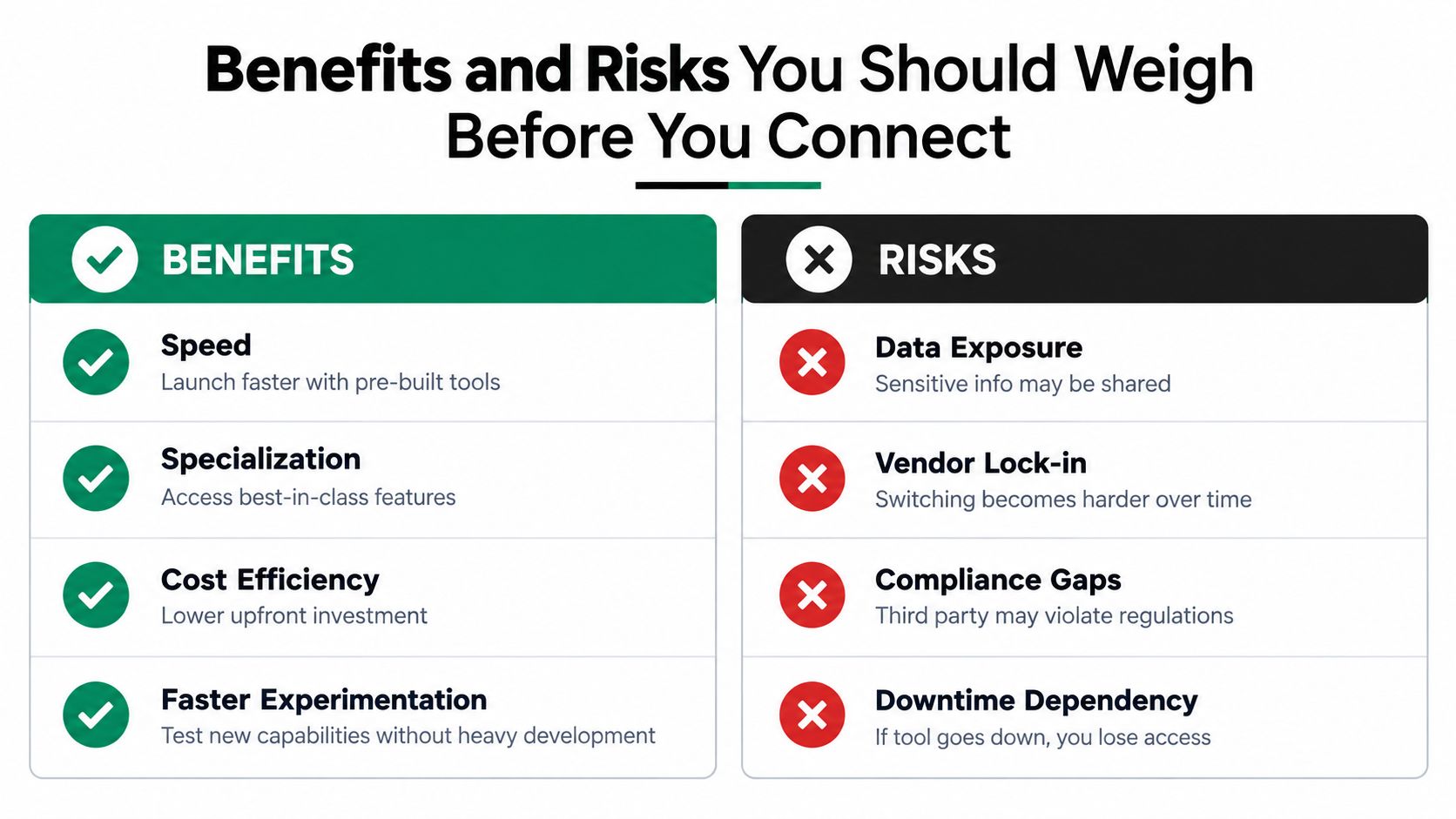
Third party tools can make a small team feel bigger. They can also widen your exposure if you connect them without boundaries. Both things can be true at once.
What you gain
Here's the appeal in plain terms.
| Benefit | What it looks like in daily work |
|---|---|
| Speed | You publish, report, or repurpose without doing the same steps manually in every app |
| Specialization | You get a focused feature set that a broad platform may never build well |
| Lower switching costs | You can change parts of your stack without replacing the entire system |
| Faster testing | You try a new process or content format without building custom software |
For many creators and SMBs, that's enough reason to use them. The software market has leaned this way for years because teams want flexibility, integration, and more control over how work gets done.
What can go wrong
The risks are usually less dramatic than people imagine and more routine than they expect.
A connected app may request more permissions than it needs. An abandoned browser extension may still have access to your account. A reporting tool may collect data nobody on the team reviews. The danger isn't only “bad vendors.” It's weak decisions about access, necessity, and maintenance.
Independent research on 4,700 websites found that 64% of third-party applications accessed sensitive data without legitimate business justification, up from 51% the year before, and 47% of applications running in payment frames were unjustified according to Cybersecurity Insiders coverage of the research.
That number matters because many website and marketing stacks are full of small additions: tags, pixels, chat widgets, analytics scripts, form embeds, and checkout helpers. Each one may seem harmless in isolation.
Here's a short explainer before the next point:
Risk is also an operations problem
Even if every tool is reputable, your team can still lose control through volume.
A 2025 survey found that organizations managing 1,001 to 5,000 third-party relationships had the weakest outcomes across breach frequency, litigation cost, detection time, and overall risk score, including 7 or more annual security incidents and 31 to 90 days to detect breaches in the Kiteworks annual survey report.
Small teams aren't managing thousands of relationships, but the lesson still applies. Past a certain point, extra tools create review debt. Nobody remembers why something was installed, who approved it, or whether it still needs access.
If your publishing stack keeps expanding, it's worth reviewing where automation helps and where it multiplies moving parts. This practical guide on how to automate Twitter posts can help you spot that difference.
How to Evaluate and Integrate Third Party Tools Safely
A good tool decision starts before the free trial. Don't ask only, “Can this do the job?” Ask, “What access does it need, what process does it change, and how easy is it to undo later?”
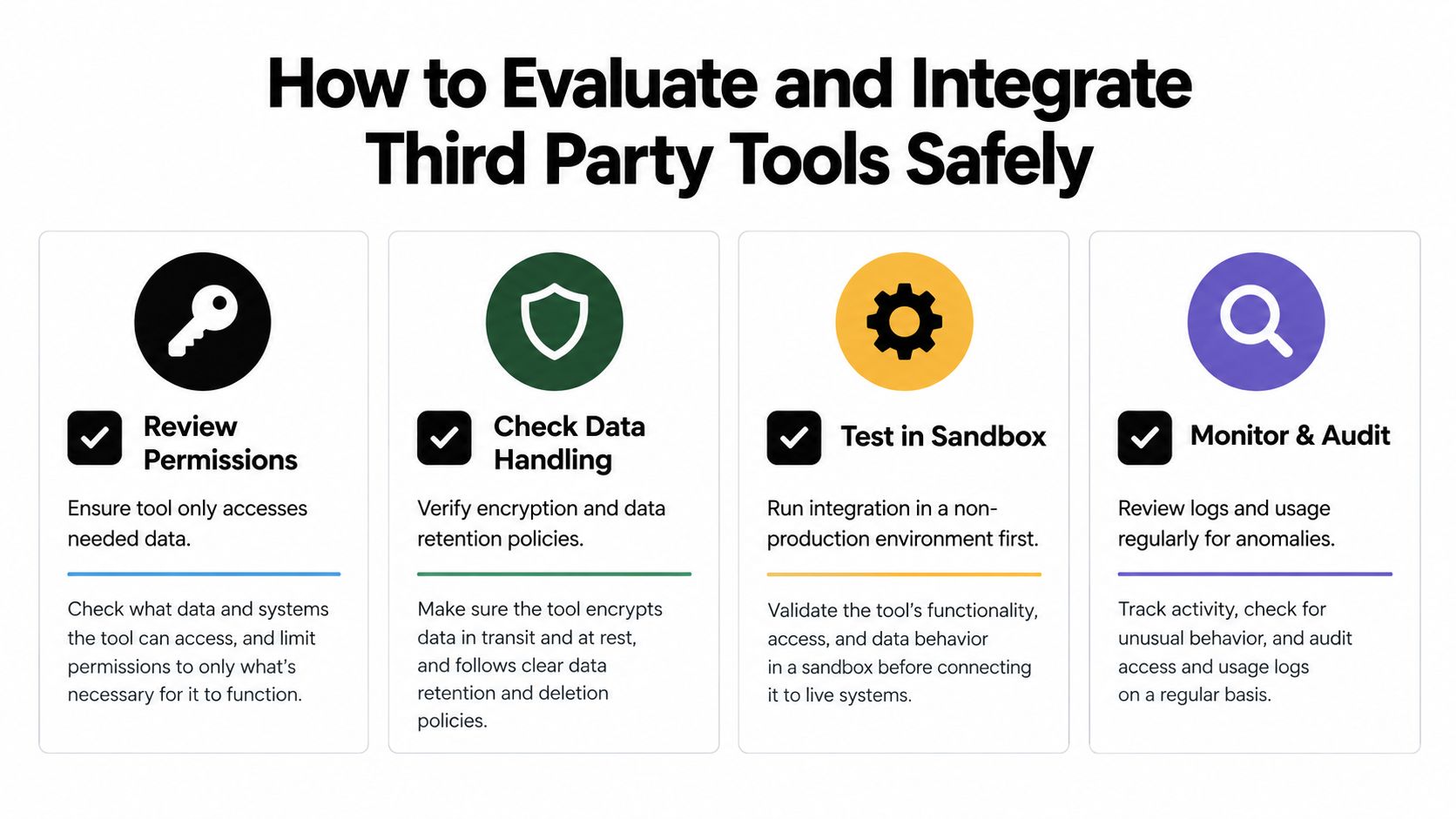
A lightweight evaluation checklist
Use this before you connect anything important.
Check the actual job
Write down the task the tool is supposed to remove. Not a vague goal like “better workflow.” A real task, such as scheduling posts across channels, collecting approvals, or centralizing assets.Review permissions carefully
If a tool only needs publishing access, it shouldn't need admin control over everything. The broader the permissions, the more caution you should apply.Look at data handling
Ask where content, account tokens, customer data, or analytics are stored. If the answer is unclear, that's already useful information.Test the exit path
Export sample data. Disconnect and reconnect an account. See what happens if you stop using the tool.
Integration habits that reduce mess
The safest workflows usually look boring, and that's a compliment.
- Use least privilege so each connection gets only the access it needs.
- Keep an allowlist of approved tools, extensions, and connectors.
- Store ownership clearly by assigning one person or role to each connected account.
- Review on a schedule so old tools don't keep silent access forever.
A helpful principle for smaller teams is to treat every connected app like a tiny contractor. Give it a clear job. Give it limited access. Review whether it still belongs.
Don't evaluate third party tools as one-time purchases. Evaluate them as ongoing relationships.
Sensitive stacks need stronger controls
Some environments need more than basic hygiene. If tools relay requests through middle layers, the architecture itself matters.
One empirical study of LLM tool invocation found that 68 real-world routers were actively exploitable because intermediary routers could inspect and forward full JSON payloads without end-to-end cryptographic integrity, according to the published study summary. The practical guidance from that finding is straightforward: use fail-closed routing, check returned payloads for anomalies, and keep append-only logs where sensitive workflows are involved.
Extensions deserve similar caution. A 2026 analysis of the VS Code ecosystem examined 52,880 extensions and flagged 2,969, or 5.61%, as potentially harmful, showing how easily broad extension permissions can become a supply-chain issue in the Jit summary of the analysis.
For small business owners who are building automations step by step, resources like revid.ai's automation tools guide can help compare categories without overbuilding the stack.
Workflow Examples for Creators and Small Businesses
The easiest way to choose third party tools is to stop thinking in categories for a minute and look at actual work.
Example one for a solo creator
A creator records three short videos on Monday. The rough workflow might look like this:
- Native capture stays native because the phone camera or platform recording tool is fast and familiar.
- Editing happens in a specialist video tool because trimming, captions, and visual cleanup are easier there.
- Thumbnails and carousel slides sit in a design app where brand templates already exist.
- Publishing moves into a central dashboard so the creator can batch captions, assign times, and tailor copy by platform.
- Final engagement happens natively because replying to comments and joining trends usually works best inside the platform itself.
This setup keeps the center of gravity simple. Create in a few specialist apps. Publish from one place. Engage where the audience is.
Example two for a small business team
A small business launching a weekend promotion has a different challenge. Several people touch the content.
One person writes the offer. Another updates product images. A manager approves copy. Someone else publishes to Instagram, Facebook, LinkedIn, and X. If all of that happens through email threads and separate logins, the campaign slows down before it even starts.
A lighter stack could look like this:
| Workflow step | Best home |
|---|---|
| Offer details and campaign notes | Shared planning doc |
| Visual assets | Design tool or shared media folder |
| Post customization by channel | Publishing hub |
| Approval check | Inside the scheduling workflow or one shared review step |
| Replies and community management | Native social platforms |
In that kind of system, one hub reduces repeated handoffs. A tool such as SleekPost can sit in that middle layer for scheduling, platform-specific customization, and AI-assisted repurposing, while design and conversation still happen in their natural homes.
What both examples have in common
Neither workflow tries to force everything into one giant platform. That usually creates friction. Instead, each keeps a small center and a short list of supporting tools.
That's the balance teams need. Not fewer tools at any cost. Better placement of tools so the workflow stays understandable.
Strategies to Reduce Tool Sprawl Without Losing Power
Tool sprawl usually starts with good intentions. Someone needs faster approvals. Someone else wants better analytics. A freelancer adds a plug-in to save time. None of those choices feels serious on its own.
The problem appears later, when nobody can see the whole stack.
Build around one hub
Choose one tool to act as the operating center for a workflow. For social media, that's often the publishing layer. For other teams, it might be the CRM, help desk, or commerce platform.
Then ask of every other tool: does it feed the hub, support the hub, or duplicate the hub?
Keep only tools with a clear role
A short audit helps:
- Keep the tool if it does a distinct job your hub can't do well.
- Replace it if another approved tool already covers the same task.
- Remove it if nobody owns it, reviews it, or uses it regularly.
Small stacks are easier to govern, easier to explain, and easier to fix when something breaks.
Make reviews part of the workflow
A clean stack doesn't stay clean by accident. Someone needs a recurring habit of checking connected apps, reviewing permissions, and retiring leftovers.
If your team is thinking about consolidation, this roundup of team productivity tools is a practical way to compare what belongs in a core toolkit versus what should stay optional.
The best outcome isn't “zero third party tools.” It's a stack where each tool has a job, a reason, and a boundary. That's how you keep the speed without inheriting the chaos.
SleekPost gives creators, marketers, and small businesses a lightweight hub for one of the messiest parts of modern work: multi-platform social publishing. If you want one clean place to schedule posts, customize content by channel, manage assets, and reduce tab overload, take a look at SleekPost.