A creator fills a blank sheet with a month of ideas, then reaches week two and discovers the posts have no actual publish times, platform-specific formats, or clear handoffs. The calendar looks complete, but the work still has to be translated into drafts, assets, approvals, and scheduled posts. That gap is where a useful content calendar template earns its place: it makes the next action and its owner visible, instead of collecting ideas that never leave the sheet.
The right format depends on how you plan and publish. A solo creator may need little more than a clear weekly view. A team handling reviews and creative assets may need owners, status fields, and separate deadlines. Either way, almost none of the templates below publish posts by themselves. You'll still need a scheduler, a publishing integration, or a manual process to move approved content onto social platforms.
A calendar works best when it ties topics to audiences, channels, owners, and objectives, then leaves room to track what happens after publication. That's more useful than a row of headlines and dates, especially when you're coordinating several formats or adapting one campaign for different networks. Start with the workflow you can maintain, then build a consistent publishing workflow around it.
Table of Contents
- 1. HubSpot Social Media Content Calendar
- 2. Hootsuite Social Media Content Calendar
- 3. Later Google Sheets Content Calendar
- 4. Airtable Social Media Calendar
- 5. Notion Basic Content Calendar
- 6. ClickUp Content Calendar
- 7. Asana Social Media Calendar
- 8. Canva Social Media Calendar
- 9. Buffer Social Media Calendar Templates
- 10. monday.com Social Media Calendar
- How the 10 content calendar templates differ in format, best use, and built-in publishing
- Choose the Template Your Workflow Can Sustain
1. HubSpot Social Media Content Calendar
For a small business that wants to plan across channels without learning a new workspace, HubSpot's spreadsheet-style template is an approachable starting point. Its monthly overview helps you see the broad publishing plan, while individual post schedules make room for channel-specific details. A content repository gives you a place to keep links, offers, and other materials close to the plan.
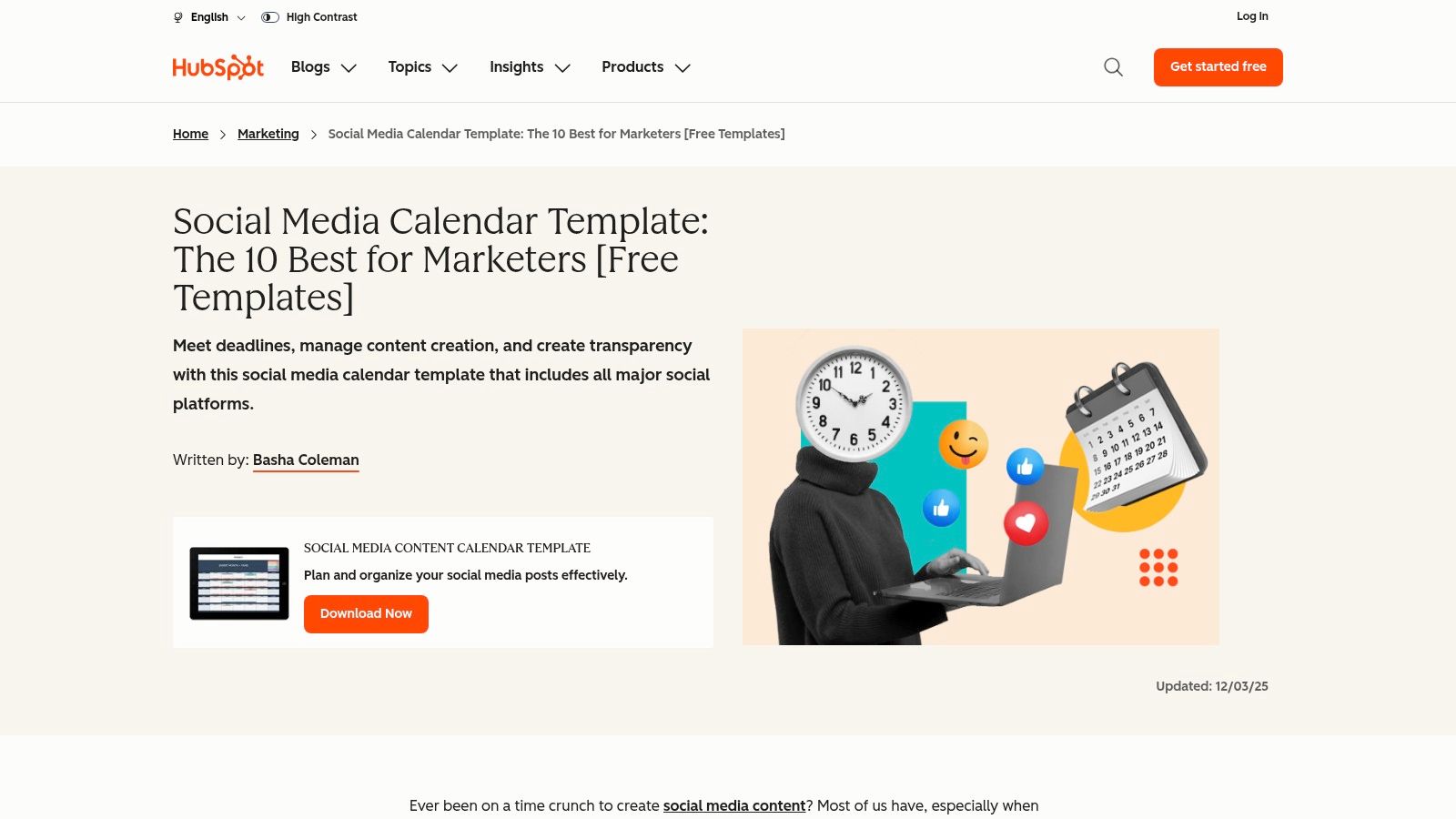
The familiar spreadsheet structure is easy to adjust if you want to add an owner, approval step, campaign name, or success measure. That matters because a calendar should connect publishing activity to an objective, not just record a topic and date. The Content Marketing Institute's 2024 B2B benchmarks found that 84% of surveyed B2B marketers said content marketing helped create brand awareness in the previous 12 months, while 46% agreed their organization measured performance effectively. A basic template can make room for the goal and KPI, but your team still has to decide what to measure and review.
Practical rule: Add only fields you'll keep current. A spreadsheet overloaded with unused columns is harder to maintain than a simple plan.
HubSpot's template is free to download, though access may involve completing a form. It doesn't publish or schedule posts, so you'll need a separate scheduler or manual upload process. If you're still clarifying what the calendar should do, start with this explanation of what a content calendar is.
2. Hootsuite Social Media Content Calendar
Hootsuite's template suits someone who wants to sketch a weekly or monthly social plan in familiar office software. The resource includes both calendar views and space for evergreen ideas, so it can hold scheduled posts alongside material you might use when a timely slot opens up. You can edit the files in common document and spreadsheet programs rather than planning inside a live social publishing calendar.
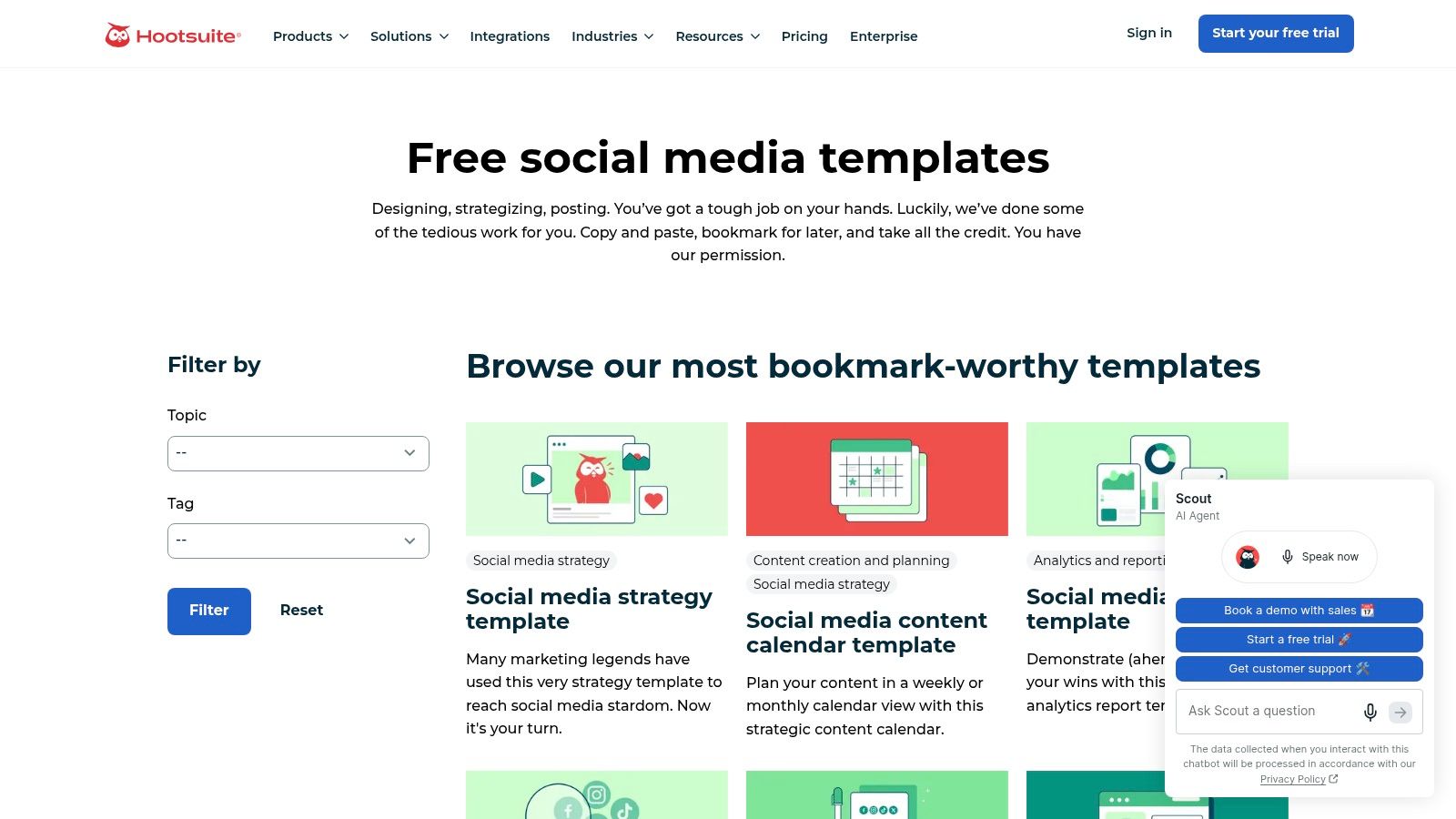
That flexibility is useful when a small team already shares files through its usual office tools. It also means the template won't automatically enforce the way your team works. If a post needs copy review, a design check, and approval from a client, add those stages explicitly or the calendar may show a publication date without showing whether the post is ready.
The Hootsuite template library offers a free downloadable planning resource, though downloading may require submitting a form. The template itself doesn't sync to social accounts or publish posts. Once a post is approved, someone still has to add it to a scheduler or publish it manually, including the right creative and copy for each channel.
For solo use, a weekly view can be enough to catch empty days and balance topics. Teams should adapt the template to reflect who owns each task and what “ready” means, rather than assuming a row with a date is ready to go live.
3. Later Google Sheets Content Calendar
Later's Google Sheets template is a strong fit for creators and social media managers who already collaborate in Sheets and want more post detail than a basic monthly grid provides. Its fields cover platform, content type, caption, hashtags, and publish date, while content-pillar and status tracking help keep the plan organized. Separate platform tabs give each network its own planning space.
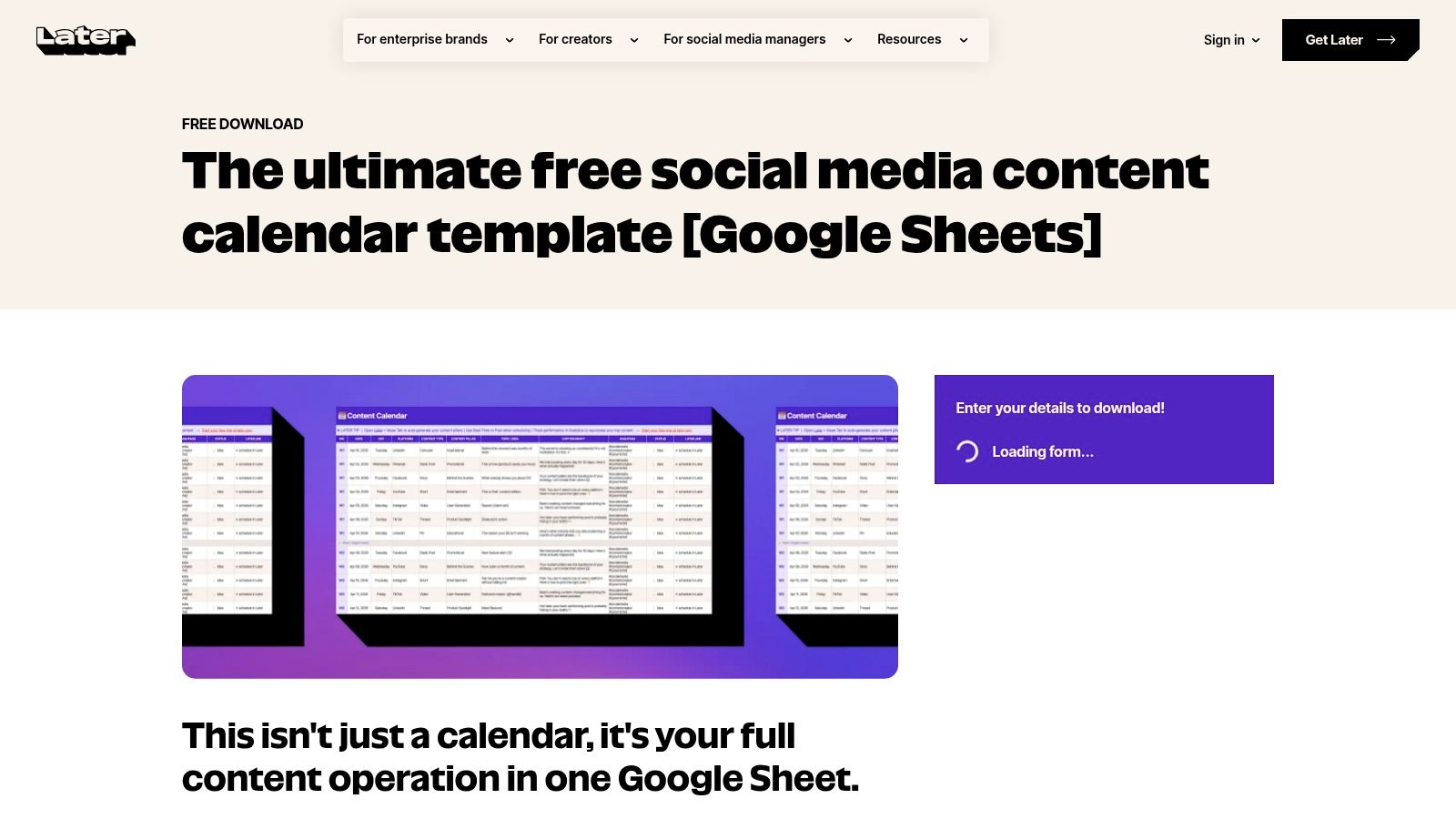
That level of detail makes the sheet practical for preparing social posts, and Google Sheets makes it easy to share with collaborators. The trade-off is that separate tabs create maintenance work. If you adapt one campaign for several networks, update each version deliberately; otherwise, captions or dates can drift apart while the spreadsheet still looks tidy.
A good adaptation plan records what changes by platform, not just where a post will appear. Marketing Dive's analysis of social discovery and distribution highlights why a single treatment doesn't fit TikTok, YouTube Shorts, and Instagram Reels equally. In the sheet, note the platform-specific hook, format, visual treatment, and call to action alongside the shared campaign idea.
Later's template is free, but downloading requires entering details. It's a planner, not a publisher, so approved posts still need to be scheduled elsewhere. If Instagram is a major part of your workflow, this guide to an Instagram content calendar can help you think through the channel-specific fields to keep.
4. Airtable Social Media Calendar
Choose Airtable when a spreadsheet's fixed rows and tabs no longer show the information each person needs. Its social calendar can present the same content records in calendar, list, gallery, and kanban-style views. You can organize posts by date, platform, owner, and status, then attach assets and connect records to broader campaign work.
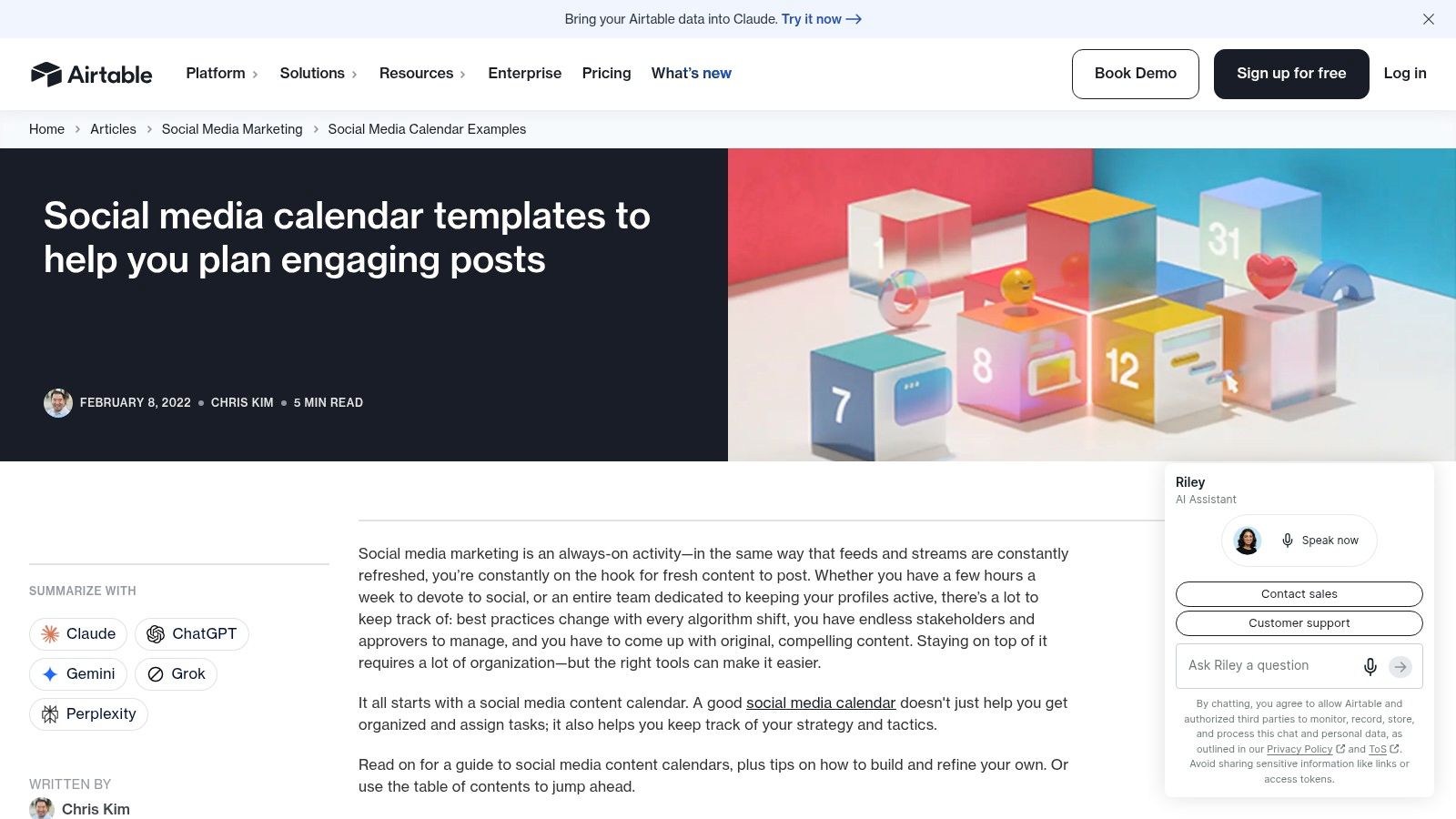
A designer might prefer a gallery of creative assets, while a manager may want a calendar filtered to upcoming posts. That's useful only if the underlying fields are set up consistently. Before customizing, agree on the minimum shared record: topic, platform, owner, publish date, status, asset, and objective. Add campaign links or review notes when they solve a real handoff problem.
Airtable's flexibility can become its own burden. A solo creator who only needs a monthly plan may spend more time configuring views and fields than planning posts. For a team, however, the ability to connect ideas, assets, and workflow records can reduce the number of disconnected documents.
The Airtable social media calendar guide is the place to explore its planning approach. Airtable doesn't replace a social scheduler by itself. You'll need an integration or another tool to publish, and someone must confirm that the approved record's copy and media are the versions sent to the scheduler.
5. Notion Basic Content Calendar
If your briefs, research notes, and project pages already live in Notion, its basic content calendar keeps the schedule close to the work. Each piece of content becomes a database entry with fields such as assignee, content type, and progress status. A calendar view makes upcoming work visible, while the same entry can sit alongside a brief or related planning page.
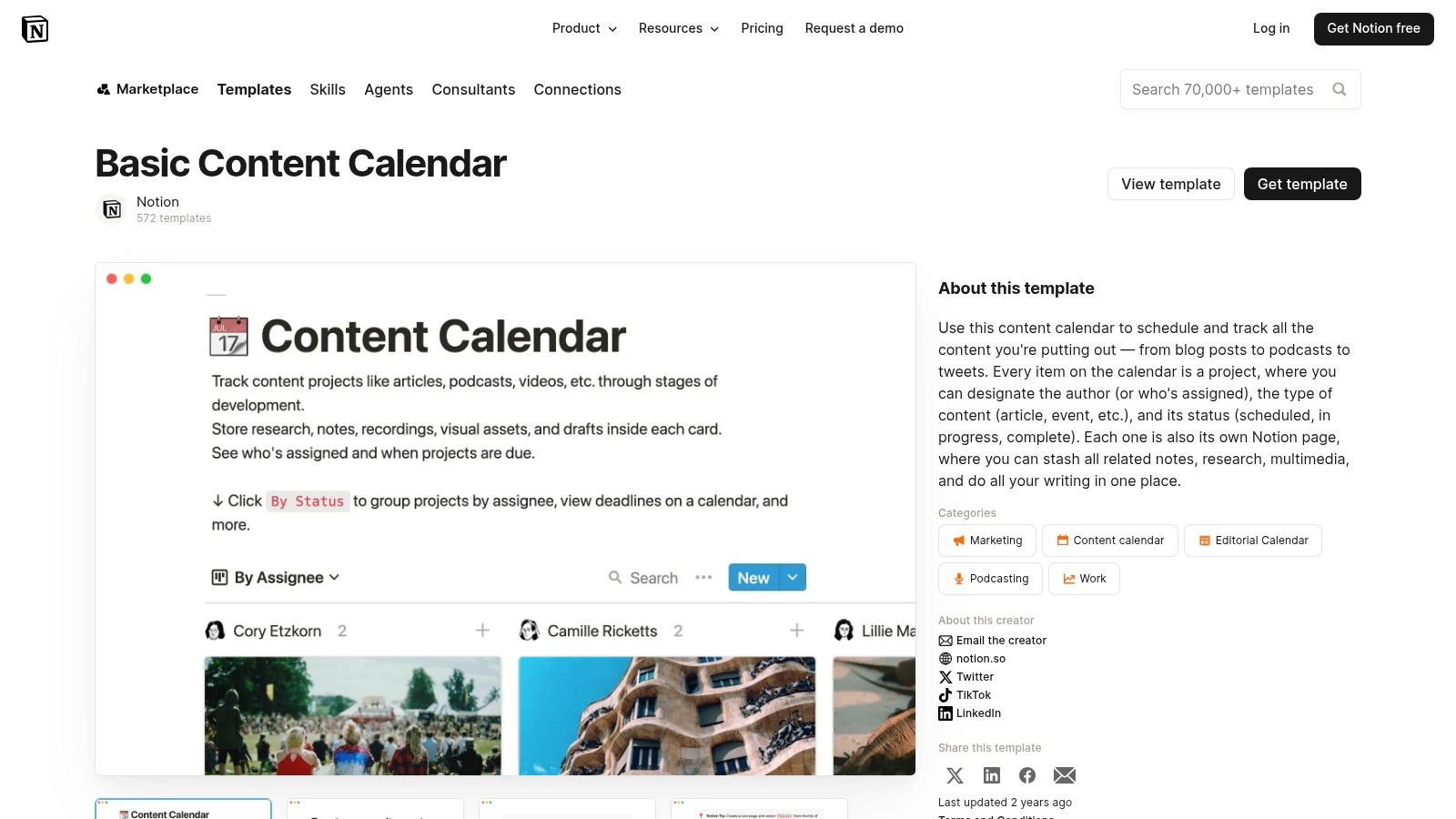
This format works beyond social posts. A creator can track an article, podcast episode, and promotional posts in the same system, then link them to research or production notes. The risk is under-designing the workflow: if “in progress” covers drafting, review, and final approval, teammates can't tell what needs attention. Set a short list of meaningful states before you fill the database.
A planning system should also record what a post is meant to answer and what needs human review. Hootsuite's social media trends coverage discusses social platforms as discovery tools and the importance of trust and authenticity as AI becomes more common in content work. A Notion entry can capture the audience question, searchable wording, accessibility needs such as captions or alt text, source notes, and whether AI assisted with a draft.
The Notion content calendar template is free and suits people who already use a Notion workspace. It doesn't automate publishing to social accounts. You'll still need a scheduler or manual posting, and the calendar's fields and workflow stages are yours to configure.
6. ClickUp Content Calendar
ClickUp is better suited to a team tracking production work than to someone who only wants a clean monthly grid. Its ready-to-use content calendar template includes multiple views, statuses, and custom fields. Owners, dates, channels, and campaigns can sit within the same project-management workflow, so the plan can show both what's due and what's waiting on review.
The listed template includes a folder with four views, seven statuses, and five custom fields. That gives a team more structure out of the box than a blank sheet, but a long status list only helps if each state tells someone what to do next. Keep the labels clear: “in writing,” “review,” and “published” are more useful than several overlapping versions of “in progress.”
A workflow tool should expose the next handoff, not just decorate the calendar with more statuses.
ClickUp can be adapted and reused for new planning cycles, and the template is free to get started. The full workspace may feel heavy if you're a solo creator or have a small volume of posts. Setup also takes time, so don't build complex automations before you know where work gets stuck.
The ClickUp content calendar template tracks planning and production, not social publishing. You'll need a separate publishing connection or scheduler to get approved content live. If you're weighing a planning workspace against a publishing tool, compare the difference in this guide to content calendar software.
7. Asana Social Media Calendar
Asana's social media and editorial calendar templates make sense when several people contribute to each post. Tasks can be assigned to owners, given deadlines, and discussed with comments, while custom fields can track the channel and status. The calendar view gives the team a readable view of what's due; task details handle the work behind each scheduled date.
That separation is useful for a campaign that moves from brief to draft, design, review, and approval. Reusable tasks and templates can standardize recurring production, while integrations may connect the planning workflow to other marketing tools. A calendar alone won't make approval rules clear, though. Decide who gives final sign-off, what changes require another review, and who moves a post into the publishing queue.
Use the calendar to make ownership explicit. One accountable owner can coordinate contributors without asking everyone to monitor every task.
The Asana content calendar overview covers templates for editorial and social planning. Its workflow coordination may be more than a solo creator needs, and structured tasks require setup before they reflect your real process. Social scheduling across platforms also depends on integrations, not the calendar template alone.
Keep the workflow small at first. If a post only needs one writer and one reviewer, a compact task with those owners and dates is easier to maintain than a multi-stage approval chain. Add steps when they prevent a recurring handoff from being missed.
8. Canva Social Media Calendar
Canva's social calendar suits teams whose planning and visual production already happen in Canva. Its customizable calendar templates and spreadsheet-style options can include platform, publish date, owner, copy, and approval stage. Sharing and export features also help when stakeholders need to review a campaign plan or see a polished calendar presentation.
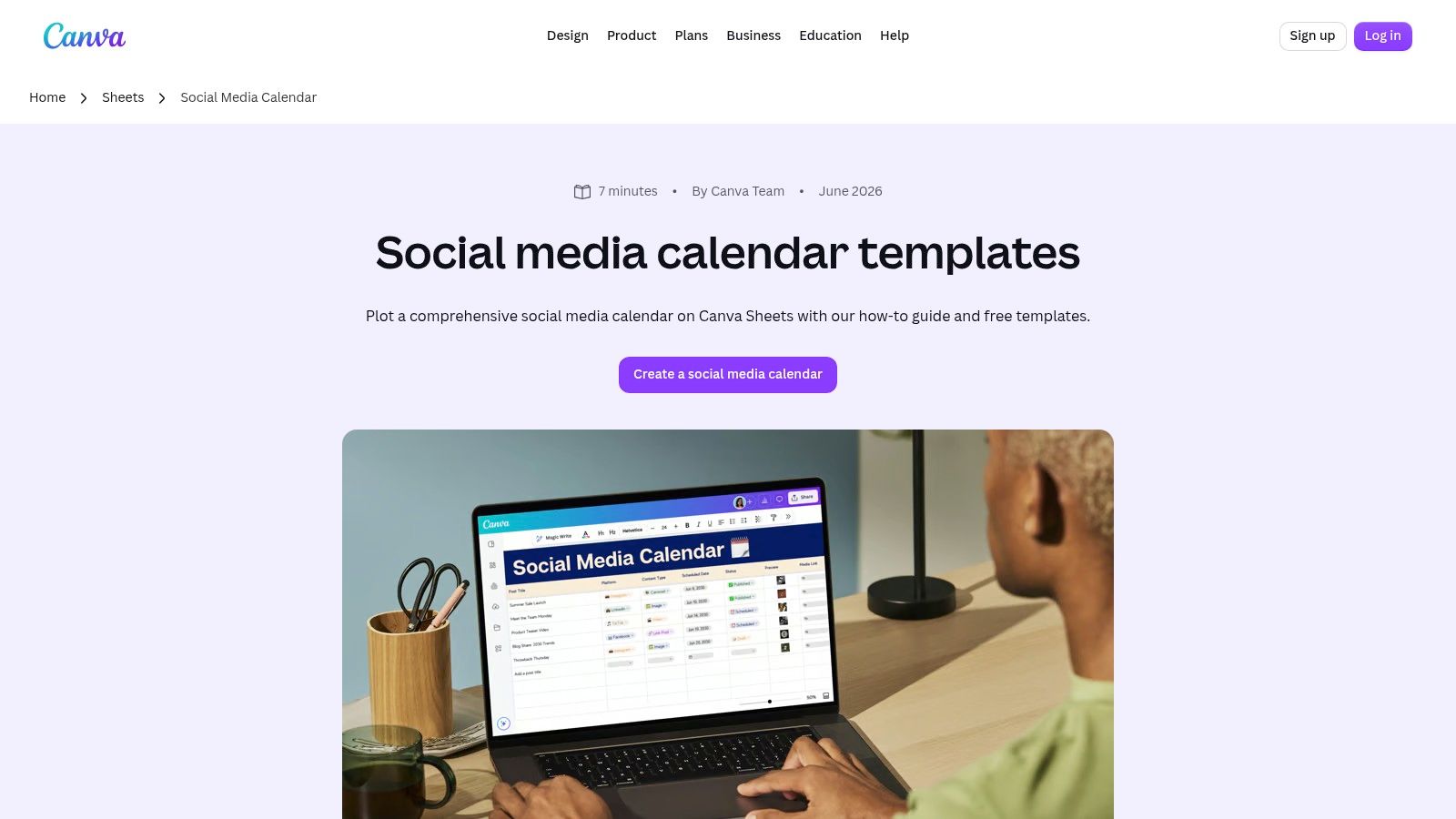
The clear advantage is visual continuity. If a designer is already building campaign graphics in Canva, it's convenient to keep the schedule and creative discussion close together. But a presentation-style calendar isn't always the best place to track production details. A polished overview can show what's planned without making it obvious which asset needs revision or who owes an approval.
Use the calendar as a planning view, and make sure each post still has a clear owner, status, and asset location. That keeps the visual plan connected to the actual work rather than turning it into a slide that goes stale after review.
The Canva social media calendar is customizable and can be shared or exported for stakeholder review. Template access and design options can vary by plan, and the calendar doesn't publish posts by itself. You'll need a separate scheduler or manual publishing process. For an example of how a schedule can support day-to-day planning, see this social media planner example.
9. Buffer Social Media Calendar Templates
Buffer gives you a choice between lightweight downloadable planning aids and a separate in-product calendar connected to scheduling. The downloadable options include weekly and monthly formats, printable PDFs, and guides for working in tools such as Sheets or Notion. A version that highlights suggested posting times can help turn a blank schedule into a first draft.
That prompt is a starting point, not a guarantee that a particular time will work for your audience. Use your own account results to adjust the plan, and avoid treating a suggested slot as a rule that every post must follow. Printable calendars are quick to scan, but they don't handle shared approvals or changing assets as well as a collaborative online workspace.
The Buffer social media calendar templates are free planning resources in several formats. The downloadable files don't publish posts. Buffer's separate product calendar connects planning with scheduling, but publishing from it requires using Buffer.
Choose the PDF if you plan alone and want a simple overview you can annotate. Choose a shared digital version when another person needs to edit or approve posts. Whichever you use, keep the final copy and media aligned with the version entered in your scheduler.
10. monday.com Social Media Calendar
monday.com is a fit for teams that want their social calendar to behave like part of a broader work board. Calendar and board views show when posts are due and what status they're in, with fields for platform, files, and other post details. Status updates and notifications can make review work visible to contributors and stakeholders.
This approach can help when campaign requests, creative assets, and approvals already move through monday.com. A team can adapt the board to different content categories and use it to keep stakeholders informed. An individual creator may find the workspace setup excessive if a shared sheet already covers the work.
Be careful not to confuse a visible status with a completed handoff. A post marked “approved” still needs the final copy, the right asset, and a scheduled publish time. Put those details where the person preparing the post can find them, rather than leaving them in a separate message thread.
The monday.com social media calendar template requires a monday.com workspace, and its planning board isn't direct social publishing. A scheduler or integration still has to send approved content to the platforms. For a practical way to keep the board manageable, use these content calendar best practices.
How the 10 content calendar templates differ in format, best use, and built-in publishing
| Item | Format | Best For | Built-in Publishing |
|---|---|---|---|
| HubSpot Social Media Content Calendar | Spreadsheet template | Small teams wanting monthly and post-level planning | No; requires a separate tool |
| Hootsuite Social Media Content Calendar | Document and spreadsheet templates | Weekly or monthly planning in familiar office tools | No; standalone template does not publish |
| Later Google Sheets Content Calendar | Google Sheets template | Collaborative social post planning with platform-specific fields | No; requires a separate scheduler |
| Airtable Social Media Calendar | Database with multiple views | Teams connecting schedules, assets, and workflows | No; requires integrations or another tool |
| Notion Basic Content Calendar | Notion database template | Creators managing varied content in Notion | No; calendar does not publish automatically |
| ClickUp Content Calendar | Project-management template | Teams tracking content from idea through review | No; requires a publishing connection or scheduler |
| Asana Social Media Calendar | Editorial and social calendar templates | Teams coordinating tasks, owners, and approvals | No; publishing requires integrations |
| Canva Social Media Calendar | Customizable templates and Canva Sheets | Teams planning posts alongside visual design work | No; template does not publish posts |
| Buffer Social Media Calendar Templates | Downloadable calendar formats and in-product calendar | Users wanting simple planning formats or Buffer scheduling | Yes, through Buffer's separate product calendar |
| monday.com Social Media Calendar | Collaborative board template | Teams managing schedules, reviews, and content workflows | No; template does not publish directly |
Choose the Template Your Workflow Can Sustain
Choose the simplest format that matches who plans, who approves, and where posts get published. If you're working alone and mostly need dates, topics, and captions, start with a spreadsheet or a basic calendar view. If collaborators need to review drafts, attach assets, or see what's blocked, move to a shared workspace where ownership and status are visible.
Don't choose a tool because it has the most fields. Every column and workflow stage adds upkeep. Keep the core record practical: the topic, audience or purpose, platform, owner, status, and publish date. Add platform-specific hooks, caption notes, assets, approvals, or performance results when they help someone do the next piece of work.
Almost none of the templates in this list publish posts on their own. A planning sheet or database can make the schedule clear, but you still need to move approved content to a scheduler or publish manually. If the calendar and scheduler are separate, treat the handoff as a real task. Record the final copy and asset, confirm the publish time, and mark the post scheduled so no one assumes a planned date means a post is queued.
Test one template for a single month before rebuilding your whole process. At the end of the month, check how often the calendar drifted from the actual publishing schedule, what caused the changes, and whether anyone missed a handoff. A few rescheduled posts may call for better status updates or more realistic deadlines, not a new platform.
Upgrade from a spreadsheet to a database or project-management tool only when a specific problem keeps recurring. If several people need different views of the same content, Airtable or Notion may help. If approvals, task dependencies, or stakeholder updates create real friction, ClickUp, Asana, or monday.com may be worth the setup. A weekly review and a weekly task calendar can also help you make changes before they turn into missed posts.
The right content calendar template isn't the one with the longest feature list. It's the one your team can keep accurate, and that connects each planned post to an actual publishing step.
SleekPost combines a visual content calendar with platform-specific post customization and scheduling from one dashboard. If you want to plan and publish without maintaining a separate calendar-to-scheduler handoff, visit SleekPost to explore its social publishing tools.