You've got a brand video ready, a client waiting for approval, and a phone that's still logged into the wrong TikTok profile. Someone asks for the verification code. Someone else edits the caption. By the time you hit publish, you're checking the avatar again because you're no longer sure which account you're using.
To manage multiple TikTok accounts without that uncertainty, treat every profile as a business asset with a named owner, a defined audience, and scoped access. The safest setup isn't a more organized way to share passwords. It's a workflow that lets people do their jobs without needing the account's direct login.
Table of Contents
- Choose the Right Setup for Your Account Count
- Control Access, Roles and Offboarding
- How to Set Up Each Account Step by Step
- Run the Production Workflow and Fix Failed Posts
- How to Schedule and Switch Between Accounts
- Start With Two Accounts Before You Scale
Choose the Right Setup for Your Account Count
A solo creator switching between a few personal profiles has different needs from a team publishing for several brands. Choose a setup based on both the number of accounts and who needs to work on them.
Multi-account setups compared
| Setup | Best for | Account capacity | Access model |
|---|---|---|---|
| Native app switching | One person managing a few personal accounts | Not published as a fixed limit; depends on the account type and login setup | One login per account |
| Organization Account with team logins | A brand with a small in-house team | Not published as a fixed limit; depends on the account type and login setup | Several users log in to the same account |
| TikTok Business Center | Agencies and multi-brand teams | One Business Center can request access to up to 200 TikTok accounts | Permissions granted to the Business Center |
| Scheduling tool with multi-account support | Teams publishing across many accounts from one dashboard | Set by the tool's connected-account allowance | Authorized account connections and tool-specific workspace permissions |
According to TikTok's Business Center account-management documentation, one Business Center can request access to up to 200 TikTok accounts. The documentation states no limit on how many Business Centers an individual TikTok account can authorize. This is an account-access limit, not an advertising-account limit.
The key operational distinction is who controls access. Business Center lets a business grant access through an administrative hub rather than pass credentials between employees, agencies, and contractors. A scheduling tool handles publishing workflows; its account allowance and workspace permissions vary by product.
Choose infrastructure before convenience
An Organization Account supports shared account operation. Business Center centralizes access administration. A scheduler manages the publishing queue. These tools address different needs, so confirm who owns each profile and how access can be removed before choosing a publishing workflow.
When comparing social media management software, check its connected-account allowance and workspace permissions against the way your team works. A shared calendar will not resolve ownership or recovery issues if a profile depends on one person's login.
Practical rule: Count the profiles and the people who need access. Keep native switching for straightforward solo work; choose an organizational access model when collaborators or client ownership enter the picture.
Control Access, Roles and Offboarding
Give people access to the work, not to the login. A publisher needs to release approved content. An analyst needs performance information. Neither needs authority to change recovery details or remove the account owner.
TikTok's Custom Identity Transition FAQ describes role-based Business Center permissions and Organization Account access capabilities. Use those controls to implement a deliberate permission model, rather than giving everyone the broadest available role.
Recommended roles and permissions
These are planning defaults, not TikTok's official role names. Where a tool can't enforce them precisely, narrow the person's access or provide the information through a separate review process.
| Role | Publish posts | Edit account settings | View analytics | Remove members |
|---|---|---|---|---|
| Account owner | Yes | Yes | Yes | Yes |
| Publisher | Yes | No | Yes | No |
| Analyst | No | No | Yes | No |
| Client reviewer | No | No | Yes | No |
| Time-limited contractor | Yes, per campaign only | No | Yes | No |
Reserve settings changes and member removal for the owner because those actions affect everyone's ability to work. Analysts and client reviewers should receive view-only reporting access, not publishing authority disguised as convenience.
Give contractors an end date and a campaign boundary. If someone only needs to approve copy, route it through a content approval process instead of inviting them to operate the account.
Offboard across every connected system
Remove the departing person from Business Center, the account team, and any publishing workspace. Then change shared passwords and review authentication settings they could access, including recovery destinations and trusted devices.
Reassign their scheduled posts to an active publisher before the next publishing slot. Review connections they authorized, and reconnect under an approved owner where necessary rather than disrupting a healthy queue without a replacement.
Finally, inspect their uploaded media. Preserve licensed originals, approval evidence, and required business records before deleting obsolete or unauthorized assets.
Our account controls allow users to disconnect a social account, delete library media, and delete individual posts at any time. Treat those as separate cleanup actions, and don't assume deleting a library file also removes a live social post.
Every account needs a named backup owner who can recover access without contacting the person who just left.
Record the backup's responsibilities, not just their name. They need to know where recovery information lives and who can authorize emergency changes.
How to Set Up Each Account Step by Step
Set up accounts while you have access to the owner, recovery channels, and approved brand assets. Don't leave authentication decisions until the first scheduled post fails.
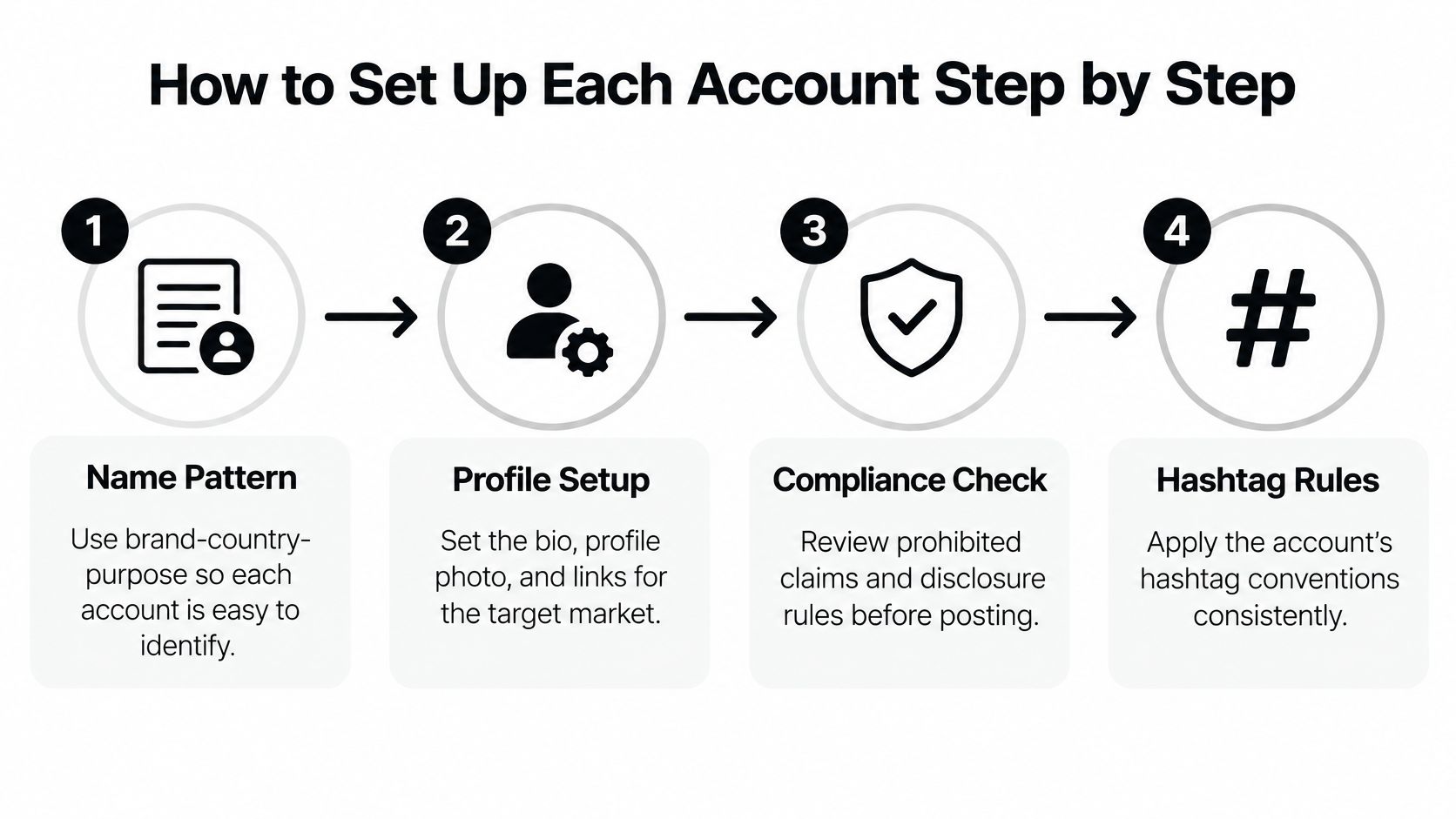
Use this visual checklist alongside the account register.
Build the identity and recovery record
Choose a naming pattern. Use an internal label such as
brand-country-purpose, then record the public handle separately. Include the owning organization in the register so similarly named client profiles can't be confused.Assign durable contact details. Give each account a dedicated business-controlled email address and, where you use phone-based recovery, a dedicated number you can retain. Store credentials in a password manager with controlled sharing, never in the same spreadsheet as the content calendar.
Configure two-factor login. Record where verification requests go and who can complete recovery if the usual operator is unavailable. Store recovery material securely, and test the handover without circulating codes through a general team chat.
For a separate development or quality-assurance workflow, quackr's temporary phone numbers for software testing may be relevant to testing SMS-dependent software. Keep temporary testing resources out of production account recovery, where you need dependable long-term control rather than short-lived access.
Define the profile before connecting tools
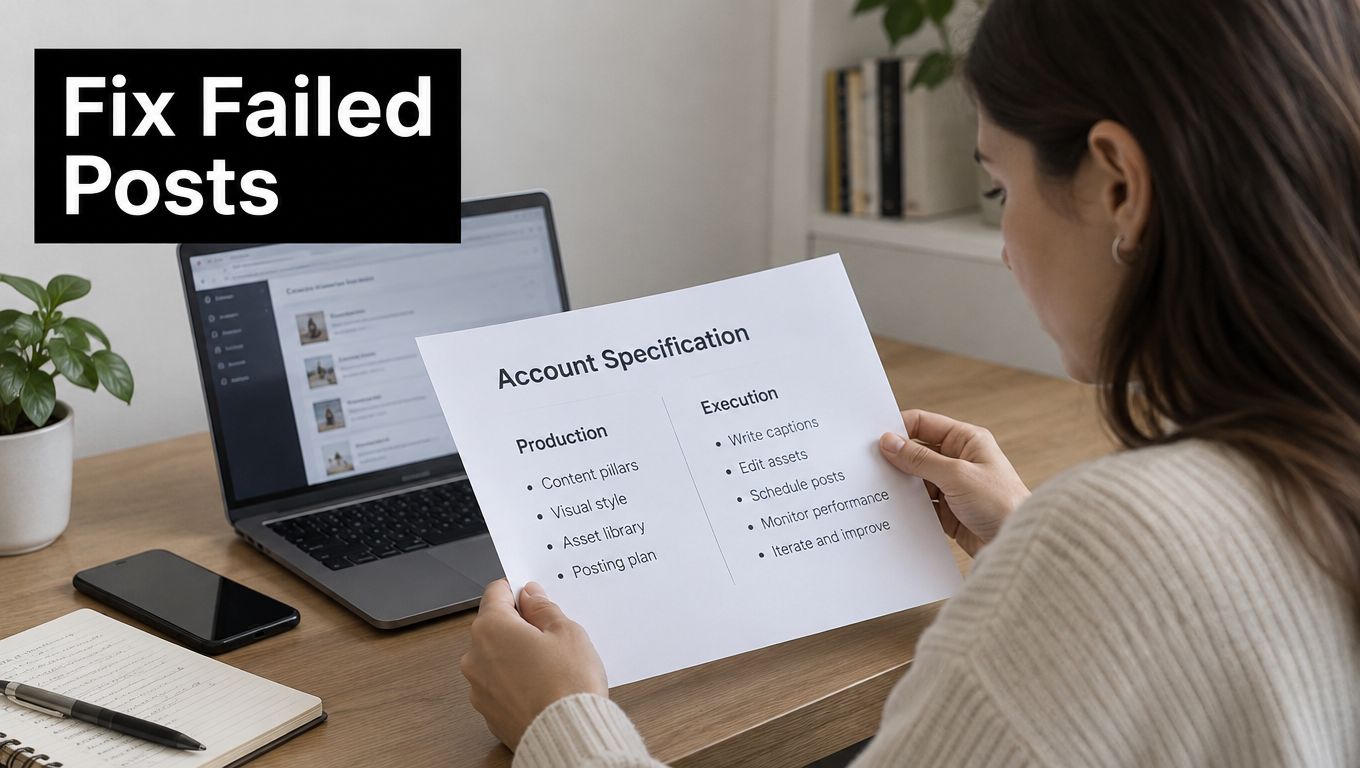
Create an account specification sheet. Document audience, country, language, voice, visual identity, prohibited claims, disclosure requirements, and hashtag conventions. Add examples of acceptable and unacceptable copy so a substitute publisher can make a useful decision without guessing.
Establish the organization structure. For accounts belonging to a business, configure the appropriate Business Center or Organization Account arrangement before sending invitations. Keep client ownership separate from the agency's permission to perform work.
Complete the public profile. Set the photo, bio, destination link, and suitable category using approved market-specific information. Use these TikTok bio ideas as writing prompts, then check that the final wording accurately describes that particular account.
Connect and test the publishing destination. Authorize the account in your scheduler, inspect its displayed handle and avatar, and create a clearly labeled test draft. Confirm whether that draft stays inside the scheduler or is transferred to TikTok, because those aren't interchangeable outcomes.
Finish with a verification pass, not an assumption that authorization succeeded. Open the connected profile, confirm its identity against the register, and inspect the draft wherever the tool stores it.
Record the result, connection owner, and any manual completion requirement on the specification sheet. Don't mark the account ready until another authorized person could understand how to publish and how to recover access from that record.
Run the Production Workflow and Fix Failed Posts
Separate content production from account-specific execution. Editors can work from shared source footage, but publishers need a destination-specific release package with the correct caption, rights clearance, approval, and publishing time.
TikTok's Organization Account documentation supports simultaneous multi-user management and secure QR-code linking to Business Centers and Ads Manager accounts. Treat those capabilities as access infrastructure, not permission to distribute identical videos across a portfolio.
Keep the specification sheet open during release checks.
Maintain a master content record
Use a spreadsheet, Airtable base, or project database as the release register. Give each source video a unique identifier, then create destination-specific entries when the same footage supports different account treatments.
Include these fields:
- Source and rights: Original file location, creator permission, music clearance, and any usage restrictions.
- Destination: Exact account handle, market, language, and campaign.
- Release version: Final render, caption variant, disclosure text, hashtags, and cover.
- Approval: Named reviewer, approval status, and any conditions that must be resolved.
- Execution: Scheduled time, time zone, publishing method, and resulting post status.
Don't overwrite an approved file with a fresh edit under the same filename. Keep the approved version identifiable so the publisher doesn't accidentally release an unreviewed export.
Adapt footage to TikTok's vertical presentation, checking text placement, subtitles, framing, and the opening hook. Then localize the actual message, including product availability, terminology, destination links, and cultural references. Translating a caption doesn't settle those decisions.
Put high-risk claims behind an approval gate
Require an independent reviewer for medical, financial, political, customer-result, and sponsored claims. The publisher shouldn't interpret silence as approval, and a previous campaign's sign-off shouldn't automatically cover a revised claim.
Say a supplement video promises a specific result for a US audience. Stop that version before assigning it to other market accounts, then ask the responsible reviewer to assess the claim, evidence, disclosure, and local suitability.
Release gate: Approve the exact file, caption, destination, and disclosure together. Approval of the general idea isn't approval to publish every variation.
Check sounds at the destination level too. A track used in an early creative draft shouldn't survive into the release package unless its intended use is cleared.
Diagnose the affected account first
Monitor each destination separately after release. Check publishing status, policy notices, copyright messages, unusual access alerts, and comments that need escalation.
Use this table as a triage guide, not proof of the cause. In particular, a reach decline alone doesn't establish a restriction or duplicated-content problem.
Multi-account symptoms, causes and first fixes
| Symptom | Likely cause | First fix |
|---|---|---|
| One account stops uploading | Expired login or session, or a policy notice | Reauthenticate through the approved process, check app notices, and pause that account's queue |
| Copyright notice on one account | Music or a clip may not be cleared for the intended use | Preserve the original, inspect the notice, and prepare cleared audio before considering republication |
| Reach drops on one account only | A restricted post or repetitive creative may be involved, but the cause is unconfirmed | Check account status and comparable posts, then differentiate the creative before any justified retry |
| Login alert on an account you didn't open | Unauthorized access or a shared-device session | Change the password, end unfamiliar sessions, and review team membership |
| Scheduled post never goes live | Time-zone mismatch, scheduling error, or connection failure | Inspect the time zone, post status, and connection before the next slot |
Start with the affected account rather than reconnecting the entire portfolio. If the same questionable asset or compromised credential touches other accounts, pause the related campaign while you investigate.
Never upload the same file to another account merely to test whether a restriction follows it. That creates another publishing decision before you understand the first failure.
Preserve a rollback path
Keep original footage, approved captions, and replacement edits in a rollback queue. Log the affected post, action taken, person responsible, and whether the correction has been checked.
A local library deletion isn't a reliable method for withdrawing content already published elsewhere. Verify the live account after removing or replacing a post, and keep an incident record outside any item you delete.
Build reliable posting around visible status checks and controlled retries. Automatic repetition is the wrong response when the unresolved issue involves policy, rights, or account security.
How to Schedule and Switch Between Accounts
Build the weekly calendar around each account's audience and editorial purpose, not the order in which files arrive. Batch production can save effort without turning every destination into a copy of the main brand profile.
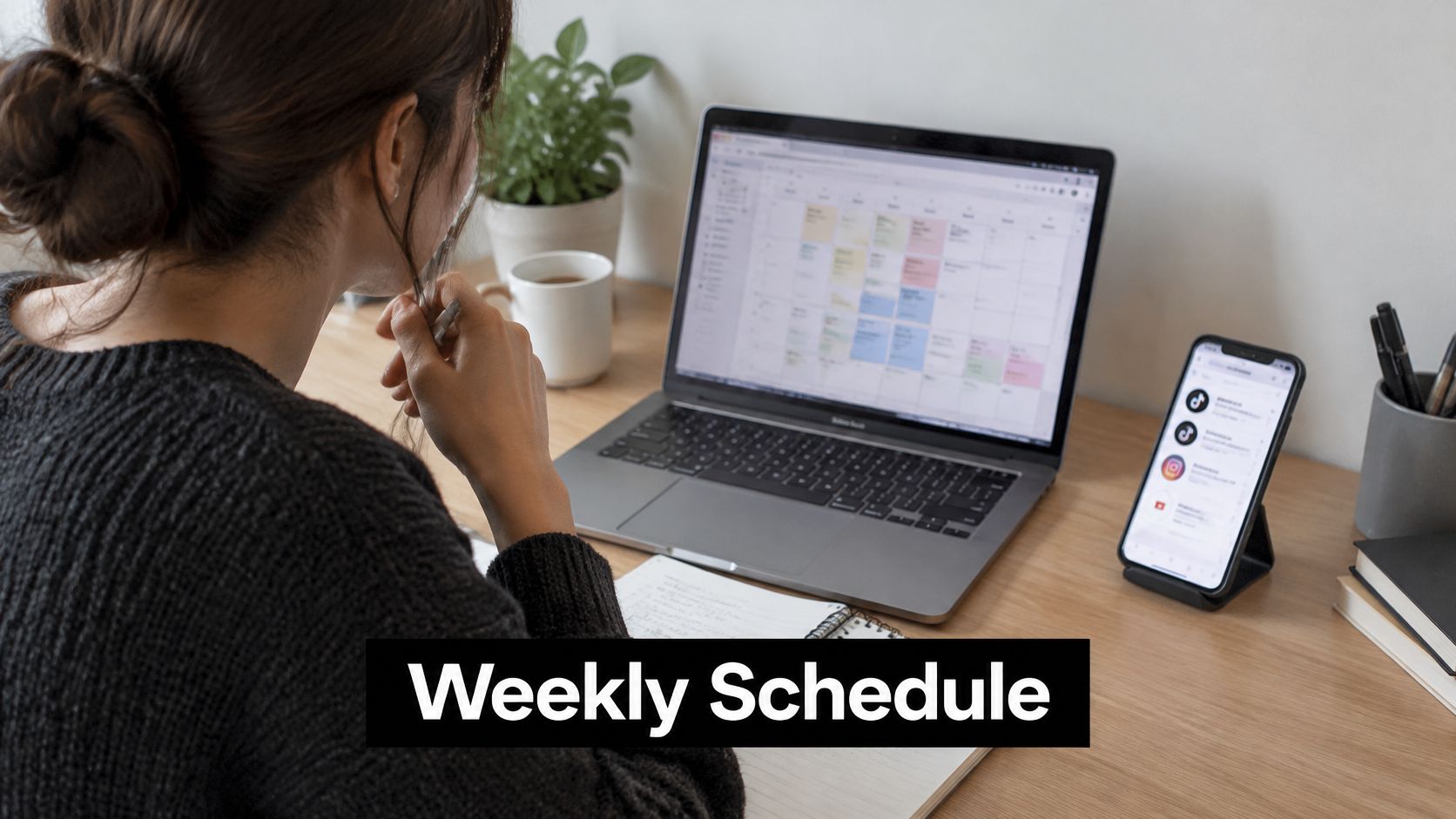
Keep the calendar visible while assigning the week's releases.
Run an account-by-account weekly routine
Batch source material, then assign destinations. Film related demonstrations, answers, or product footage together. Select which accounts benefit from each idea before preparing their release versions.
Stagger related releases. Give publishers room to inspect the first release before another account's version goes live. Start with plausible local audience windows, then adjust using that account's own results rather than treating morning or evening as universally best.
Finish one account's queue before switching. Filter to the destination, check its handle, complete its releases, and close that task. Avoid manually publishing for different accounts in the same uninterrupted work session, where it's easy to carry the wrong caption or profile context forward.
Review a unified calendar. Display the account label, content identifier, approval state, and time zone alongside scheduled and past posts. Use a TikTok posting schedule to organize the routine, then verify the destination before saving each entry.
Edit the scheduled item when possible. Correct approved changes before the publishing slot instead of deleting and rebuilding the post. Preserve useful history, and send material changes back for approval rather than replacing the signed-off version.
Hold a fixed queue review. For example, use Monday morning to resolve gaps, expired offers, missing approvals, and dependencies on launches. Leave deliberate empty slots where no suitable content is ready.
Staggering isn't a trick for avoiding enforcement. It helps operators inspect releases and compare account-specific responses without a simultaneous publishing rush, while differentiated creative keeps the profiles useful to their respective audiences.
Use the video as a separate walkthrough alongside your calendar checks.
Apply the calendar label test
Hide the profile pictures and inspect the calendar text. If you can't identify the destination account from the label alone, fix the naming before connecting another profile.
Start With Two Accounts Before You Scale
I'd pilot the workflow with two accounts before expanding the portfolio. That's a working recommendation, not a platform limit: it gives you enough variation to test handoffs without making every mistake a portfolio-wide cleanup.
Choose accounts with distinct purposes. For example, use a main brand profile and a market-specific profile, rather than creating another account solely to repeat the same feed.
Make expansion conditional
- Establish responsibility: Write down the owner and backup owner for the first account, then complete the other pilot account's record.
- Finish the release rules: Complete each specification sheet and name the reviewer responsible for high-risk material.
- Run a weekly pilot: Follow the staggered routine and log every publishing failure, access problem, and approval delay.
- Review before expanding: At the end of the pilot, resolve recurring failures and apply the calendar label test before adding another destination.
Move to organizational access as soon as another person needs operational access or a client owns the profile. Don't wait until a missed verification code forces you to decide who controls the asset.
For an e-commerce team, Silver Spoon Agency's guide to scalable TikTok marketing for e-commerce is a useful companion when deciding what additional accounts should accomplish. Keep that growth decision separate from whether your team can publish safely.
Choose the scheduler after the workflow
With SleekPost, users can connect 2 accounts on the same platform, and our Starter plan's 5-account allowance can all be TikTok accounts or a mix such as 3 TikTok and 2 Instagram accounts. Our Content Managing view brings scheduled and past posts together and lets you edit scheduled posts; we send posts and media through the selected networks' official APIs.
Review current pricing and feature details before committing, including platform support and the publishing method your content requires. Today's action is simpler: write the owner, backup owner, and specification sheet for your first account.
SleekPost gives you a shared place to organize connected accounts, prepare drafts, and schedule approved content without repeatedly switching between publishing screens. Visit SleekPost to set up your pilot accounts and build a calendar with a clear destination for every post.