 SleekPost
A media library stores images, video, audio, and documents with metadata so people can find, reuse, and preserve them, rather than dumping files in a folder. If you've ever scrolled a camera roll looking for the right product photo while a post window slipped by, you've felt the difference. The file was somewhere. Knowing which one was approved, current, and safe to post is the work a library does.
Table of Contents
- What a Media Library Actually Is
- Folder Library or Full DAM
- Cloud Drive or Media Library
- How Labels Make One File Reusable
- Organization Tagging and Versions
- What Teams Gain from a Real Library
- A Week of Reusing One Asset
- Choose the Light Library or Upgrade
What a Media Library Actually Is
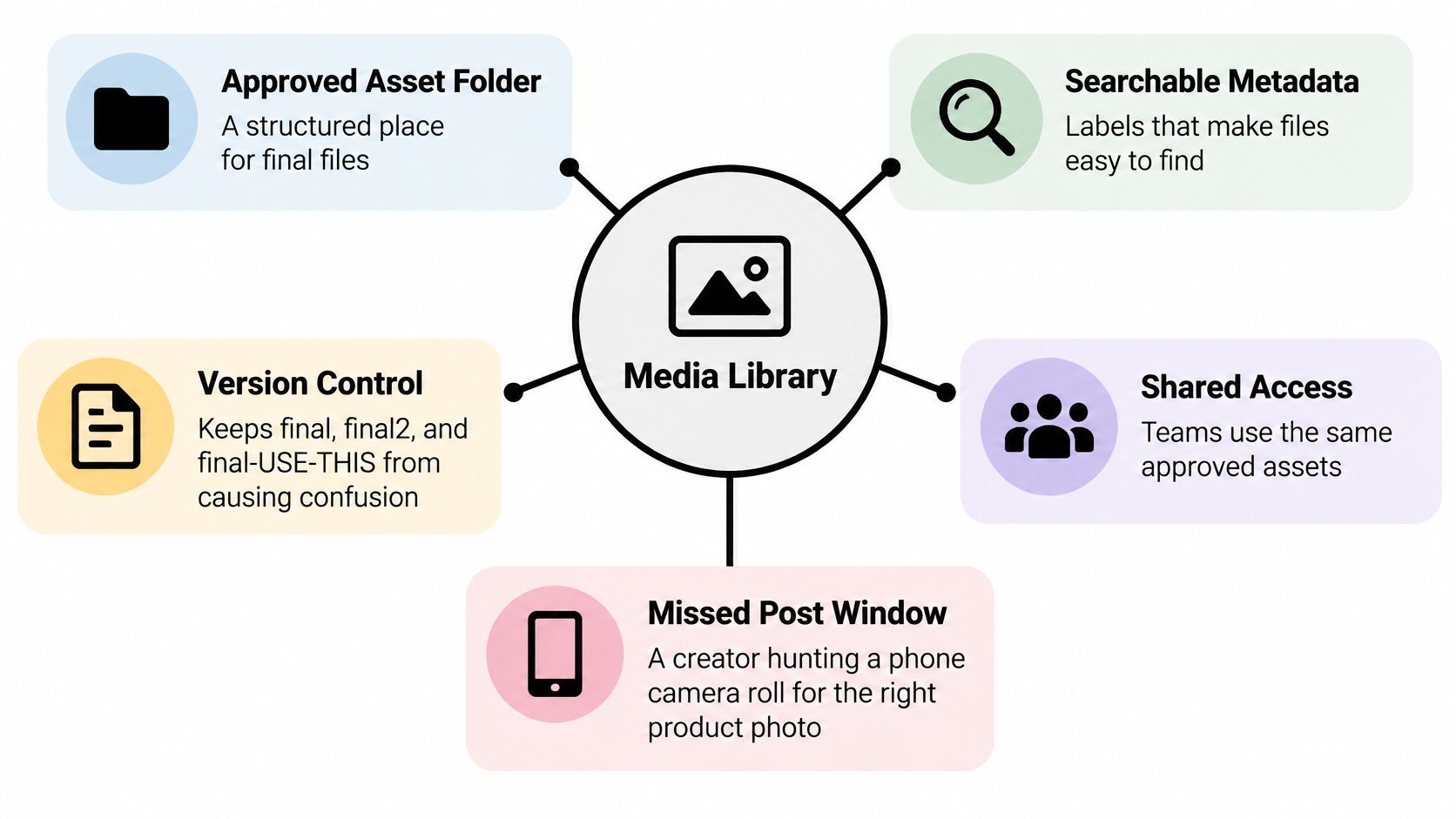
Say a creator plans a product post for late morning. Her phone holds final, final2, and final-USE-THIS, plus two exports from a design app and a screenshot someone sent in chat. She opens each one, checks prices, zooms in on the label, and still isn't sure. By the time she picks, the window has passed.
That isn't a storage problem. It's a finding and trusting problem.
A catalog, not a junk drawer
A junk drawer holds objects. A library catalog tells you which object you're looking at, who made it, and whether you may use it. A media library works the same way, as a structured collection for storing, organizing, describing, preserving, and retrieving digital or digitized media.
That covers images, photographs, audio, video, documents, and machine-readable files. The files sit alongside descriptive information called metadata, so you can find, identify, manage, reuse, and preserve them instead of guessing from a filename.
The same idea at full scale
The principle becomes obvious at institutional size. The Library of Congress general information page reports that in fiscal year 2023 its collections contained more than 178.2 million recorded items, including approximately 4.3 million audio materials, 1.8 million moving images, 15.7 million photographs, and 2 million machine-readable items. No folder system survives that. Each format also carries different preservation, copyright, technical, and access needs.
Your brand library is the same idea at human scale. Logos, campaign stills, reels, templates, and approved posts live in one searchable place, so the team stops saving duplicates and starts reusing what's already cleared.
Practical rule: Storage keeps bytes. A library keeps findable, reusable assets.
If you remember one thing about what a media library is, make it that. You're not buying space. You're removing the hunt, the second-guessing, and the accidental post of an old price.
Folder Library or Full DAM
Most short definitions stop at a central place for images, video, audio, and documents. That tells you nothing about which tool you need. Start with the three options side by side, then read down for your row.
| System | What it stores | How you find assets | Versions and rights | Best fit |
|---|---|---|---|---|
| Folder or camera roll | Files only | Filenames and date | None; copies multiply | One person, recent downloads |
| Media library | Files plus labels and previews | Search, tags, visual browse | Master plus crops; light status | Creator or small team publishing |
| Full DAM | Governed assets and rights records | Controlled metadata and permissions | Approvals, history, expirations | Agencies and multi-team reuse |
Reading the rows
A folder is fine when it's just you and the file is recent. You remember roughly when you saved it, so date order works. It breaks the moment someone else needs the file, or the same image gets copied three times with three names.
A media library adds upload, search, preview, tags, and reuse. Adobe's Experience Manager media library documentation sits in this territory of a basic library handling upload, search, preview, and reuse, while a full DAM adds metadata governance, version control, permissions, approval workflows, and usage-rights tracking. That middle row is where most creators and small teams belong.
A full DAM, short for digital asset management, is built for control. Several teams share client assets, licenses carry end dates, and someone must approve each use. That's operations software, not a publishing shortcut.
Complexity decides, not gigabytes
The split depends on operational complexity, not how much storage you've filled. A small brand with a few hundred posts usually needs fast retrieval and platform-ready files. An agency needs ownership rules and a license end date, so an expired music track never gets scheduled again.
Ask one question. When does a media library stop being enough? The clearest trigger is multi-channel or multi-party reuse, especially when licenses expire or several teams need a single source of truth.
- One person or small team: pick the library row and fix your labels first.
- Several clients or departments: you need permissions and history, so look at DAM.
- Licenses with end dates: tags alone won't protect you once expiry becomes daily work.
Don't treat a publishing library as a tiny enterprise DAM. Its job is speed, repeat use, and platform-specific cuts. Pick a row for this quarter, not a forever architecture, and revisit it when the team or the rights picture changes.
Cloud Drive or Media Library
Google Drive, Dropbox, and iCloud aren't media libraries, even though they store media. A sync drive holds files and folders with previews and sharing, but its search leans on filenames and whatever the uploader happened to type. A media library adds structured labels for campaign, status, and channel, and it links each cut back to its master. A drive can't enforce either habit.
Test any tool with three quick questions:
- Tag test: Can a teammate find the approved spring clip by tag in under a minute?
- History test: Does the system show which cut was posted?
- Status test: Does a draft stay clearly separate from an approved file?
If two answers are no, you've got storage, and a library is the layer above it. Say a freelancer shares a folder with final_v3 and final_v4 of the same reel. A library holds one master, marks v4 as superseded, and answers the question without a call. That matters even more when you're coordinating an omnichannel content strategy across several networks at once.
Drives still earn their place as backup. A library isn't a backup on its own, so keep a second copy of your masters outside it. Use the drive to protect files and the library to publish with them.
How Labels Make One File Reusable
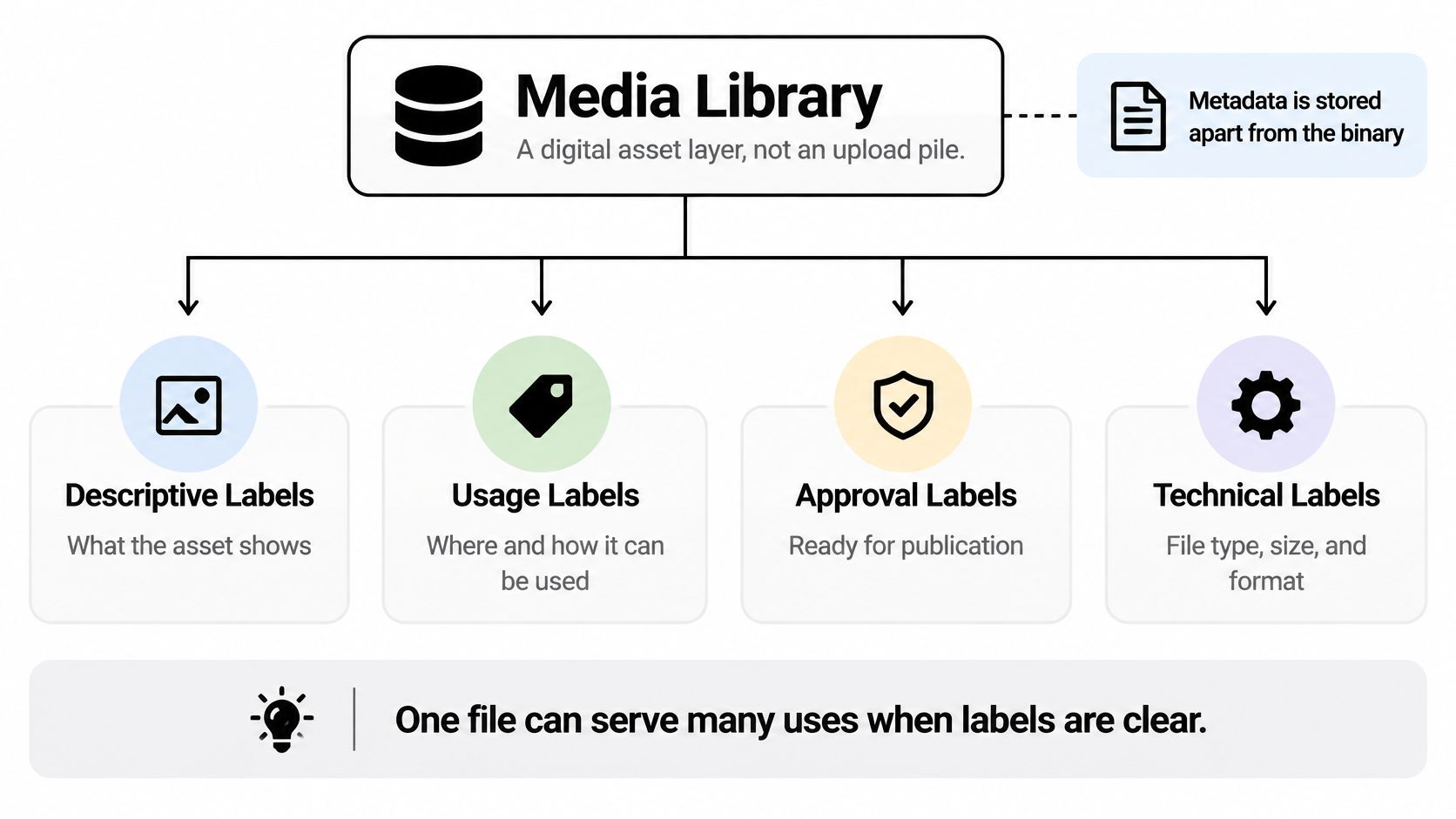
Think of a media library as a digital asset layer, not an upload pile. The file itself is only half the asset. The other half is the labels that let software and people find it, check it, and cut it without opening every item by hand.
Four kinds of labels do most of that work:
| Label type | Examples | Job it does |
|---|---|---|
| Descriptive | Campaign, creator, topic, rights status, platform | Filter and search without opening files |
| Technical | Format, dimensions, duration, codec, color, creation time | Tell whether a file fits a channel |
| Structural | Tracks, samples, timing inside video boxes | Let software parse media without a full scan |
| Preservation | Original versus derivative, format identity | Keep the master while publishing cuts |
What each kind protects you from
Descriptive labels answer what the asset is about. Filter for spring launch and approved, and the right still appears without opening forty files. Technical labels answer whether it fits, covering file format, dimensions, duration, codecs, color profile, and creation time. That's how you avoid forcing a long horizontal master into a slot that needs a short vertical cut.
Structural labels live inside the file. In modern video, the ISO Base Media File Format places timing and placement information inside structured boxes, so software can read tracks and samples without scanning the whole payload. Preservation labels keep the original distinct from later copies. The Library of Congress metadata standards table treats file extension and digital file format as core repository metadata, because format changes both how a file displays and how it should be kept.
One master, many children
A practical library indexes metadata separately from the binary files, generates thumbnails and technical previews in the background, and preserves the original upload while producing platform-specific derivatives. Say you've got a horizontal product demo. From that one master you make a vertical reel, a square feed still, and a short teaser. Each cut points back to the same canonical record, alongside its captions and usage history.
That's the opposite of brand-hero-v7-final.mp4 with no parent and no history. It's also what makes content batching practical, because one shoot becomes a week of posts without repeated uploads.
Search selects the asset, a transform makes the cut, and the publish step records which cut went out.
Apply that rule to your next upload. If the chain breaks anywhere, you've got a file, not a reusable asset.
Organization Tagging and Versions
Good organization is boring on purpose. Use a small set of collections a teammate can guess, such as brand masters, the campaign name, and channel-ready cuts. Don't create a new folder for every Tuesday. Guessing the structure should take seconds, not a tour.
Names stay stable, tags do the filtering
Keep names human-readable and stable, built from brand, subject, and date. Let tags carry what names can't, such as spring launch, product demo, approved, needs-rights, and AI-generated. A name tells you what you're reading. Tags tell the system how to group it.
Status tags are your safeguard against posting the wrong file. Keep draft separate from approved, and make expired or do-not-use visible before anyone attaches the file to a post. If your team routes work through a content approval process, the status tag is where that decision becomes visible in the library itself.
Versions are a chain, not a pile
The master is the canonical record. A 4:5 crop, a captioned still, and a compressed reel are children that point back to it. When the logo changes, replace or supersede the master and mark older derivatives out of date. Don't leave five files that all look current.
Watch for these edge cases:
- Carousel sets: tag the images as one set under a single post idea, so they travel together.
- Evergreen clips: add a usage note so the same clip isn't scheduled twice in one week.
- Licensed music: record the end date even though the video file itself never changes.
The most common slip is exporting a new file and treating it as a new master. That breaks search, fills storage with orphans, and leaves nobody sure which version carries the captions.
The next-upload checklist
- One collection: file it where a teammate would guess first.
- Stable name: brand, subject, and date, with no final-final tricks.
- Two tags minimum: campaign and status on every upload.
- Master link: connect every cut to its parent record.
- Rights note: add it whenever someone else owns the asset.
Good thumbnails help too. People recognize a frame faster than they recall a filename, so visual browsing earns its place alongside search.
What Teams Gain from a Real Library
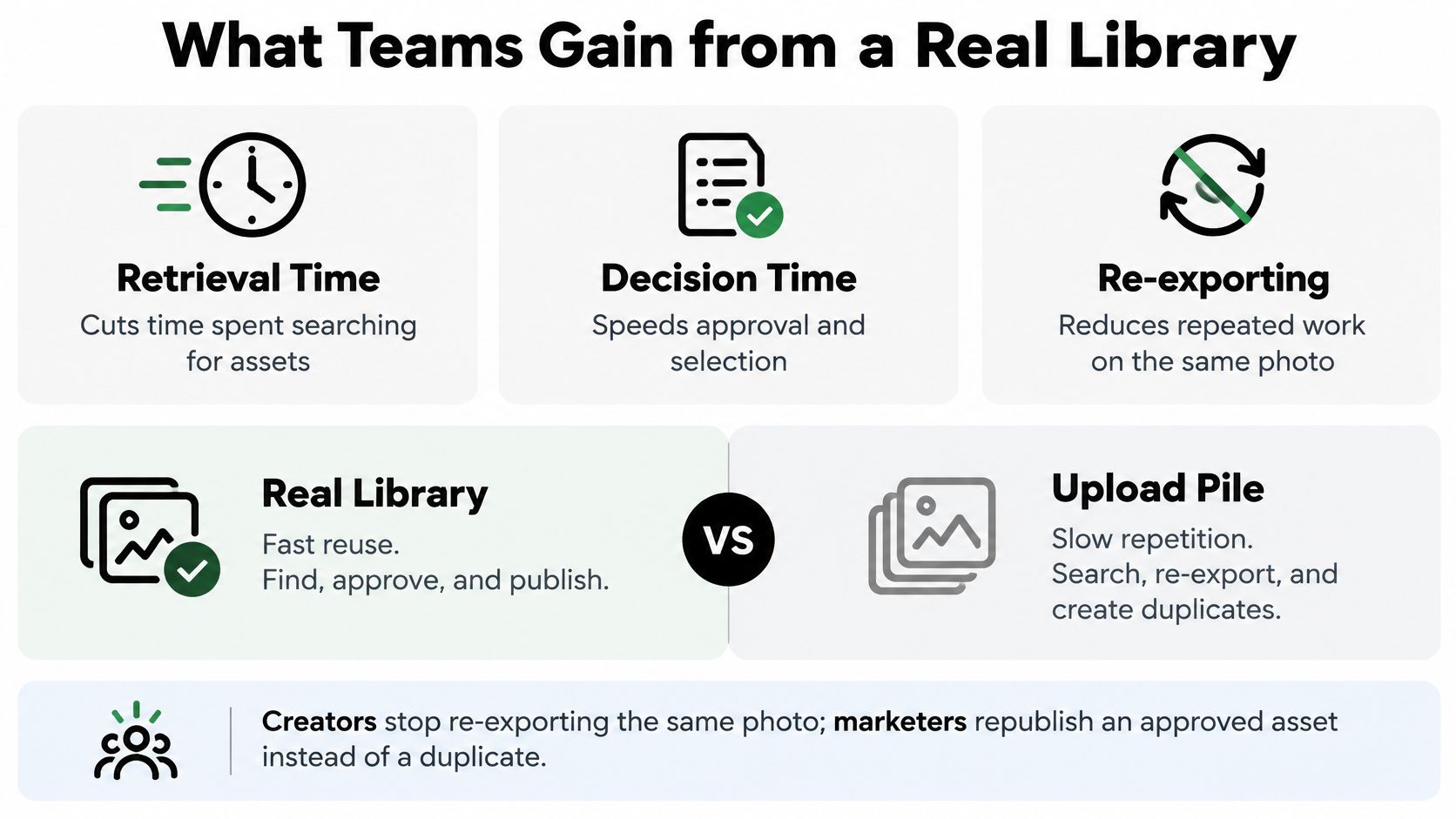
The payoff isn't tidy storage. It's retrieval time and decision time. Creators stop re-exporting the same photo because they can't find last month's version. Marketers republish an approved asset instead of a near-duplicate. A freelancer pulls from one shared source and doesn't post last month's price.
That matches how people choose media. Playbook's State of Creative Digital Asset Management report found that in 2024, 83% of surveyed creative professionals identified visual browsing as the most important digital asset management feature. People pick frames with their eyes, so previews and thumbnails beat long filename lists.
Three questions teams ask
How do you label for fast reuse? Use campaign, status, and channel tags, so the approved spring cut appears in one search. Consistency inside your content creation workflow matters more than having many tags.
How do you avoid outdated or unauthorized files? Separate drafts from approved assets, and surface expiry dates before anyone attaches a file. The check has to happen at selection time, not after the post is live.
How should AI-generated media be handled? Give it its own tag so the team can review disclosure and accuracy before publishing. This applies to generated product imagery too. Teams producing studio-quality visuals without traditional fashion shoots still need to know which images are generated, which are photographed, and which are approved for ads.
Watch a short walkthrough of these ideas in practice before you reorganize anything.
Stay honest about the limits. Labels only help if someone applies them, and a library doesn't replace a lawyer on music or talent releases. The test of a good library is simple. The next person finds the approved file in under a minute and knows they're allowed to post it.
A Week of Reusing One Asset
Say a small product brand launches a spring item. Here's how one asset carries the week when there's a library underneath it.
Monday to Wednesday
Monday: the team uploads a short product demo and three stills. They tag everything spring launch, approved, and product demo, and keep the horizontal demo as the parent record. Nothing else gets uploaded from phones or laptops during the week.
Tuesday: they make a vertical reel, a square feed image, and a three-slide carousel from the stills. Each one links back to the master instead of landing as an unrelated file. If the demo were also used for staff onboarding, a training video generator could turn the same recording into an internal walkthrough, stored as another derivative rather than a separate project.
Wednesday: the reel, the feed post, and a short text teaser go out across networks. The copy changes per platform, but the asset identity doesn't. This is the daily rhythm behind a solid content repurposing strategy, one source feeding several formats.

Friday, plus the old way for contrast
Friday: an evergreen cut gets pulled again for a reminder post, because searching approved plus product demo surfaces it instantly. The failed color grade from Monday sits untouched, still marked draft. A partner logo with a one-month license carries an end note, so Friday's reminder leaves it out.
Compare the old path. The same clip got uploaded four times, from a laptop, a phone, and a design export, and nobody knew which duration was current. A lightweight publishing workspace changes that. Media is attached once, stored for later posts, and reused when the calendar calls for it, across video, images, carousels, and reels.
One upload on Monday should still be earning its keep on Friday.
Map your next campaign onto this pattern. If you can't trace each post back to one master, the library habit hasn't landed yet.
Choose the Light Library or Upgrade
Stay with a media library when one person or a small team publishes, rights are simple or already cleared, and the pain is finding and reusing files. Move toward a full DAM when several clients or teams need permissions, formal approvals, and license expirations as daily work. Don't buy governance software to solve a naming problem, and don't expect tags alone to police a music license. If video is central to your next campaign, a resource on choosing video tools for your next release can help you compare options before you commit.
| Situation | Choose | Why |
|---|---|---|
| One person or small team publishing with simple rights | Media library | Speed of finding and reusing files |
| Several clients or teams needing permissions and approvals | Full DAM | Approvals and expirations become daily work |
| Music or talent licenses with end dates | Full DAM plus legal review | Tags alone do not enforce license terms |
| Social scheduling across several networks | Media library inside the scheduler | Removes a second app |
For this week, list where your assets live now, pick one live campaign, move its masters into one library, and tag each file with campaign and status before making channel cuts. In our setup, you attach photos and videos from your device to posts, and uploaded media is stored in our cloud media library alongside our content calendar, drafts, and per-platform post variants. Photo and media access is optional and requested only when you add media, and you can decline it and still use the rest of the app. The finish line isn't an empty archive. It's the next post pulled from a file your team can name, trust, and reuse.
Put one live campaign into the SleekPost media library this week, tag each master with campaign and status, and schedule your next reel, feed image, and carousel from those stored files instead of re-uploading. Visit SleekPost to set up your library beside your content calendar and per-platform drafts, so the next post starts from an asset you can find and trust.