You're scrolling late at night when a Reel catches your attention. It has the recipe you want to try, the editing transition you've been looking for, or the audio that could fit your next post. You tap the bookmark icon, keep scrolling, and later discover that you have no idea where the Reel went.
Saving a Reel works best when you treat it as a deliberate workflow, not a reflex. Instagram's in-app save keeps the post inside your account, Collections give it a useful home, drafts hold unfinished work, and device downloads serve a different purpose altogether. Once you understand those differences, “Instagram save Reels” stops being a hunt through a crowded bookmark pile and becomes a simple system for research, production, and future reference.
Table of Contents
- Why Saving a Reel Is More Useful Than Bookmarking It
- Saving a Reel In-App and Organizing It Into Collections
- How Instagram Reels Drafts Work and How to Find Them
- Saving Versus Downloading to Your Device
- Copyright, Privacy, and Reuse Rules You Should Respect
- Troubleshooting When the Save Button or Saved Tab Misbehaves
- Putting It All Together With a Simple Save Workflow
Why Saving a Reel Is More Useful Than Bookmarking It
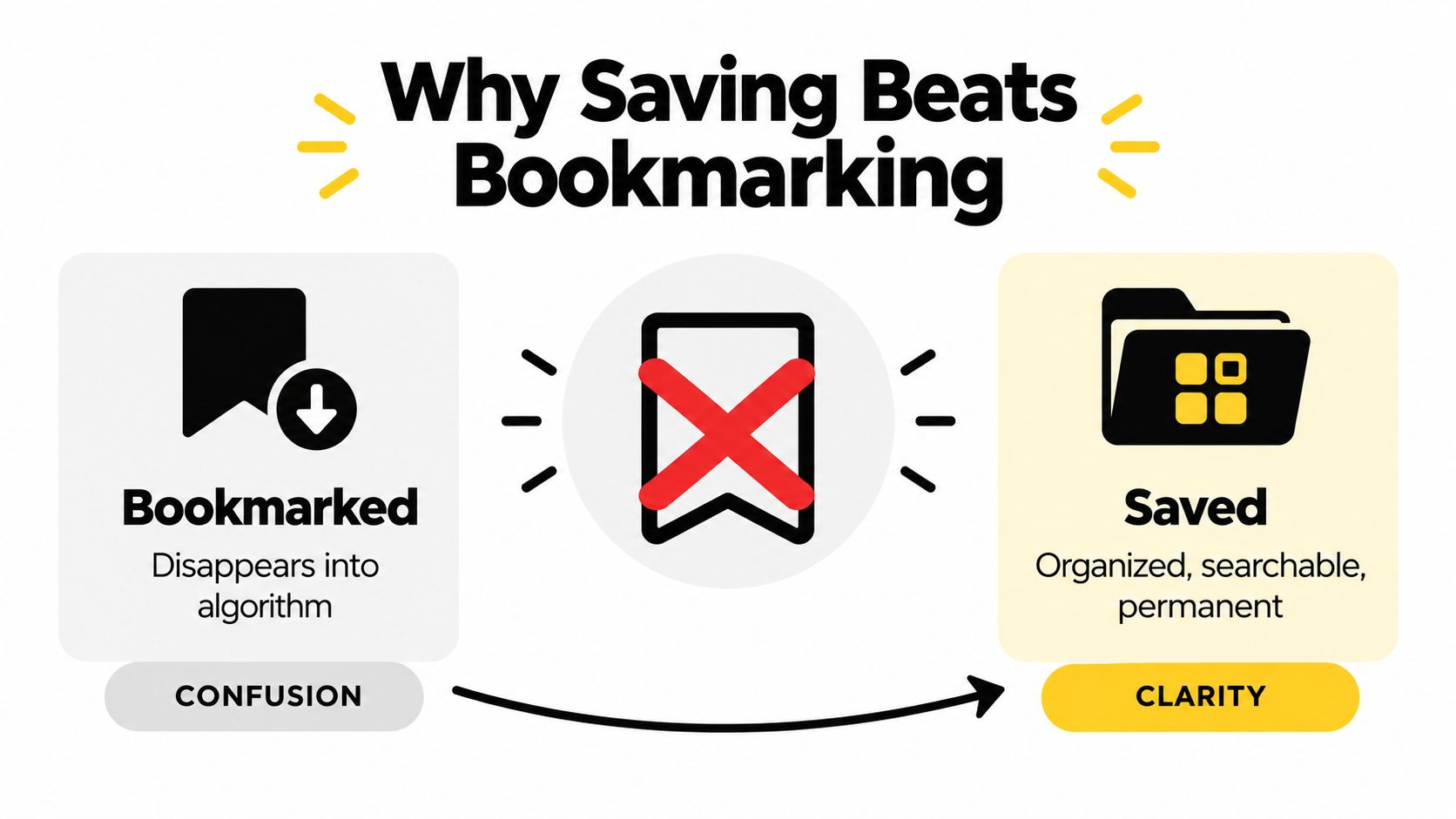
You spot a Reel with the exact hook, transition, or audio treatment your next post needs. A tap preserves the discovery, but its real value appears later, when you can find the example, study it, and apply the idea. Instagram's Saved area keeps the post inside your account, where it remains private and available through your profile's Saved area.
The bookmark action is only the entry point. A saved Reel can stay in All Posts or move into a Collection, giving each reference a place in your working library. That makes saving more useful than treating the icon as a one-time bookmark. Instagram describes Reels as a format that supports creation, draft saving, and sharing on Instagram's own Reels feature page.
A creator planning a new series might save one Reel for its opening hook, another for its text animation, and a third for the way it pairs audio with visuals. Together, those examples form a private swipe file. The library can guide scripting, editing, music selection, and content planning without requiring you to rediscover the posts from memory.
Practical rule: Save a Reel when you expect to study it, reference it, or use the idea later.
Saving also has a platform-level effect. It signals that a viewer sees lasting value in the content, not only something worth watching once. That signal does not guarantee wider distribution, yet saves are one meaningful engagement action within Instagram's recommendation system. They can support return visits and continued discovery, especially when the Reel teaches a process, provides a checklist, or remains useful over time.
The viewer's private save builds a research library. A save from another person contributes to your Reel's engagement profile alongside views and shares. The 2026 Instagram statistics benchmark from SearchLab reports that Reels can generate 30% more saves than other post formats, with save rates of 1.2% to 3.8% of reach.
Useful Collections might include Hooks to Study, Transitions, Audio Ideas, and Reels for Musicians. For performance-led content, AI video for musicians on Reels offers ideas for connecting visual concepts with audio. You can also compare Reels and Stories when deciding which format fits a reference.
The key decision is what you need next: an in-app research reference, an unfinished project, or a file downloaded to your device.
Saving a Reel In-App and Organizing It Into Collections
To save a Reel inside Instagram, open the Reel and look beneath the video for the bookmark icon. Tap it once. Instagram saves the post to your account, usually placing it in the general Saved area unless you immediately choose a Collection.
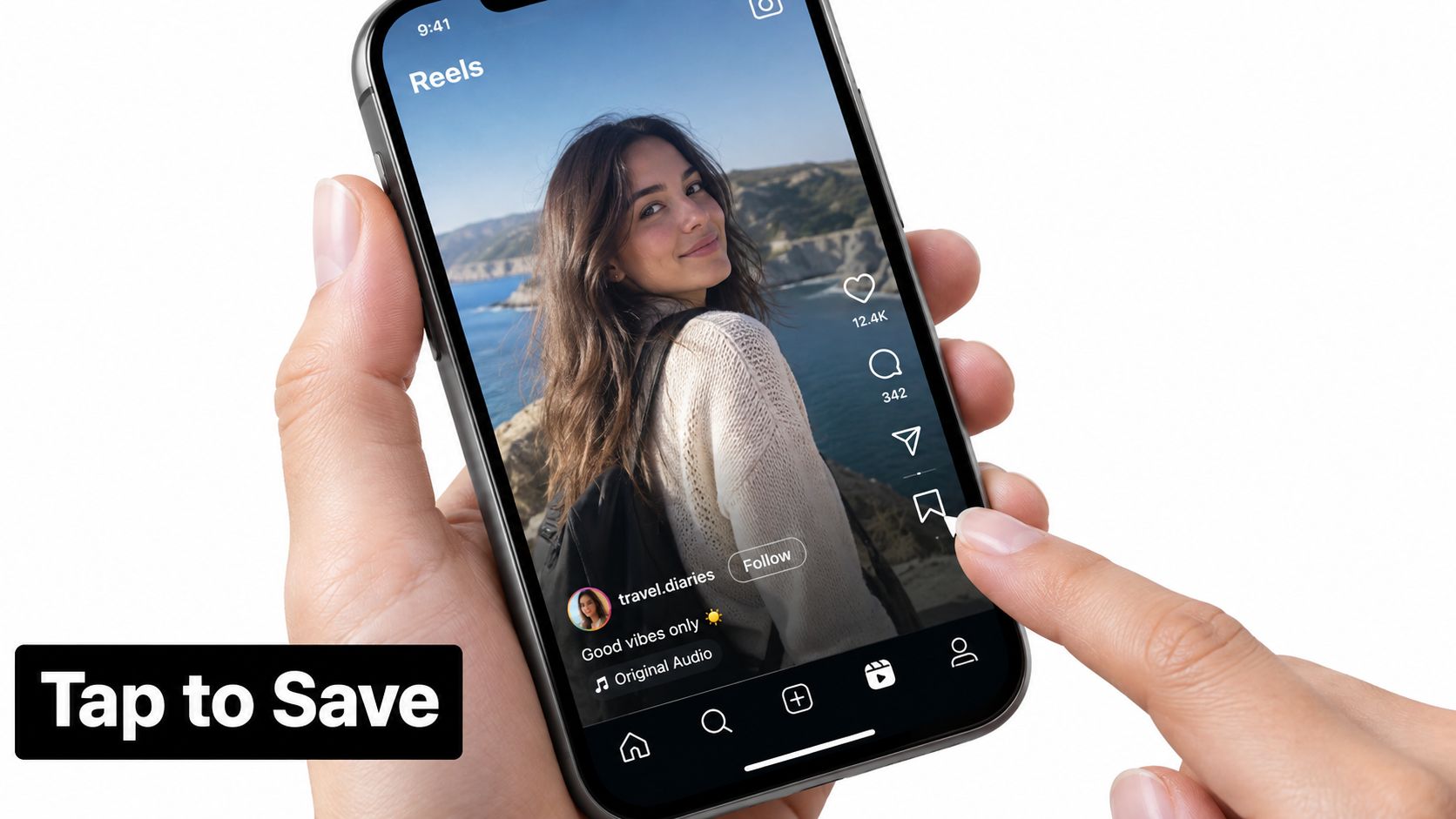
If a small Collection prompt appears, select an existing folder. You might choose Recipe Ideas, Editing References, or Client Inspiration. If you haven't created a folder yet, choose the option to create a new Collection, enter a name, and add a cover if Instagram offers that choice in your app version.
A reliable tap path
- Open the Reel. Confirm that it's the post you want to keep, rather than a similar Reel in the feed.
- Tap the bookmark icon. The icon changes appearance to show that the Reel has been saved.
- Choose a Collection. Select an existing folder from the prompt when one appears.
- Create a Collection if needed. Give it a specific name that describes what you'll do with the content.
- Check the Saved area. On mobile, go to your profile, open the menu in the top-right corner, tap Saved, then open All Posts or the relevant Collection.
The mobile layout can look slightly different on iOS and Android, and Instagram sometimes changes the position or appearance of controls. The basic destination remains the same: your profile menu leads to Saved. On the web version, look for the Saved area from your profile navigation, though the presentation may not match the mobile app exactly.
You can add one Reel to more than one Collection if it serves multiple purposes. A tutorial might belong in Content Ideas and Editing Techniques. To manage older saves, open Profile, menu, and Saved, select a Collection or All Posts, then use the available management controls to add or remove items.
Collections work best when their names describe a decision, not just a topic. “Use in May” gives you a next step, while “Interesting” creates another pile to interpret later.
Saved items are private by default, so other people generally won't see the Reels you've bookmarked or the personal folders you've created. That makes Collections useful for early research, competitor observation, and rough creative ideas before you're ready to share anything publicly. For another explanation of the save path and collection options, you can review this guide to saving Instagram Reels.
After saving a few Reels, return to the folder and ask why each one is there. If you can't answer that quickly, rename the Collection or move the Reel. A small amount of organization at the moment of saving prevents All Posts from becoming a graveyard.
Here's a visual walkthrough of the process:
How Instagram Reels Drafts Work and How to Find Them
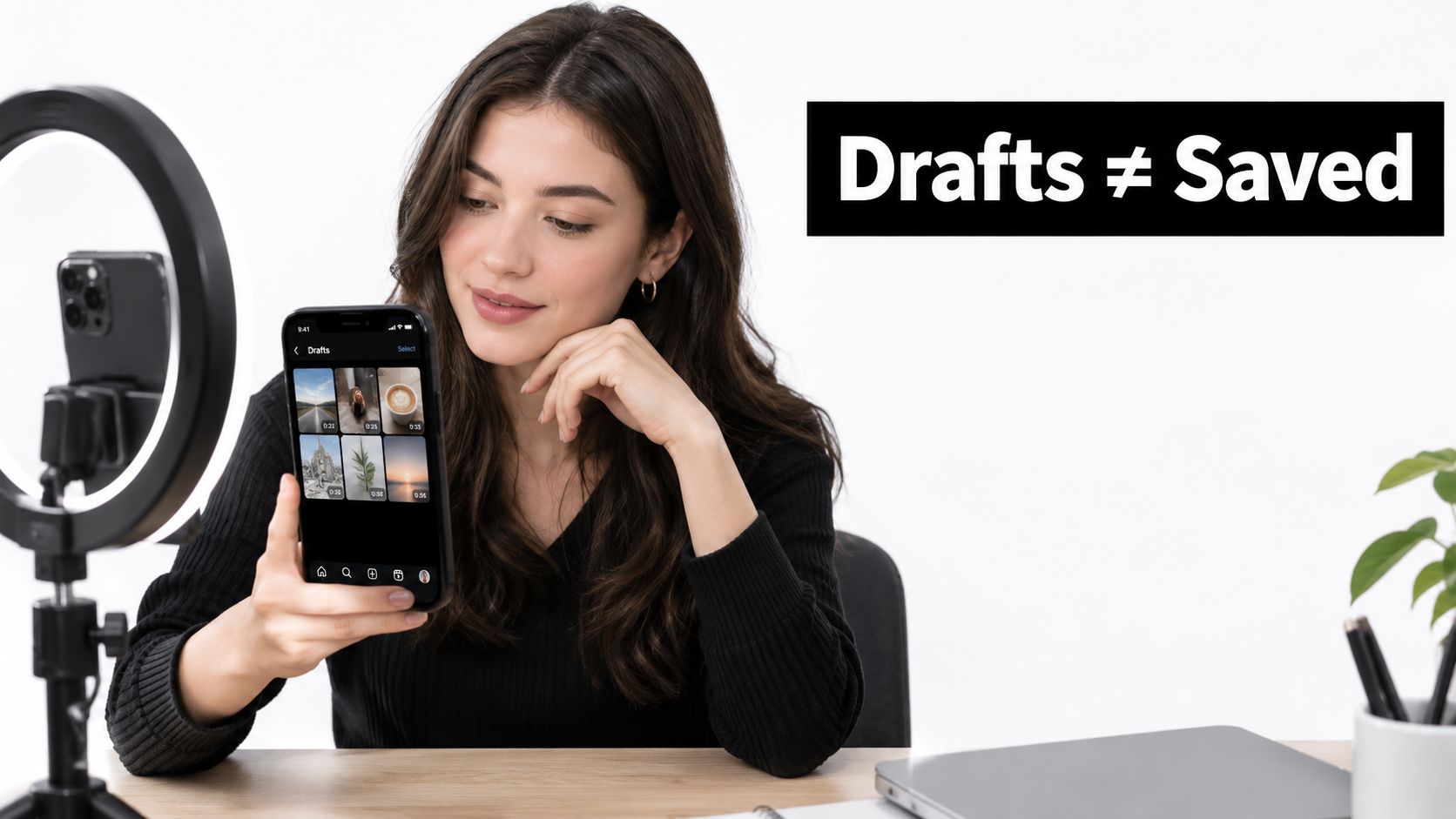
You save a Reel from someone else to revisit later. You save a draft when your own Reel is still unfinished. Both actions preserve something for later, but they work like two different shelves: Saved holds published posts, while Drafts holds your in-progress creations.
While making a Reel, record or upload clips, then add text, effects, or audio. To pause without publishing, tap Save Draft in the editor. The control usually appears near the top-left or within the exit options, although its position can vary with the app version.
A draft can retain working elements such as recorded clips, text overlays, effects, and selected audio. It remains unpublished, so it does not appear on your public profile or in the Saved area. Because it has not been posted, it also has no direct role in Reels distribution or audience signals. Use saved public Reels to study formats and topics, then use drafts to turn those observations into your own work.
Finding a draft again
Open the Reel creation flow from the plus icon or the relevant Reels tab. Find the Drafts area, where unfinished projects appear as thumbnails. Tap one to reopen the editor and continue editing.
A draft is tied to the app environment where it was created. Logging out, clearing app data, changing devices, or uninstalling Instagram can make it unavailable. Drafts may not transfer safely between devices, so treat them like work on an open desk rather than files in a permanent archive.
Before replacing your phone or removing the app, protect anything important. Export a working video when that option is available, copy the script or caption into your notes, and record the audio or effect you planned to use. Add a clear mental label, such as “three-step lighting tip,” so a generic thumbnail does not leave you guessing.
Use drafts to pause, compare openings, or wait before publishing. For the same device-specific caution on another short-form platform, see this guide to finding TikTok drafts.
Saving Versus Downloading to Your Device
The bookmark icon keeps a reference to the Reel inside Instagram. A download creates a video file on your phone, where you'll find it in the camera roll or gallery rather than in Saved. Neither action replaces the other.
An in-app save keeps the Reel connected to its Instagram context. When you return to it, you can see the original account, caption, comments, audio information, and current availability through the post. A downloaded file is more portable, but it separates the video from that surrounding context. It may be useful offline, yet it can be harder to identify the creator, source, or permissions later.
The download option may appear through the Share sheet or behind a three-dot menu. It won't be available for every Reel. Creator preferences, account settings, or music rights can affect whether Instagram allows a device download. Your own Reel may also have different options from another creator's Reel.
| Attribute | In-App Save | Device Download |
|---|---|---|
| Where it lives | Inside Instagram under Profile, menu, and Saved | In your phone's camera roll or gallery |
| Main purpose | Reference, research, and later viewing | Offline access or a local working copy |
| Instagram context | Remains connected to the original post | The video file stands apart from the post |
| Collection support | Can be filed into private Collections | Organized through your device's folders or albums |
| Reuse implications | Doesn't give you ownership or republication rights | A local copy still doesn't give you ownership or republication rights |
| Availability | Depends on the original post remaining accessible | Depends on whether Instagram permits downloading |
A useful decision rule is simple:
- Choose Save when you're studying a hook, collecting a recipe, tracking an editing pattern, or planning to revisit the original post.
- Choose Download only when you have a legitimate personal or production reason for keeping a local copy, and you understand what you can legally do with it.
If you're preparing your own video for upload, technical handling matters too. This guide to uploading high-quality videos on Instagram covers the separate question of preserving quality during publishing.
Downloading someone else's Reel for offline reference is not the same as having permission to edit, advertise, or repost it. Treat the local file as a convenience, not a transfer of rights.
Copyright, Privacy, and Reuse Rules You Should Respect
Saving a Reel privately doesn't make you the owner of its video, script, visuals, music, or performance. You can use the Saved area to view and study content, but reposting another person's Reel can still lead to a copyright complaint or removal, even if you add credit.
Audio requires extra care. A track available inside Instagram may have licensing that applies only to particular uses on the platform. Downloading the video doesn't automatically transfer those permissions to your own edit, another platform, or a commercial campaign.
A safer reuse checklist
- Keep research private. Save Reels for inspiration, reference, and learning without presenting the original work as your own.
- Ask before remixing. Permission is especially important when you want to reproduce a distinctive concept, use the creator's footage, or adapt their work for a business.
- Use native collaboration tools. Instagram's Remix or Collab features can provide a clearer platform-based route when the original creator has enabled them.
- Credit clearly where appropriate. Credit helps people find the source, but it doesn't replace permission or a license.
- Treat commercial use separately. A business use may require explicit rights for the video, voice, music, likeness, and other protected elements.
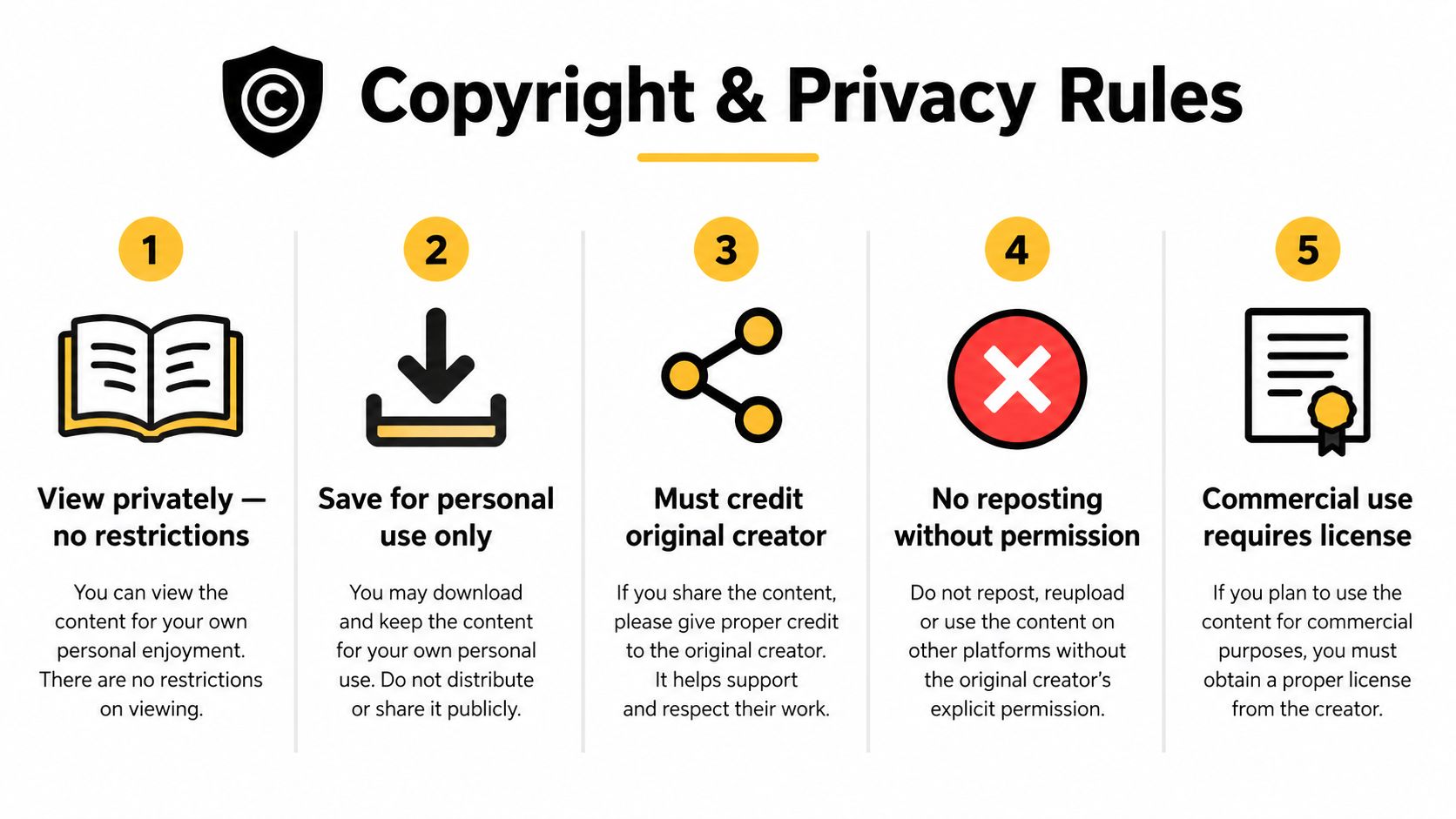
Private-account Reels deserve an even higher level of caution. A bookmark is a quiet way to keep something for yourself. Republishing changes the audience and may expose content that the creator shared only with approved followers. Don't assume that being able to view a Reel means you can distribute it.
Permission is specific. Approval to share a link isn't automatically approval to download, edit, publish, or use the content in an advertisement.
Device downloads also create a privacy responsibility. A video saved to your phone may appear in backups, shared albums, editing apps, or other services. Review your camera-roll permissions and storage habits with these on-device photo safety tips. If you need to share a video link rather than a copy, follow a platform-aware workflow such as sharing a YouTube video to Instagram.
When in doubt, keep the Reel in Instagram, contact the original creator, and use your own footage or licensed assets for publication. Inspiration is useful. Unclear ownership is not a content strategy.
Troubleshooting When the Save Button or Saved Tab Misbehaves
Instagram saves can appear to vanish for several different reasons. Start with the simplest explanation: make sure you're signed into the same account you used when you tapped the bookmark. A save belongs to that account, not to the phone in general.
If one Reel has no bookmark icon, the post may have restrictions related to its audio, account status, or current availability. Try opening the Reel from the creator's profile, refresh the feed, and check whether another version of the post appears. If the original account made the post private, deleted it, or became unavailable, the saved reference may no longer open.
When the Saved area looks empty
Open your profile, use the menu, and select Saved. Pull down on the Saved grid to refresh it. Then check All Posts and each relevant Collection, because a Reel filed in a Collection won't necessarily be where you expect if you're looking only at a filtered view.
If the grid remains empty after reinstalling the app, confirm the account first, then sign out and back in. On iOS, re-login can help resync account data. On Android, clearing Instagram's cache through the phone's app settings can resolve a stale display without deleting the account's online saves. The exact menu names vary by device version.
When a draft disappears
Drafts are different from account-level Saved items. An app update, forced reset, device change, logout, or uninstall can remove access to unfinished work that was stored locally. If a draft matters, save a copy of the video and preserve the caption, audio choice, and editing notes before making major changes to the app.
Storage permissions can also affect local workflows. If Instagram can't access the camera roll or lacks enough available device storage, recording, exporting, or downloading may fail without visible feedback. Check the app's photo and storage permissions, free space if necessary, and try the action again.
For most problems, make these three checks:
- Account: Are you using the account that created the save or draft?
- Location: Did the Reel go to a Collection, or did the download go to your gallery?
- App state: Have you refreshed, re-logged in, or checked permissions and local storage?
These checks separate an unavailable original post from a display problem and a device-level draft problem.
Putting It All Together With a Simple Save Workflow
Each Instagram saving method has a job. Use the bookmark for a Reel you want to revisit. Use a Collection when the reference deserves a clear category. Use a draft for your own unfinished edit. Use a device download only when you need a local file and have a legitimate reason to keep it.
A practical workflow can happen in five decisions.
1. Preview the Reel before saving
Ask what you want from it. Is the value in the tutorial, the hook, the audio, the camera movement, or the creator's overall structure? A clear answer makes the next step easier.
2. Choose the right destination
Tap the bookmark when you need an in-app reference. Long-press or organize the save into a Collection when you know the category. If the work is yours and unfinished, leave the public post flow and choose Save Draft instead.
3. Label the reason, not just the subject
“Hooks to test” is more useful than “Marketing.” “Lighting for interviews” is more actionable than “Video.” Name the Collection after the decision you expect to make later.
4. Schedule a revisit
A saved Reel has no value if you never return to it. Set aside a regular review moment, then delete saves that no longer fit your plans. If you publish consistently, a scheduling workflow such as scheduling Instagram Reels can help turn selected references into planned production tasks.
5. Decide whether it feeds inspiration, production, or sharing
Inspiration means studying the original. Production means creating your own version with original footage and properly cleared assets. Sharing means linking to the source or using an approved native feature, not automatically uploading a downloaded copy.
A quick creator checklist:
- Save one useful Reel.
- Put it in a named Collection.
- Write down the specific technique you noticed.
- Add one related idea to your content notes.
- Check whether the audio is appropriate for your intended use.
- Move your own unfinished idea into Drafts.
- Choose a future review time for the Collection.
This habit keeps the Saved area connected to action. You're not collecting Reels to make the number grow. You're collecting references that can improve your hooks, structure, editing choices, and publishing decisions.
SleekPost gives creators, marketers, and small businesses one dashboard for scheduling and publishing Instagram Reels alongside content for other social platforms. Use your saved Reel research to plan original posts, organize your publishing queue, and keep each idea connected to a clear next step with SleekPost.