Open your profile, tap the three-line menu, select Archive, and switch from Stories archive to Posts archive to view hidden content. If you want the post back on your grid, open it and choose Show on profile.
That's the direct path, but it's not the whole story. The search for how to find archived posts on Instagram usually isn't about casually browsing old content. It's about solving a problem right now. A launch post vanished. A client thinks someone deleted a campaign asset. A product photo is gone from the grid, and nobody on the team remembers what happened.
That's where most tutorials fall short. They tell you where the Archive tab lives, then stop. In practice, the job is diagnosis. You need to figure out whether the content was archived, deleted, hidden, removed by Instagram, or posted from a different account entirely. Once you look at it that way, recovering a missing post gets much faster and a lot less frustrating.
Table of Contents
- Why Your Instagram Posts Seem to Have Disappeared
- How to Locate Archived Posts in the Instagram App
- Restoring Archived Posts to Your Profile Grid
- Distinguishing Archived Content from Deleted Posts
- Troubleshooting When Archive Appears Unavailable
Why Your Instagram Posts Seem to Have Disappeared
A client opens Instagram before a campaign review and the grid looks wrong. The product launch post is gone, the team assumes it was deleted, and the scramble starts. In practice, a missing post usually falls into one of a few specific buckets, and the fix depends on which bucket you're dealing with.
Instagram created part of this confusion by adding Archive, a feature that lets account owners hide published posts from the profile without deleting them, according to Instagram's announcement of Archive for profile. That matters because a post can disappear from the public grid and still exist inside the account with its original engagement intact.
The useful way to diagnose this is a simple decision tree.
If the post is gone from the profile but might still be recoverable inside the account, start with archived content. If it was removed through a deletion workflow, treat it as deleted content. If neither explanation fits, check for visibility confusion, which usually means you are viewing the wrong account, the wrong surface, or a public profile view that does not match what the owner can access privately.
That distinction saves time.
A three-person agency managing @brandA and @brandB once spent an hour hunting for a launch post that “vanished.” The post had been published from the creator login, not the business account they were currently checking. I see this kind of mix-up during handoffs, rebrands, and cleanup projects, especially when several people have touched the account.
Public visibility adds another layer. A post that is absent from the grid does not automatically tell you whether it was archived, deleted, or never published on that profile at all. If you need outside confirmation that an image or post appeared publicly, Instagram search for photo verification can help with external discovery. That is different from owner-only access inside Instagram.
Missing from the grid doesn't automatically mean missing from the account.
Instagram's profile layout makes the grid feel final, so people treat disappearance as proof. That is why teams confuse the profile grid with the full account record. If you are sorting out what the public profile represents, this explanation of what an Instagram feed means helps clarify why a post can leave the grid while still remaining part of the account's history.
For creators and brands, the practical takeaway is simple. Diagnose first. Decide whether the post is archived, deleted, hidden by context, or tied to another login. Once you separate those paths, recovery gets much faster.
How to Locate Archived Posts in the Instagram App
A missing grid post can send you down the wrong path fast. On client accounts, I check one thing first inside the app. Are we looking at Posts archive, or did Instagram drop us into Stories archive by default? That mix-up explains a lot of false alarms.
A quick visual helps before you start tapping through menus.
The primary path that works most often
Use this sequence on your phone:
- Open Instagram and switch to the correct account. This is the first failure point on shared devices and multi-client logins.
- Go to your profile.
- Tap the three-line menu in the top corner.
- Tap Archive.
- Use the archive selector and switch from Stories archive to Posts archive.
- Open the post you want to review.
- If you want it public again, tap the three-dot menu and choose Show on profile.
That workflow matches the current Instagram archive walkthrough. It is the fastest way to answer how to find archived posts on Instagram when the feature is visible where you expect it.
If Archive doesn't appear in the menu
Some accounts place Archive differently. If it is not sitting in the main menu, check Your activity for Archived or Archived content. Then confirm you are still in the right login and refresh the screen once before assuming the post is gone.
Here is the decision tree I use to separate archived content from everything else:
- Confirm account identity. Make sure the profile in front of you is the one that published the post.
- Check the archive type. Feed posts will not appear if you stay in Stories.
- Open the item. A thumbnail is not enough. Verify the caption, media, and date.
- Try Show on profile once. If that option appears, you have confirmed the post was archived.
- If you cannot find it there, stop calling it archived. At that point, you are likely dealing with deleted content, hidden visibility, or the wrong account.
That distinction saves time. Teams often burn twenty minutes searching Archive for a post that was never archived in the first place.
DM history can help with verification too. If a teammate found the missing post through a DM thread, note the timestamp of that message. It often lines up with when the asset was archived and helps confirm which account published it. That is where private messaging support on Instagram becomes operational, not just administrative.
If your team works mainly from a laptop, keep this guide on posting to Instagram from desktop handy. Archive recovery is still easier to handle in the mobile app, but desktop-first habits are often the reason people expect the control in the wrong place.
Restoring Archived Posts to Your Profile Grid
You found the post in Archive. Now the job is to restore it without creating a second problem on the grid.
Open the archived post, tap the three-dot menu, and choose Show on profile. In normal cases, the post returns to the same place it held before and keeps the existing engagement attached to it. That is the key difference between restoring and posting the asset again from scratch.
A simple example makes the trade-off clear. If you bring back a Q3 launch post, the original likes and comment thread stay with it, so the campaign timeline still reads correctly when a client, stakeholder, or future team member reviews the profile. Re-upload that same creative instead, and you split engagement across two versions while also changing the post order.
What to expect after you restore a post
When Show on profile works as expected, you should see:
- The post reappear in its prior place on the grid, not as a fresh upload
- Existing likes and comments remain attached
- The caption and media stay intact
- No need to recreate the post manually
Practical rule: If the goal is to recover a previous campaign asset, restore it. Don't re-upload unless you've confirmed the original no longer exists.
That rule saves cleanup time later. Duplicate uploads create comment gaps, break the visual sequence of the feed, and force someone to rebuild copy that was already sitting in the account.
Restoration gets slower during a rebrand, seasonal reset, or portfolio cleanup. Archive works well for recovering individual posts, but it does not function like a full content library. You still have to inspect items one by one, check whether each caption is current, and decide if each post belongs back on the public grid.
That limitation matters for teams managing content from several devices. Instagram can handle the visibility change, while your publishing process should track originals, approvals, captions, and posting history somewhere else. If your workflow already starts on a laptop, this guide to desktop Instagram uploads is useful for tightening the publishing side so Archive does not become your fallback filing system.
Treat restoration as a visibility decision first. Before a post goes live again, check whether the creative, pricing, offer, or message still fits the current profile. A restored post can be technically correct and still be the wrong thing to surface now.
Distinguishing Archived Content from Deleted Posts
This is the point where most tutorials stop being useful. They show the Archive path, but they don't help when the post isn't there. In practice, that's the high-stakes moment. If a client is waiting, you need to know whether you're dealing with an archived post, a deleted one, or content that's hidden for some other reason.
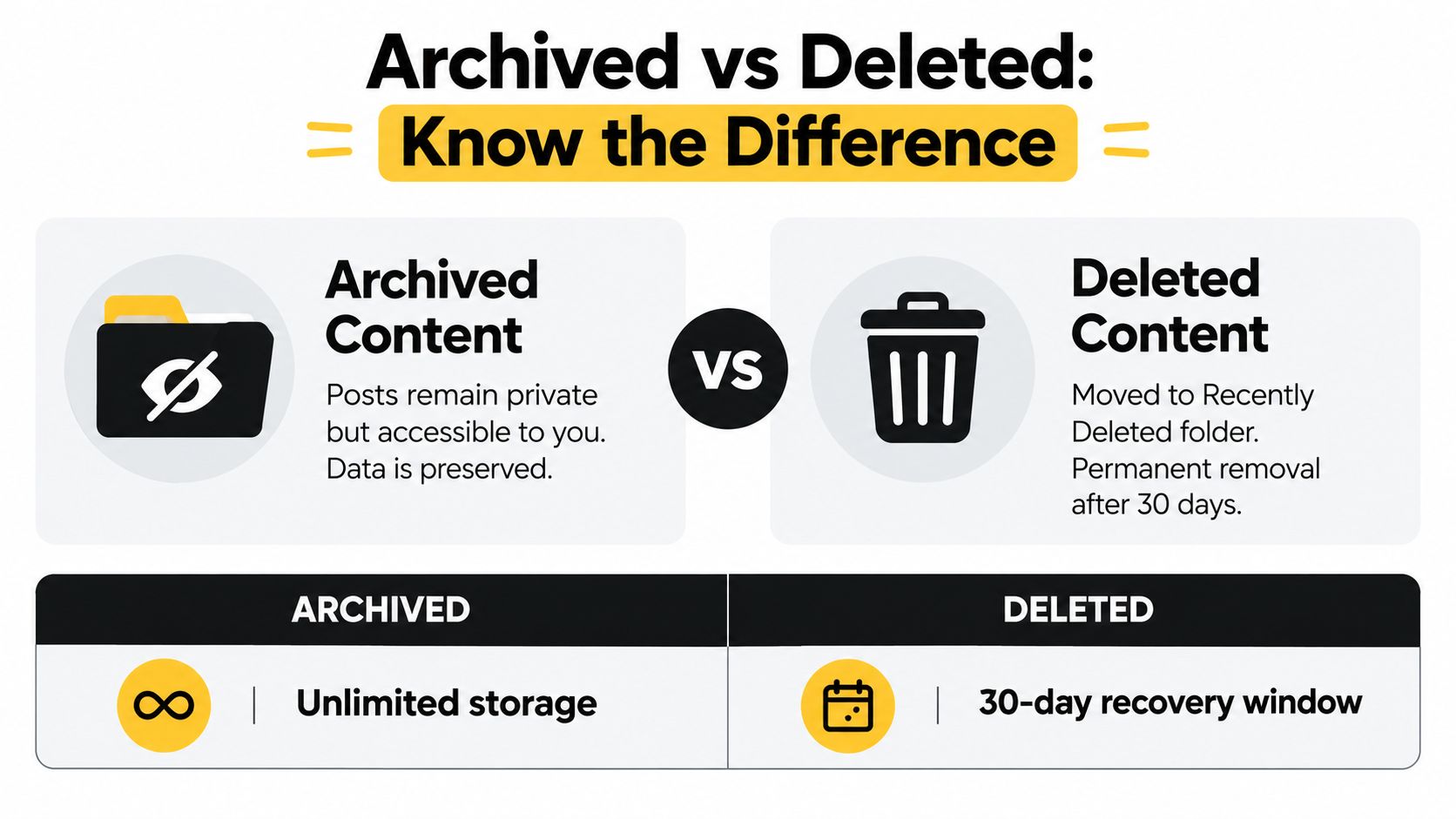
The distinction matters because the recovery paths are different. Archive preserves the post privately and lets you restore it with Show on Profile, while deleted posts and Reels may remain in Recently Deleted for only 30 days, based on the troubleshooting guidance in this archive versus deletion explainer.
A simple decision tree that works
When a post is missing, follow this order:
Check Posts archive first
If it's there, the post was archived. Open it and restore if needed.If it isn't there, check Recently Deleted
That tells you whether someone removed it through the deletion workflow instead.If it's in neither place, verify account and status
Make sure the content wasn't posted from another profile, removed by Instagram, or hidden by a setting that changes who can see it.Only then treat it as unrecoverable in-app
Don't jump to that conclusion before checking both owner-only areas.
Archived, deleted, and hidden are not the same
A lot of user frustration comes from treating these states as interchangeable. They're not.
| Content state | What it usually means | Best next action |
|---|---|---|
| Archived | Intentionally hidden from the grid, still inside the account | Open in Posts archive and use Show on profile |
| Deleted | Removed through deletion workflow | Check Recently Deleted promptly |
| Hidden or inaccessible | Wrong account, visibility issue, or moderation problem | Verify login, review account status, inspect permissions |
If a post isn't in Archive, don't keep refreshing Archive. Change the diagnosis.
This is also where outside searches can mislead people. A missing post on Google or a public archive doesn't prove the post is gone from Instagram. Public web archives only capture what they can access, and one academic study found that just 31.67% of Katy Perry's Instagram posts were preserved in public web archives, highlighting a serious retrieval gap in external preservation, as shown in the study on Instagram preservation and web archives. For recovery, owner-side checks inside Instagram are more reliable than public archive hunting.
If you're also trying to preserve content you still can access, this guide on saving Instagram Reels is a useful companion process. Recovery is one job. Ongoing asset retention is another.
Troubleshooting When Archive Appears Unavailable
Sometimes Archive seems to disappear, open empty, or show only Stories. That doesn't always mean the posts are gone. Interface variation is part of the problem. Recent guidance notes that some users need to go through Your Activity → Archived, and that Instagram may default to Stories Archive, which creates the impression that feed posts have vanished, as described in this Archive interface variation guide.
The checks I run before concluding anything is lost
Start with the boring checks first. They solve more cases than people expect.
- Verify the active account. Social media managers often have multiple brand logins saved.
- Search for Archive inside the app flow. If the profile menu doesn't show it, look under Your Activity.
- Switch archive type manually. Stories isn't the same as Posts.
- Refresh the screen. A stale view can make Archive look empty.
- Update the app. Old app versions can surface controls differently.
- Sign out and back in. This can clear account-state weirdness.
- Try another device or connection. If one phone is behaving oddly, test elsewhere before escalating.
Field note: An empty Archive is often a navigation problem before it's a content-loss problem.
Archive recovery diagnostic checklist
| Issue symptom | Primary check | Fallback action |
|---|---|---|
| Archive option missing | Look in Your Activity for Archived content | Update app, sign out, sign back in |
| Archive opens to Stories only | Change selector to Posts archive | Refresh and reopen |
| Posts archive is empty | Confirm you're in the correct account | Check Recently Deleted and account status |
| Team member can't access archived post | Confirm they're logged into the owner account | Use the correct credential set on another device |
| Post still can't be found | Review whether Instagram removed it | Inspect account health and restrictions |
What usually doesn't work
A few recovery ideas sound reasonable but don't solve the issue.
First, don't rely on public web searches to prove whether a post is recoverable. As covered earlier, external capture is incomplete.
Second, don't treat Archive as a team-accessible asset database. Archived posts are private to the account owner. If a scheduler, contractor, or teammate is in the wrong login, they won't magically see another account's hidden posts.
Third, don't assume every Instagram problem is an Archive problem. If the account itself is restricted or unavailable, you may need a broader fix. This guide on a suspended Instagram account is the better next step when missing content comes with warning screens, access issues, or moderation signals. And if your account problems stack up with media playback glitches, this walkthrough to fix Instagram no sound on Reels is another good example of why platform troubleshooting has to be state-aware, not guess-based.
When Archive appears unavailable after all of that, make a calm call. Either the post was never archived, it moved through deletion instead, or Instagram removed it. Those are different outcomes, and treating them as the same is what wastes hours.
If you manage Instagram content regularly, a clean publishing system matters as much as recovery. SleekPost helps creators, marketers, and small teams schedule and publish across multiple platforms without the clutter that causes account confusion in the first place. If you want fewer “where did that post go?” moments and a simpler workflow for keeping campaigns organized, it's worth a look.