You've spent hours polishing a four-minute tutorial. The audio is clean, the cuts are tight, and the opening finally works. Then you upload it to Instagram, choose Reel, and discover that the platform has shortened the video or pushed you toward a format that won't reach the audience you wanted.
The fix usually isn't a hidden upload trick. Posting longer videos on Instagram is a format-choice problem. You need to match the runtime, aspect ratio, and audience goal to the right surface before exporting. A short Reel can attract new viewers, while a longer feed video, Story sequence, carousel, or Live session can serve people who already want more depth.
Table of Contents
- Why Instagram Video Length Limits Keep Tripping You Up
- The Four Instagram Video Formats and What Each One Is For
- Posting a Reel Up to 3 Minutes from Mobile and Desktop
- Uploading Feed Videos Longer Than Reels Allow
- Splitting a Long Video Into a Series or Carousel
- Export Settings, Thumbnails, and Common Upload Failures
- Matching Your Goal to the Right Length and Format
Why Instagram Video Length Limits Keep Tripping You Up
Instagram's video rules have changed in stages, which is why old advice keeps causing trouble. Reels launched in August 2020 with a 15-second cap, then expanded to 30 seconds in late 2020, 60 seconds in 2021, 90 seconds in June 2022, and 3 minutes in January 2025, according to this timeline of Instagram video length limits.
That history creates a misleading mental model. Many creators still think there's one Instagram-wide limit, but the platform treats Reels, feed videos, Stories, and Live differently. The available option can also vary by device, account, and rollout status. A setting visible on desktop might not appear in the mobile app, while an account that supports longer Reels may still show a shorter recording limit.
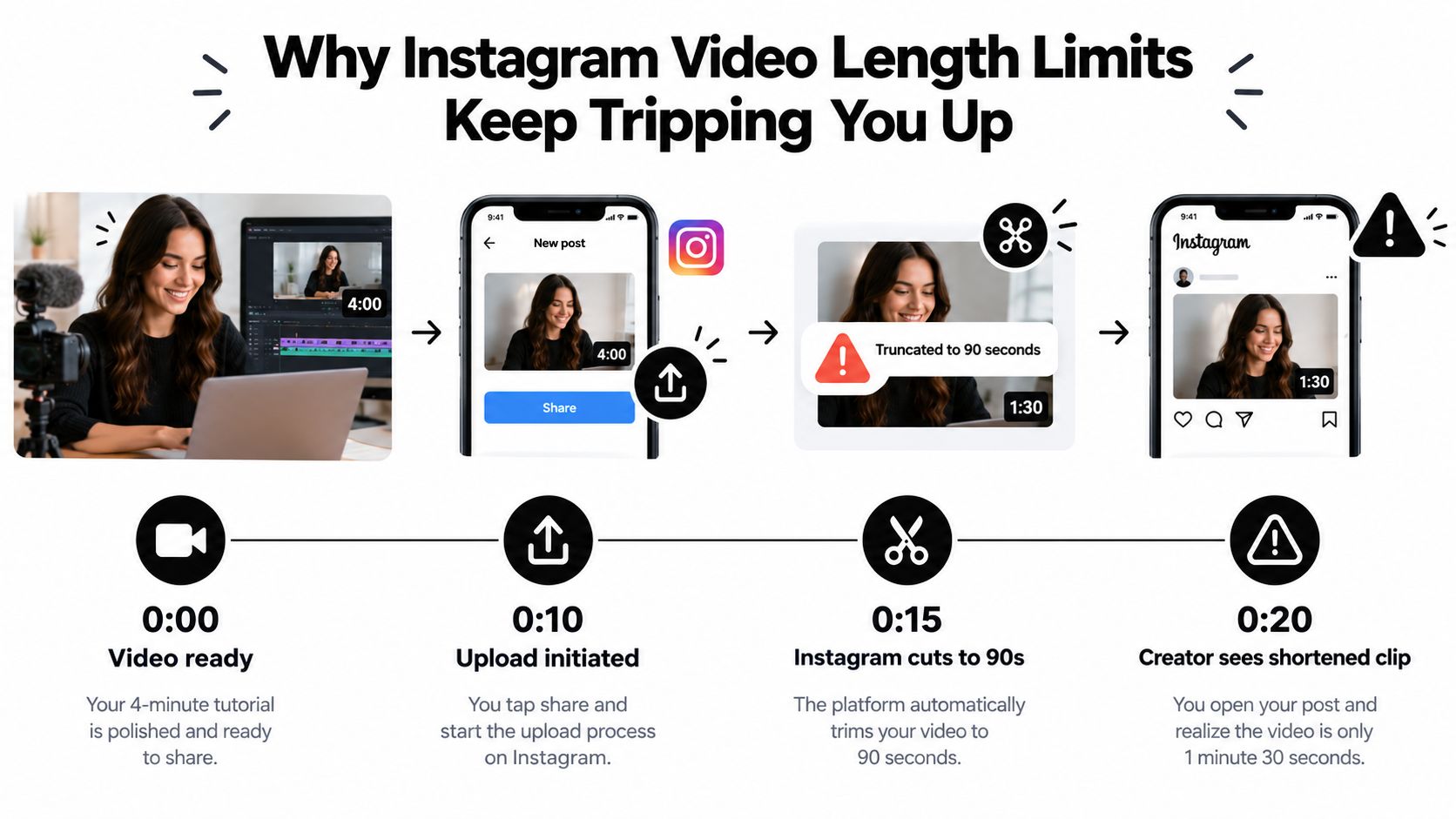
The most important distinction is between a technical upload ceiling and a recommendation ceiling. Some current guides report that Reels recording or uploading can reach up to 20 minutes, but videos longer than 3 minutes aren't recommended to new audiences and may not appear in the Reels tab, as documented in this analysis of Instagram Reels length. You may be able to upload a long Reel without giving it the same discovery opportunity as a shorter one.
Aspect ratio creates a second source of frustration. A video can have an acceptable runtime and still look broken because the editor exported it with padding, the wrong orientation, or captions too close to the edges. Instagram may crop the frame around its interface, hiding text beneath buttons or cutting off the subject.
Practical rule: Choose the Instagram surface before you edit the final version. Don't export a four-minute video as a Reel and hope the app will preserve both the runtime and the distribution potential.
The reliable approach is simple: decide whether the video needs discovery, retention, direct communication, or uninterrupted depth. Then select Reels, feed, Stories, or Live based on that goal. The remaining sections show what each path is designed to do.
The Four Instagram Video Formats and What Each One Is For
Instagram's surfaces aren't interchangeable. A video's runtime affects not only whether it uploads, but also where viewers encounter it and how much discovery it can receive.
| Format | Max Length | Aspect Ratio | Best For |
|---|---|---|---|
| Reels | Up to 3 minutes in Instagram's standard guidance | 9:16 | Discovery, educational clips, short storytelling |
| Feed video | Up to 60 minutes on desktop for eligible accounts | 9:16, 4:5, 1:1, or landscape formats may be available | Interviews, demonstrations, evergreen libraries |
| Stories | 60 seconds per card | 9:16 | Updates, behind-the-scenes content, sequential communication |
| Live | No preset upload runtime because it's a broadcast surface | Usually vertical | Workshops, conversations, launches, real-time interaction |
For Reels, vertical 9:16 video gives the format the frame it expects and places the post in the Reels experience. Reels can also appear in discovery surfaces such as Explore and recommendations. The strategic limit is more restrictive than the upload limit. Videos beyond 3 minutes may lose recommendation exposure to new viewers, so longer Reels make more sense for an established audience or a tightly focused tutorial. See this practical comparison of Reels versus Stories when the same idea could work in either surface.
Feed video suits content people may intentionally seek from your profile, such as a product walkthrough, conversation, or detailed explanation. Desktop and browser workflows can expose longer publishing options than the mobile app, but account eligibility still matters. Feed video is less dependent on the Reels recommendation system, though it still needs a strong cover and opening preview.
Stories work as a sequence rather than one uninterrupted post. Each card supports up to 60 seconds, so a longer message needs deliberate cuts, clear ordering, and visual continuity. Stories are useful when immediacy matters more than permanent discovery.
Live is the choice for real-time participation. It works for Q&As, workshops, interviews, and events where comments and interaction are part of the value. You're not solving a file-upload limit with Live. You're choosing a different publishing mode.
Posting a Reel Up to 3 Minutes from Mobile and Desktop
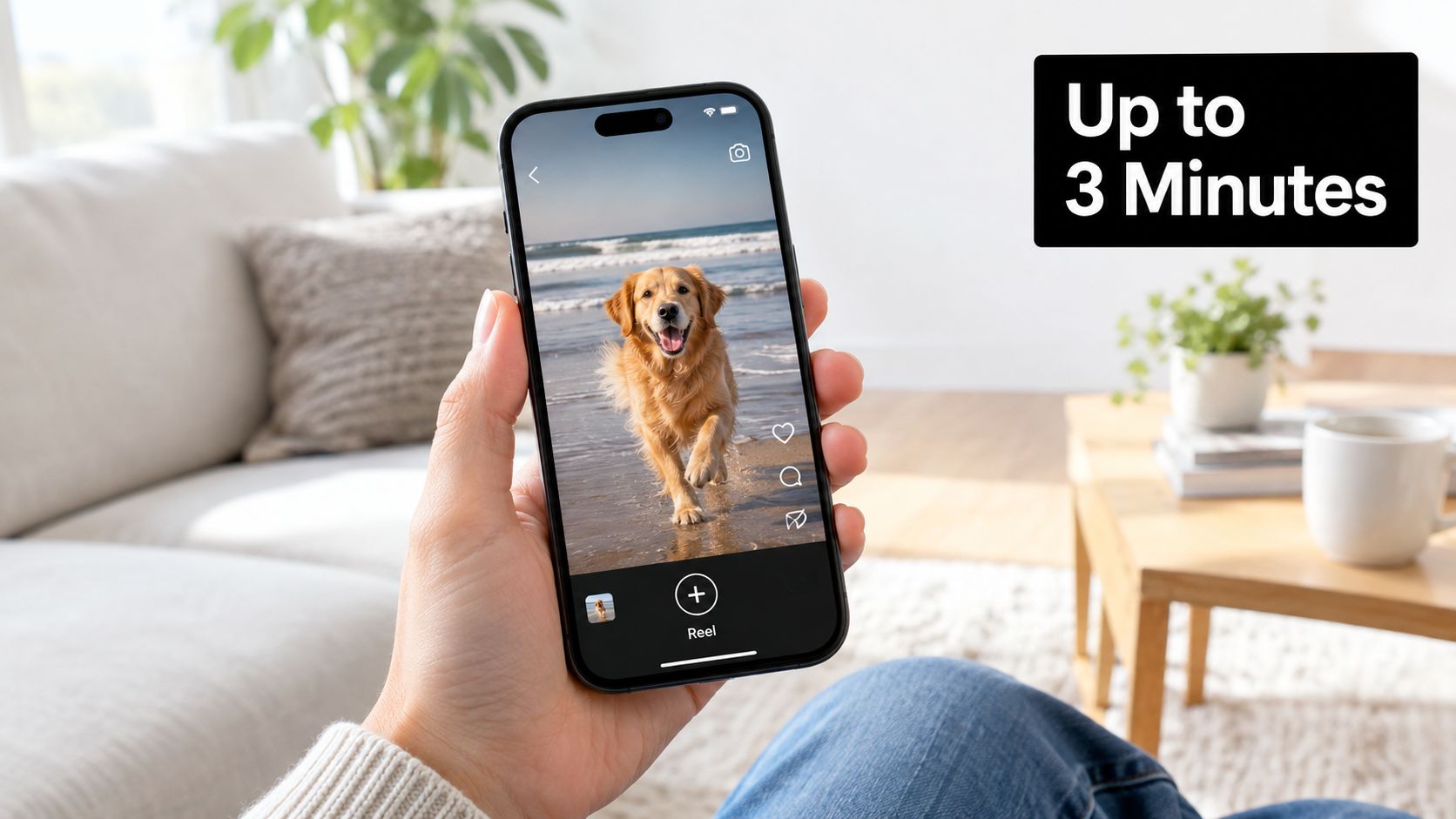
For a video between 90 seconds and 3 minutes, Reels is usually the first format to test when reach matters. Instagram's own guidance supports Reels up to 3 minutes, while third-party testing notes that longer uploads may be available but can face reduced recommendation eligibility beyond that threshold, as explained in this guide to Instagram video length and discovery.
Mobile upload steps
Open Instagram, tap the plus icon, choose Reel, and select the finished video from your gallery. If the clip exceeds the shorter option shown in your account, Instagram should open its trim editor, where you can adjust the start and end points before moving to the cover and caption screens.
Use the trim wheel to remove dead air rather than relying on Instagram to make the decision for you. Check the first moments especially closely. A long Reel still has to earn attention immediately, so the viewer should understand the problem, promise, or payoff before settling into the deeper explanation.
The common export mistake is a vertical file with black bars added by the editing app. Instagram sees the full canvas, then crops or scales it again, which can make the actual video smaller and push captions into unsafe areas. Export a true vertical master at 1080×1920, the commonly recommended 9:16 frame for Reels and Stories, as outlined in these Instagram Story and video specifications.
Desktop upload steps
Desktop is useful when the phone app compresses your source too aggressively or when your master file already lives on a computer. In a desktop browser, open Instagram, select Create, choose Reel upload, drag in the file, and confirm the crop and cover before publishing. You can also use a scheduling workflow that supports Instagram video publishing, including the SleekPost desktop upload process.
Desktop handling can reduce unnecessary phone-side resaves, but it doesn't override Instagram's account-level eligibility or recommendation rules. A small subset of accounts may still show a 90-second Reel cap, and the practical test is to attempt the upload with a noncritical draft.
Choose a cover with a readable subject and a clear visual promise. Write the first caption line as if it's the title of the lesson, not a generic description. If the strongest evidence appears late in the video, tease it early through on-screen text or a concise opening statement.
Uploading Feed Videos Longer Than Reels Allow
When the complete video needs more room than a growth-oriented Reel can carry, use the feed. A feed upload is a better home for an interview, documentary-style piece, detailed demonstration, or tutorial that viewers may watch from your profile rather than discover through the Reels tab.
Start in the Instagram app by tapping the plus icon and choosing Post, not Reel. Select the video from your camera roll, review the crop, and look for the option that preserves the full video instead of turning it into a shorter preview. The exact availability can vary by account and device, so treat the upload screen as a capability check rather than assuming every account exposes the same ceiling.
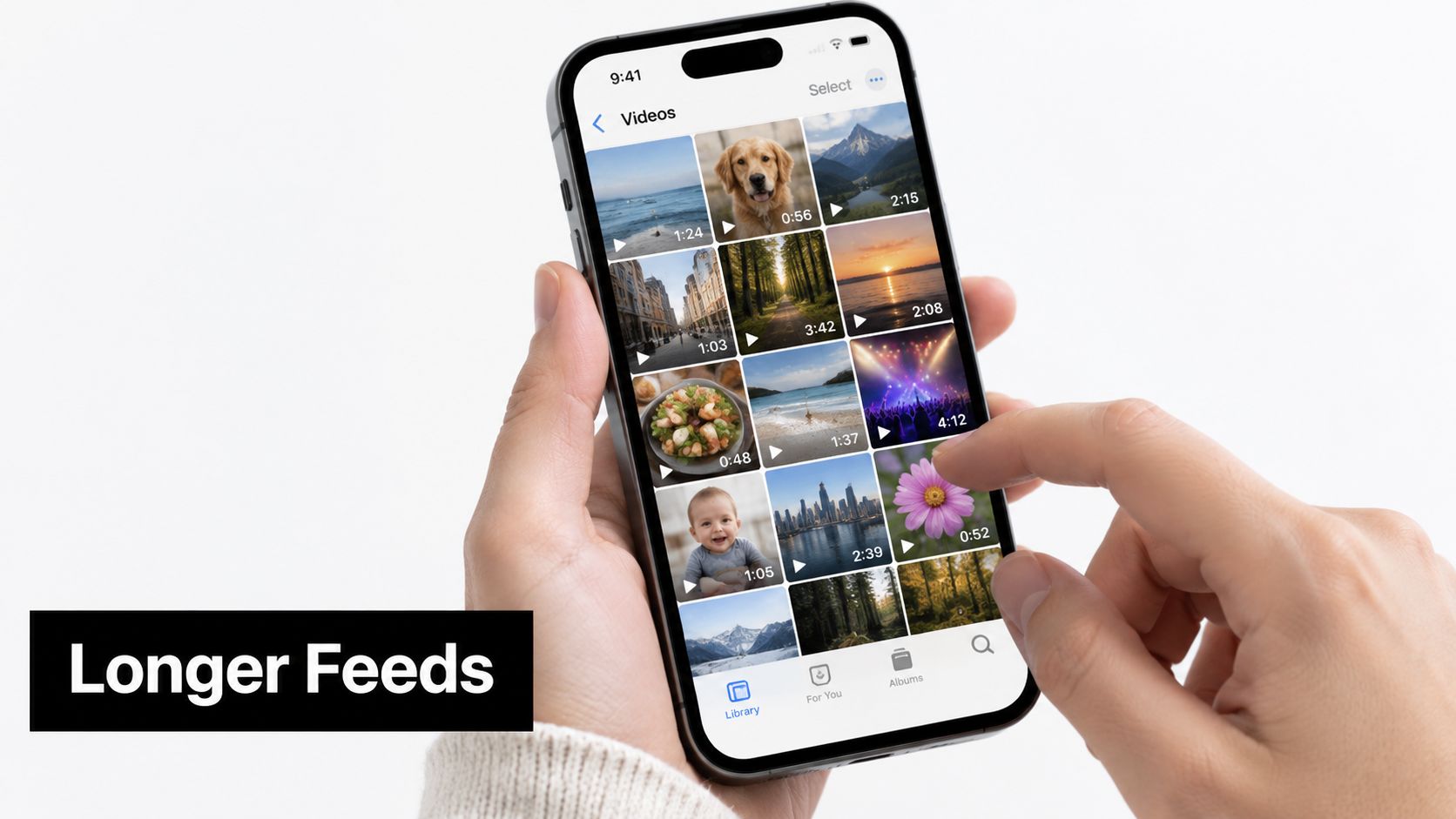
For videos that exceed the mobile option, move to Instagram in a desktop browser or use Meta Business Suite where your account supports it. Current guides identify up to 60 minutes on desktop for eligible feed uploads, while mobile and desktop limits can differ, as described in this breakdown of Instagram feed video limits. Don't confuse that ceiling with guaranteed distribution. A longer feed video can remain available on your profile, but it won't automatically receive the same recommendation treatment as a shorter Reel.
Build the post around the preview
The opening portion has to function as a trailer. State what the viewer will learn, show the finished result, or introduce the central question before the full explanation begins.
Use the desktop publishing screen to:
- Select a cover frame: Choose a still that communicates the topic without requiring the viewer to read the caption.
- Write accessible context: Add alt text when the interface provides the option, especially for demonstrations where visual information carries the explanation.
- Tag collaborators: Add relevant people or accounts before publishing, rather than editing the post after processing.
- Check the crop: Review portrait, square, or horizontal framing so the subject and captions survive the feed preview.
Large files fail for mundane reasons, including unstable connections, unsupported encoding, or a file that exceeds the platform's accepted constraints. A dedicated large-file upload workflow can help you validate the asset before you spend time rebuilding the post.
Splitting a Long Video Into a Series or Carousel
A single long upload isn't always the strongest presentation. If the narrative contains natural chapters, splitting it can give each segment its own hook and make the viewing path easier to follow.
Start with one master timeline in your editor. Mark the introduction, major teaching points, transitions, and cliffhangers before cutting anything. Each segment should feel complete enough to reward the viewer, but open enough to create a reason to continue.
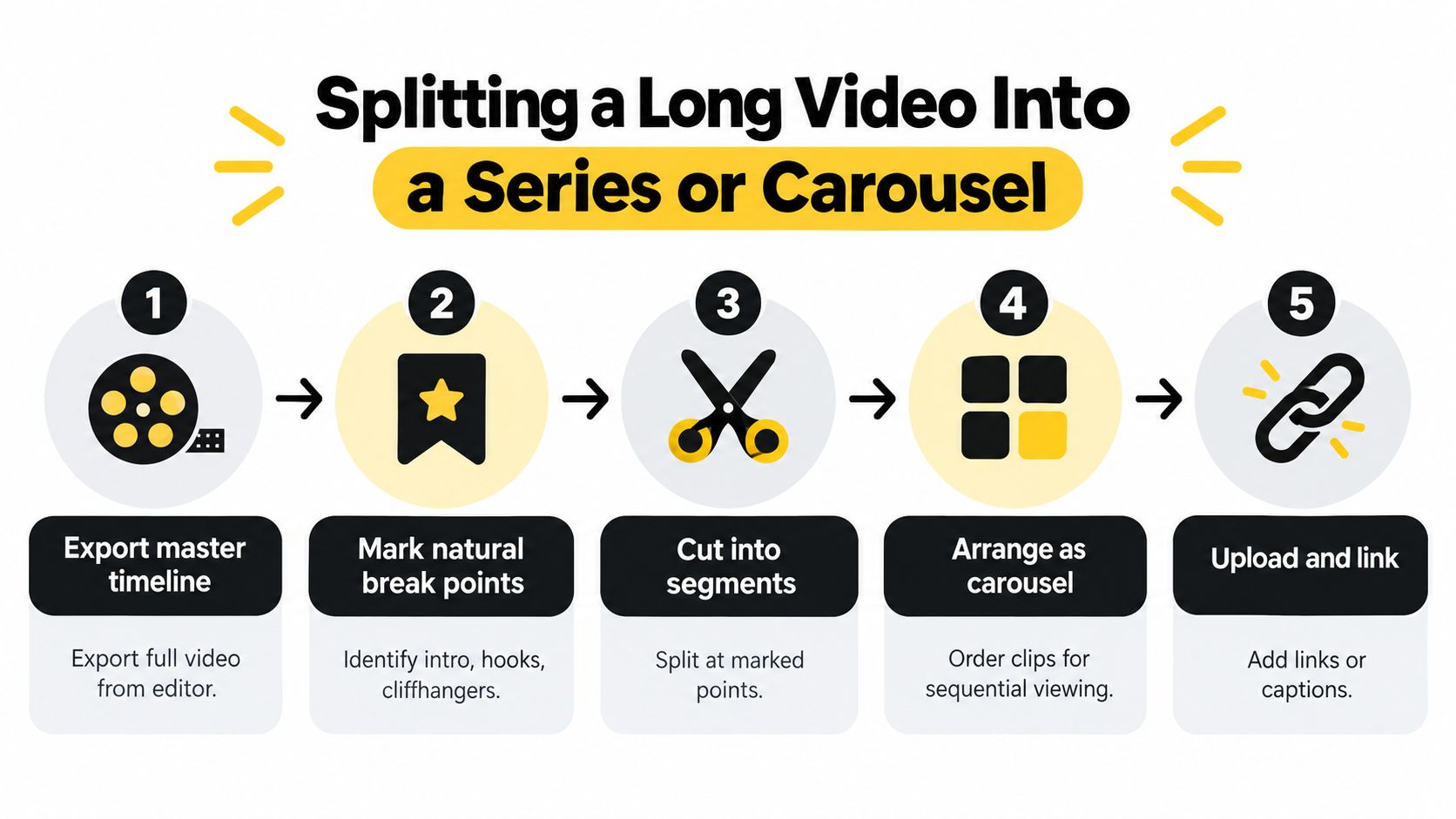
For a Reel series, keep the covers visually consistent and label the sequence clearly:
- Export the complete master timeline.
- Mark the natural break points.
- Cut each segment at a useful narrative boundary.
- Add the segments in a deliberate publishing order.
- Connect them through captions, comments, and profile organization.
Use captions such as “Part 2 of 5” only when that sequence is accurate and visible. Pin the most important entry point where possible, and make the first line tell viewers what they'll gain from watching that part. A thoughtful Instagram series for real growth can help you plan recurring episodes rather than treating the split as an emergency workaround.
A carousel offers a different kind of participation. Video slides can run for up to 60 seconds each, and a carousel can contain up to 20 slides, according to the verified format guidance in this brief. That structure works well for tutorials where each step is short and self-contained. It also gives viewers control over pacing, though every slide needs a clear transition so swiping doesn't feel like work.
Before you cut, ask whether the viewer benefits from choosing the next chapter. If yes, use a carousel or sequential Reels. If the content depends on uninterrupted flow, preserve it as a feed video and use short clips as entry points through content repurposing workflows.
Export Settings, Thumbnails, and Common Upload Failures
A reliable export preset prevents more trouble than an attempt to fix the file inside Instagram. For vertical Reels and Stories, use 1080×1920 at 30 frames per second, H.264 or HEVC video, a bitrate around 8 to 12 Mbps, and AAC stereo audio at 48 kHz, based on the technical guidance provided for Instagram video delivery in this brief.
Save that preset in your editor, then check the file before uploading. The platform still has to process the file, so maximizing bitrate or resolution can create a larger asset without producing a visibly better result after compression.
A practical troubleshooting checklist
- Lock the frame: Keep the project at 9:16 from the first edit. Don't add black bars to horizontal footage unless the creative treatment specifically requires them.
- Match the frame rate: Export at the same frame rate used by the project. Mismatches can create stutter, duplicated frames, or audio drift.
- Use a supported codec: H.264 or HEVC video with AAC audio is a safer combination than an unusual editing codec.
- Inspect the audio: A silent upload may result from the wrong audio codec, a muted track, or a failed transcode. Play the exported file outside your editor before uploading.
- Compress oversized files: Files that exceed Instagram's accepted size and format constraints can fail during processing. Reduce bitrate before sacrificing the frame dimensions.
- Avoid unnecessary phone resaves: Export once, transfer the finished master, and don't repeatedly save the file through Photos or messaging apps.
- Upload a custom cover: Auto-selected frames often catch closed eyes, motion blur, or a blank transition. A custom 1080×1920 cover gives you control over the first profile impression.
If you need to inspect or preserve a visual reference from an existing Reel, a tool such as SupaBird's Reel thumbnail tool can be useful during the cover-planning process. It doesn't replace a properly exported video, but it can help you study which frames communicate clearly at a small size.
The safest final check is to watch the uploaded preview on a phone. Desktop playback can hide caption overlap and cropping that becomes obvious on a smaller screen. For broader guidance on preserving quality through the publishing process, use this high-quality Instagram video upload guide.
Matching Your Goal to the Right Length and Format
The right runtime depends on what you're asking the viewer to do. Discovery favors a compact entry point, while tutorials and interviews may justify a longer path if every section earns its place.
| Goal | Best Surface | Recommended Length |
|---|---|---|
| Reach new viewers | Reel | Under 90 seconds |
| Teach with more context | Reel | Up to 3 minutes |
| Publish a documentary, interview, or walkthrough | Feed video | As long as the full story requires |
| Share a multi-part tutorial | Sequential Reels or carousel | Split at natural chapter breaks |
| Communicate immediately with followers | Stories | Up to 60 seconds per card |
| Host a live workshop or conversation | Live | Use the runtime needed for the session |
For fast discovery, start with a short vertical Reel. The shorter format gives you more room to build completion and recommendation potential without asking a new viewer for a large commitment. A longer Reel can work when the opening is strong and the topic is narrowly relevant, but technical eligibility doesn't guarantee reach.
For retention and authority, a Reel up to 3 minutes can carry a complete explanation without forcing artificial cuts. Put the proof, result, or most useful step near the beginning, then use the remaining runtime for context and a direct next action.
For tutorials and deep storytelling, feed video is often the cleaner choice. The viewer can choose to continue from the profile, and the format doesn't require you to compress every chapter into a discovery-first Reel. A series or carousel is better when each step stands alone and the audience benefits from moving at its own pace.
Pick the shortest surface that carries the full story. Move to a longer format only when the format itself gives the viewer a reason to keep watching.
SleekPost supports desktop Instagram publishing and scheduling for formats such as videos and Reels, so it can fit a workflow where you prepare one master asset, adapt the copy and cover, and publish from a central dashboard. Visit SleekPost to see how its upload and scheduling tools can help you manage longer Instagram videos without rebuilding the publishing process for every device.