 SleekPost
Researchers who reviewed 300 TikTok videos found at least one caption error in 19.7% of them, a figure that climbs to 24.0% on videos about deafness or disability and sits at 15.3% on general-audience clips, according to the caption accuracy study in the NSF public access repository. Among the videos that did contain errors, the mean word-error rate was 7.9%, with individual videos ranging from 0.5% to 35.7%.
Those numbers describe the output of the tool TikTok hands you for free. They don't make auto-captions useless, and they don't mean you should switch to a paid editor. They mean the transcript that appears after you tap Captions is a draft, and the creators who get burned are the ones who publish it without reading it. Learning how to generate captions on TikTok is mostly a reviewing skill, plus one clear decision about which of the two things TikTok calls a caption you need.
Table of Contents
- Pick the Right Caption Type for Your Video
- Generate and Verify Native TikTok Captions Step by Step
- Writing Post Captions That Get Found in Search
- Using AI Caption Generators Without Losing Your Voice
- Making Captions Work Across Languages and Viewing Contexts
- Confirm Your Captions Are Ready and Post Today
Pick the Right Caption Type for Your Video
Half the people searching for TikTok caption help want the words that appear over the video. The other half want the description underneath it. TikTok uses the same word for both, and a fix that solves one leaves the other untouched.
On-screen captions are the speech-to-text lines laid over the frame, generated from the Captions control inside TikTok's editor. Post captions are the description under the video, the text a viewer reads before deciding to watch and the text the app uses to understand what the clip covers. TokConnect's guide to TikTok subtitles treats these as two separate workflows, and traces the on-screen kind back to TikTok's April 2021 launch of auto captions as an opt-in editing feature, later expanded to automatic captions for eligible videos in supported languages by late 2023.
| Caption type | Where viewers see it | Main job | How you make it |
|---|---|---|---|
| On-screen captions | Inside the video | Speech as readable text for deaf, hard-of-hearing and sound-off viewers | Native auto-captions from the Captions control, then manual correction |
| Post caption | Under the video in the feed and search | Topic, keywords and call to action for discovery | Write by hand or generate with an AI tool, then edit |
The test takes ten seconds. If a viewer must hear the words to follow the video, generate on-screen captions first. If a searcher might type your topic into the app, the post caption is the one that earns the view.
A music-only clip with no spoken words needs neither transcript nor keyword stuffing, just a short post caption that names the mood or the product. A talking-head explainer needs both, because people watch it muted and find it through search. A product demo with on-screen text only often needs the post caption first, since the video already reads like a document.
Before you open the editor, sort the clip into one of those three cases. If you're still deciding what to film rather than how to caption it, a list of TikTok content ideas helps you pick subjects with a spoken payoff, which is exactly the kind of video that justifies an on-screen transcript.
Generate and Verify Native TikTok Captions Step by Step
TikTok generates captions automatically after you record or upload a video, and creators can edit the result, per TikTok's auto-caption announcement. Treat that output as a draft. Everything that decides whether it's usable happens after the transcription finishes.
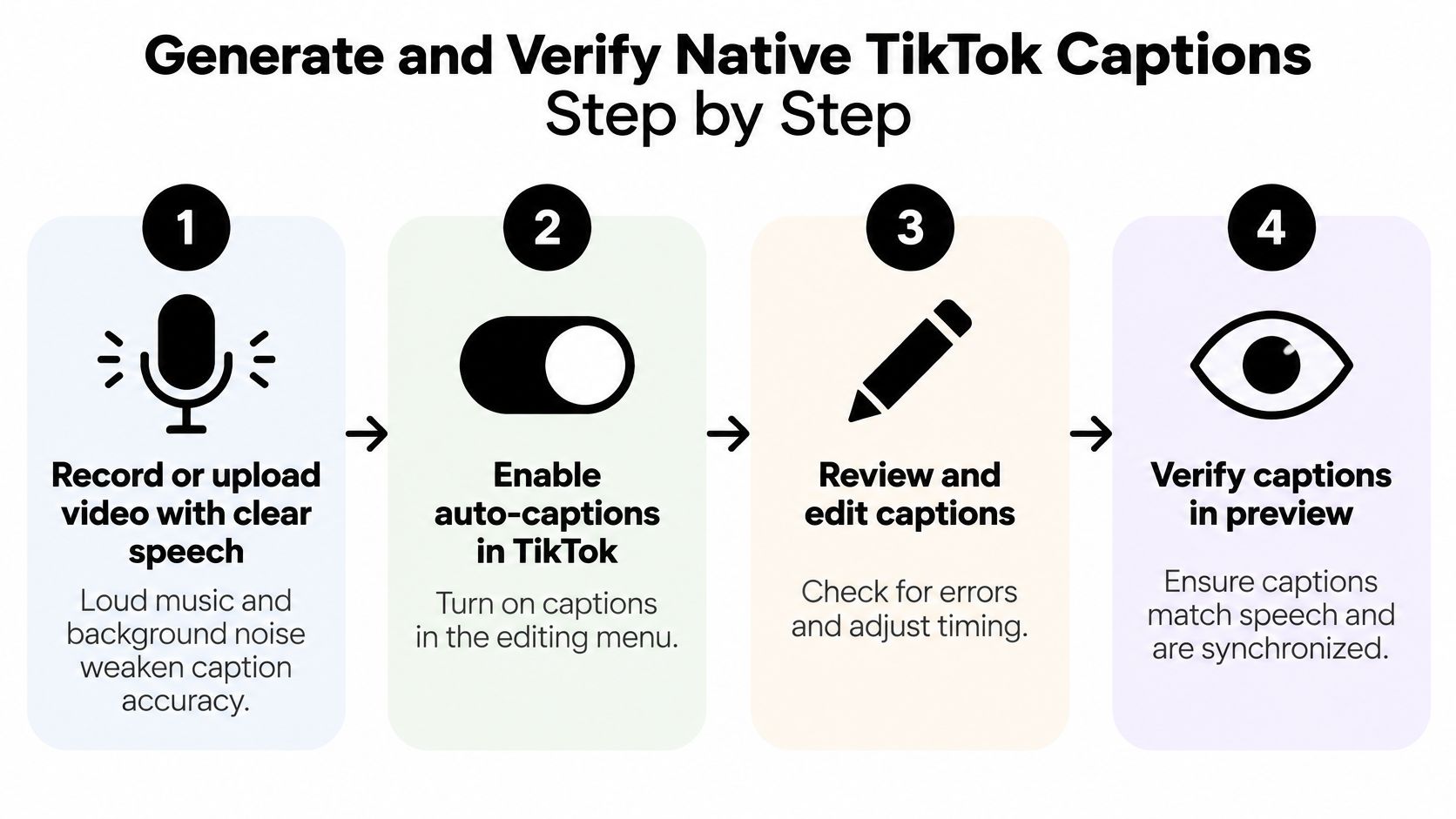
The native workflow, step by step
- Record or upload with clean speech. Auto-captioning fails on what it can't hear. Music over your voice, a phone across a noisy room, or two people talking at once degrade the transcript before you've made a single edit. Speak into the mic at a normal pace and keep background music low while you talk.
- Generate captions where you're working. In the TikTok app, open the editing or preview screen and select Captions to produce the transcript. On a computer, TikTok's desktop video editor handles the same job under the Narration tab, so uploads from a browser can be captioned and corrected without going back to your phone.
- Let TikTok transcribe the audio. Short clips finish in seconds. A long clip with dense speech takes noticeably longer, so keep the screen awake and don't back out mid-process.
- Read every caption block against the audio. This is the step that decides whether the video is usable. Fix names, figures, product terms, punctuation and capitalisation in the transcript itself rather than hoping viewers fill the gaps.
- Check the timing. A line that lands two seconds before the words spoils a joke and makes a demo look broken. Drag segment edges so each line appears on the syllable.
- Save before you publish. The edits sit in the draft until you save, and publishing with unsaved changes puts the original transcript live.
Six steps, a couple of minutes on a short clip. Watching someone run the sequence once is faster than reading it twice, so here's the same process in a real edit.
Run the quality check in order of risk
The reason to slow down isn't perfectionism. A dropped "not" inverts your advice, and a wrong price in a caption is a customer service ticket waiting to happen. Work down this list every time, because the failures cluster in the same places.
- Negations and small words. Watch for "not", "never", "only", "before" and "without". Speech recognition drops or swaps them, and one missing "not" turns a warning into an endorsement.
- Prices, dates and quantities. Read the digits back against the video. A wrong figure is a service problem in retail and a compliance problem in anything regulated.
- Brand and product names. Spell every one the way the packaging spells it. Acronyms and invented product words break first.
- Accents, speed and crosstalk. Auto-transcription handles slow, single-speaker audio well and struggles when speakers overlap or move between languages mid-sentence.
- Speaker changes merged into one block. Clips with a host and a guest often collapse into a single caption line, which reads as though one person said both things.
- Coverage gaps, not just wrong words. Scan for stretches with no captions at all. A silent gap is worse than a garbled line because the sound-off viewer gets nothing.
A finished transcript: every line matches what's said on screen, every name is spelled the way the brand spells it, and no sentence has lost its meaning in the cut.
Working from a desktop changes the route, not the discipline. In TikTok's video editor you select the Narration tab, confirm the detected caption language, and generate captions from the existing voiceover, as the TikTok video editor caption guide describes. That language check matters for multilingual accounts: if the detected language doesn't match what's spoken, every line that follows will be wrong in a more systematic way than a missed word. Once the text is on screen, styling starts to affect comprehension rather than looks alone. The same guide cites an ACM review finding better comprehension with full captions than with keyword-only captions, which is the argument against flashing one word at a time over a sentence people are trying to follow.
Burning text into the file before upload buys control the native tool doesn't offer: a typeface that matches your brand, two lines maximum, and placement inside the mobile-safe area instead of wherever the app drops it by default. It also means one export works across platforms. Olivetree Marketing's Instagram Reels production walkthrough covers the placement side well, especially keeping text clear of the interface elements each app draws on top of your video.
Writing Post Captions That Get Found in Search
A post caption does one job the on-screen transcript can't: it tells the viewer and the search index what the video is about. TokConnect's caption ideas guide puts the ceiling at 2,200 characters for many TikTok publishing workflows, and the captions worth reading use a small fraction of that space. The limit is generous. Practice is tight.
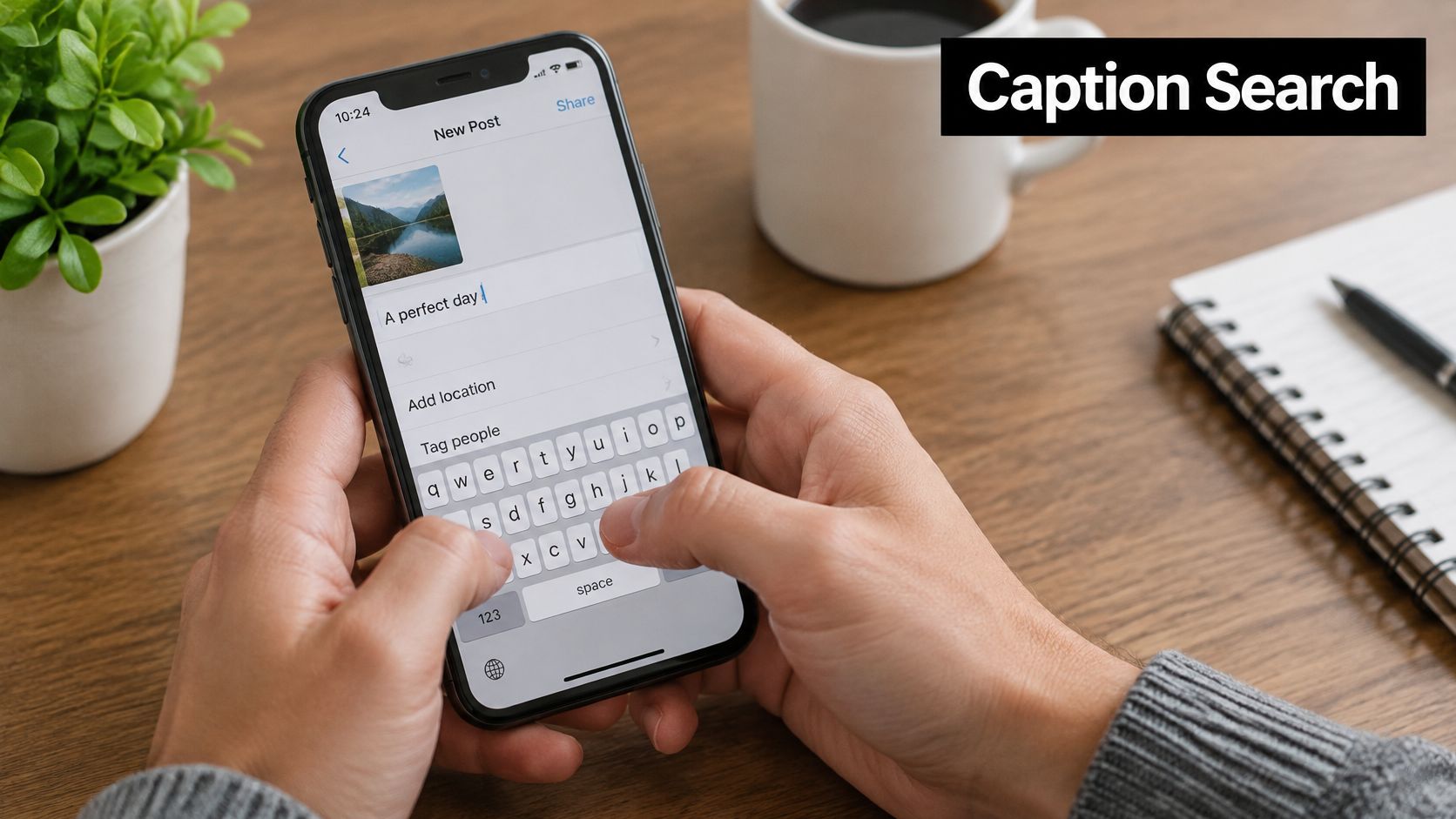
Start by pulling the caption out of the video rather than inventing a topic. Three questions do most of the work:
- What would a viewer type to find this? That phrase belongs in your first line, not in a hashtag at the end.
- What does the first three seconds answer? The clip usually opens with a problem, and the caption should name it plainly.
- What did you wish someone had told you before you tried this? That sentence is almost always a stronger hook than a summary of the video.
The structure I'd start with is a direct hook, one sentence of context, and one clear action. Nothing else is required.
Flat sourdough starter? Here's the one-day fix. Save this before your next bake.
That's about 80 characters, and it covers the whole job: it names the problem a viewer would search, states the payoff, and asks for one action. Longer captions earn their length only when the video holds details the viewer will want to reference later: ingredient lists, step order, product specifications, or accessibility context. Padding a simple demonstration past a few lines adds reading time without adding reach.
| Goal | Target length | Where the hook goes |
|---|---|---|
| Fast-scrolling feed reach | 50-150 characters | Opening words |
| Search-led educational post | 100-200 characters | First sentence |
| Recipes, steps or specifications | As long as the details need, under the 2,200-character limit | Summary line before the list |
Put hashtags after the sentences, never in front of them. A wall of tags as the opening line hides your topic from the one person scanning the feed, and it hides it from search too, because the first readable phrase is now a keyword nobody says out loud. Three to five specific tags at the end cover the rest: the subject of the video, the technique it shows, and the niche it sits in.
For a caption built to travel further, borrow the structure in TikTok captions that go viral and keep the front-loading rule intact while you change the tone. The test that matters is simple: the finished caption should read like something you could paste into the app today without editing a word.
Using AI Caption Generators Without Losing Your Voice
A caption generator is only as good as what you feed it. Most tools take one of three inputs: a topic or brief you type, a link to an article or video, or an image plus a short instruction. The input you choose decides how much of the draft you'll rewrite afterwards, and the topic brief consistently produces the most usable first pass because you've already made the editorial decision.
Spend the thirty seconds it takes to write a real brief. Name the video, the viewer and the result you want.
Prompt example: Write three TikTok captions for a 30-second video showing how to reseason a cast-iron pan. Keep the first line under 100 characters, use the phrase cast-iron pan in the first sentence, and end each caption with a save prompt.
Ask for three variants and pick the one whose opening line you'd really say out loud into a phone. That test catches more bad drafts than any rubric, because a caption you wouldn't speak reads like a press release.
Where generated drafts go wrong
- Generic phrasing. "Realize your potential" and "game-changing tips" survive into published captions because they look like complete sentences. Cut them. They add nothing to search and nothing to the viewer.
- Tone drift. A tool trained on your published posts usually lands closer to your voice than one working from a blank template. Even then, read the draft in your own accent before you accept it.
- Invented specifics. The draft may claim a result, a timeframe or a number your video never shows. Check every name, price and claim against the footage.
That last one matters most. A generated caption can be fluent, on-brand and completely wrong about what happens in the clip, and no amount of prompt tuning removes the need to compare the text with the video before scheduling.
When the volume climbs past a couple of accounts, caption drafting stops being the bottleneck and coordination becomes it. Teams that post for several brands sometimes hire a remote social media manager to own the drafting and review cycle, which works best when the caption checklist lives in a shared doc rather than someone's memory.
For a repeatable drafting routine, this guide to building an AI social media caption generator workflow walks through the prompt structure and the edit pass in more detail.
Making Captions Work Across Languages and Viewing Contexts
One caption track, slower speech, translated text, or separate language versions? The right call depends on whether your audience shares a language and whether the video still makes sense with the sound off.
Start with what the feature covers. TikTok's launch guidance described auto-caption availability as limited to American English and Japanese, with other languages added over time, per TikTok's auto-caption announcement. Check the spoken-language setting on the post screen before assuming a transcript will appear at all.
Four options cover most situations:
- One caption track is right when everyone watching shares a language and the audio is clean. It's the cheapest option and the easiest to keep accurate.
- Slower, clearer speech fixes a single-speaker video whose transcript keeps failing on pace. Slow the opening line, not the whole clip.
- Translated on-screen text suits a mixed-language audience watching a mostly visual video, such as a recipe or a product demo. Keep the original spoken track and add one short translated line per idea.
- Separate language versions earn their cost when the message depends on local terms, prices or legal wording, where a translation would change the offer.
Code-switching is where automatic transcription falls apart. A speaker who moves between two languages inside one sentence gets a transcript that is partly correct in both and reliable in neither. Names and loanwords fail the same way, which is why a short glossary of your product names and recurring phrases pays for itself across a series.
Verify each translation against the original recording, not the cleaned-up caption.
Meaning can shift even when the source text was right, and a fluent translation of a wrong transcript is still wrong. Translation for Spark Ads is region-limited, so a business selling in several markets should check TikTok's current availability before planning one translated track to reach all of them.
Placement matters once text doubles up. Keep translated lines inside a vertical frame that leaves room for the app's interface, and check the vertical video dimensions before building a second language into the design.
Confirm Your Captions Are Ready and Post Today
The sequence is fixed, and the order is what makes it work. Choose the caption type, generate the transcript, write the post caption, run the verification pass, then schedule. Move the QA step and you'll approve text you never compared against the audio.
Your action this week: pick your next upcoming video, sort it into one of the three cases from the opening, and run the checklist once before scheduling. Note which errors showed up. A pattern of dropped negations means you speak too softly on the punchline. Misspelled product names mean the term needs a glossary entry. One pass tells you more about your recording habits than ten tutorials.
SleekPost's AI generation can take a topic, a brief, an instruction, an optional uploaded image, or a link to YouTube, an article, TikTok or Instagram as input, which shortens the drafting step without removing the review. On average, each active user saves about 3.6 hours per week using SleekPost, and a fixed caption routine is one of the places that time comes from.
When the video and caption are both approved, a saved copy-paste hashtag set keeps the last step from turning into five minutes of browsing.
Type, transcript, post caption, QA, publish.
SleekPost is built for creators and small teams who need captions drafted fast and posts scheduled without hopping between apps. Paste a TikTok link, a brief or an image, generate platform-ready variants, edit the hook yourself, and send it to TikTok and nine other networks from one dashboard. Visit SleekPost to start a 7-day free trial and put the caption checklist to work on your next video.