You've written the caption in Notes, added clean paragraph breaks, and pasted it into Instagram. The preview looks fine, but after publishing, the spacing vanishes and your carefully edited caption becomes one dense block. That's usually not a writing problem. It's a formatting problem caused by how Instagram handles returns, whitespace, copy-paste, and invisible characters.
The reliable approach is simple: use genuine line breaks, keep trailing spaces out of the caption, protect only the blank lines that disappear, and check the published result instead of trusting the composer. Just as well, don't spend your entire visibility budget on empty space. Your opening needs to work before the reader taps “more.”
Table of Contents
- Why Your Instagram Captions Keep Losing Format
- Adding Line Breaks on iOS, Android, and Desktop
- Understanding Character Limits and Invisible Spacers
- Using SleekPost to Preserve Caption Formatting
- Troubleshooting Common Formatting Failures
Why Your Instagram Captions Keep Losing Format
A collapsed caption is especially frustrating when the text had a clear structure: a hook at the top, a short explanation, a call to action, and hashtags at the bottom. Instagram can flatten that structure when it normalizes whitespace or treats an apparently empty line as having no usable content.
That formatting issue matters more now because Instagram has changed from a small photo-sharing service into a major publishing channel. Instagram launched on October 6, 2010, with more than 25,000 registrations on its first day. Registrations exceeded 100,000 within one week, the service passed 1 million users by December 2010, and it reached 1 billion monthly active users by June 2018, according to the documented Instagram timeline.
As captions became longer and more strategic, users started relying on them for introductions, product details, disclosures, calls to action, and hashtags. A solid paragraph break lets readers scan those functions instead of confronting one uninterrupted wall of text. That's part of the wider discipline of building authority on Instagram, where publishing consistency and readable communication support the visual content.
Why ordinary spaces fail
Repeated spaces can look like a workaround while you're drafting, but they aren't dependable paragraph breaks. Instagram may remove or normalize them, especially when they appear at the end of a line. A genuinely blank line can also disappear because the platform treats it as empty rather than as meaningful spacing.
Use Return or Enter, not a row of ordinary spaces. If the blank line still collapses, a small Unicode spacer can preserve it, but that should be a controlled workaround rather than your default for every caption.
Your caption also has a limited publishing area. If you're planning a longer post, review Instagram's post limit before adding decorative spacing that doesn't improve the message. The best format is not the one with the most gaps. It's the one that makes the caption easy to scan while keeping the important message visible early.
Adding Line Breaks on iOS, Android, and Desktop
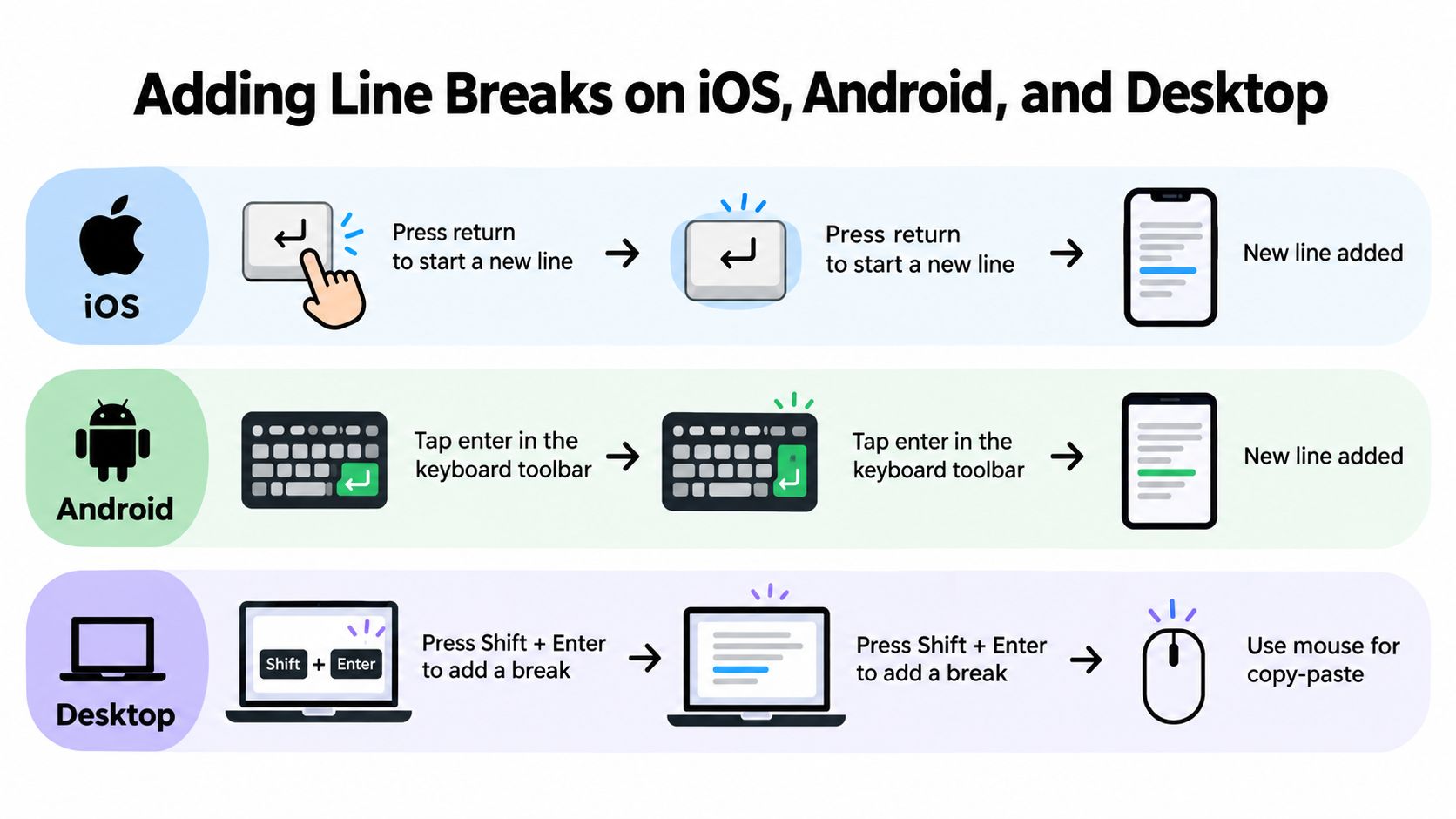
The basic action is the same on every device: put the cursor at the end of the sentence, then create a real new line. The keyboard label changes by platform, and some mobile layouts hide the return key, but you don't need a special punctuation trick.
On iPhone and iPad
Draft directly in Instagram or write the caption in a plain-text app such as Apple Notes. Place the cursor immediately after the last character of the paragraph, then tap the Return key. Type the next paragraph on the new line.
If the Instagram keyboard doesn't show Return, tap the 123 key to reveal the alternate keyboard view. On some layouts, the number and symbol view exposes the return key that wasn't visible on the main letter keyboard. After creating the break, switch back to the letter view and continue typing.
For a visibly empty line, press Return again. Don't add a space after the previous sentence before pressing it. That trailing space may be removed during paste or publishing, and the intended spacing can collapse.
On Android
Android keyboards generally use an Enter or return-shaped key. Tap it after the final character of the paragraph, then continue writing on the next line. If your keyboard toolbar or layout changes the visible key, look for the bent arrow or line-return symbol rather than inserting spaces manually.
Copy-pasting from a plain-text editor is also practical. Keep the source clean, remove spaces at the ends of lines, and paste the completed caption into Instagram. Don't assume that the copy operation preserved every blank line. Check the composer and then inspect the live post.
On desktop web
In Instagram's browser composer, place the cursor where the paragraph should end and press Return or Enter. A regular return creates the new line. If the browser interface behaves differently from the mobile composer, drafting in a plain-text editor and pasting the finished text can give you a more controlled source.
Practical rule: Never simulate a paragraph break with repeated spaces. A real line-feed character is more reliable, easier to edit, and clearer to validate.
Desktop drafting also helps when you're preparing several posts or reviewing a caption with a client. A workflow such as the one described in this guide to desktop uploading to Instagram can reduce unnecessary switching between devices, but you should still verify the rendered caption after publishing.
Here's the expected sequence:
- Finish the paragraph: Put the cursor after the final visible character.
- Insert the return: Use Return on iOS or Enter on Android and the web.
- Avoid trailing whitespace: Don't leave ordinary spaces before the break.
- Preview the result: Expand the caption after publishing and confirm the paragraph boundaries.
The shortcut is easy. The validation is what prevents a clean draft from turning into a text block.
Understanding Character Limits and Invisible Spacers
Instagram captions have a documented maximum of 2,200 characters, and the feed commonly shows only about the first 125 characters before the reader selects “more,” as described by this Instagram caption formatter. Those limits create two separate formatting decisions.
The first is total capacity. Every letter, space, emoji, hashtag, mention, line break, and spacer contributes to the caption string. The second is early visibility. If you place several blank lines between the opening sentence and the rest of the message, you can push useful context below the visible preview.
Treat spacing as part of the message
A strong caption usually puts its value proposition, question, or key promise before the first deliberate paragraph gap. After that opening, short paragraphs can separate the explanation, details, and call to action.
Visibility rule: Read the first approximately 125 characters without tapping “more.” If the reader can't tell why the post matters, reduce the opening space and strengthen the hook.
A line break is technically a line-feed character, commonly represented as U+000A. That's different from a visual gap created by pressing the spacebar several times. Ordinary spaces may be trimmed, while genuine returns define a new line.
When an invisible character helps
Instagram may collapse a completely empty line or a line that contains only ordinary spaces. If that happens, some workflows place a Unicode character on the otherwise blank line. A Zero Width Space, represented as U+200B, is one commonly used option. A zero-width non-joiner is another type of invisible or visually unobtrusive character used by caption tools.
The character gives the line underlying content, so the platform is less likely to discard it. It also adds to the caption string, may complicate editing, and can behave differently across clients, selection tools, and assistive technologies. Use the smallest number necessary, and keep an unformatted source copy so you can regenerate the spacing later.
For more controlled text cleanup, you can prepare the caption in a text formatter online, then inspect the actual pasted result rather than assuming the editor and Instagram will render it identically.
Using SleekPost to Preserve Caption Formatting
A caption can look correct in Instagram's composer and become difficult to manage once it passes through Notes, a browser, a scheduler, and several publishing accounts. Native editing suits a short, one-off post. A dedicated scheduler gives teams one drafting workspace, but its real value is keeping each network's version separate rather than forcing identical formatting everywhere.
With Instagram's native composer, press Return or Enter to create paragraph breaks and publish immediately. That approach works when one person is posting from one device. Batch preparation, client approvals, multiple accounts, and platform-specific edits make a shared workflow easier to control.
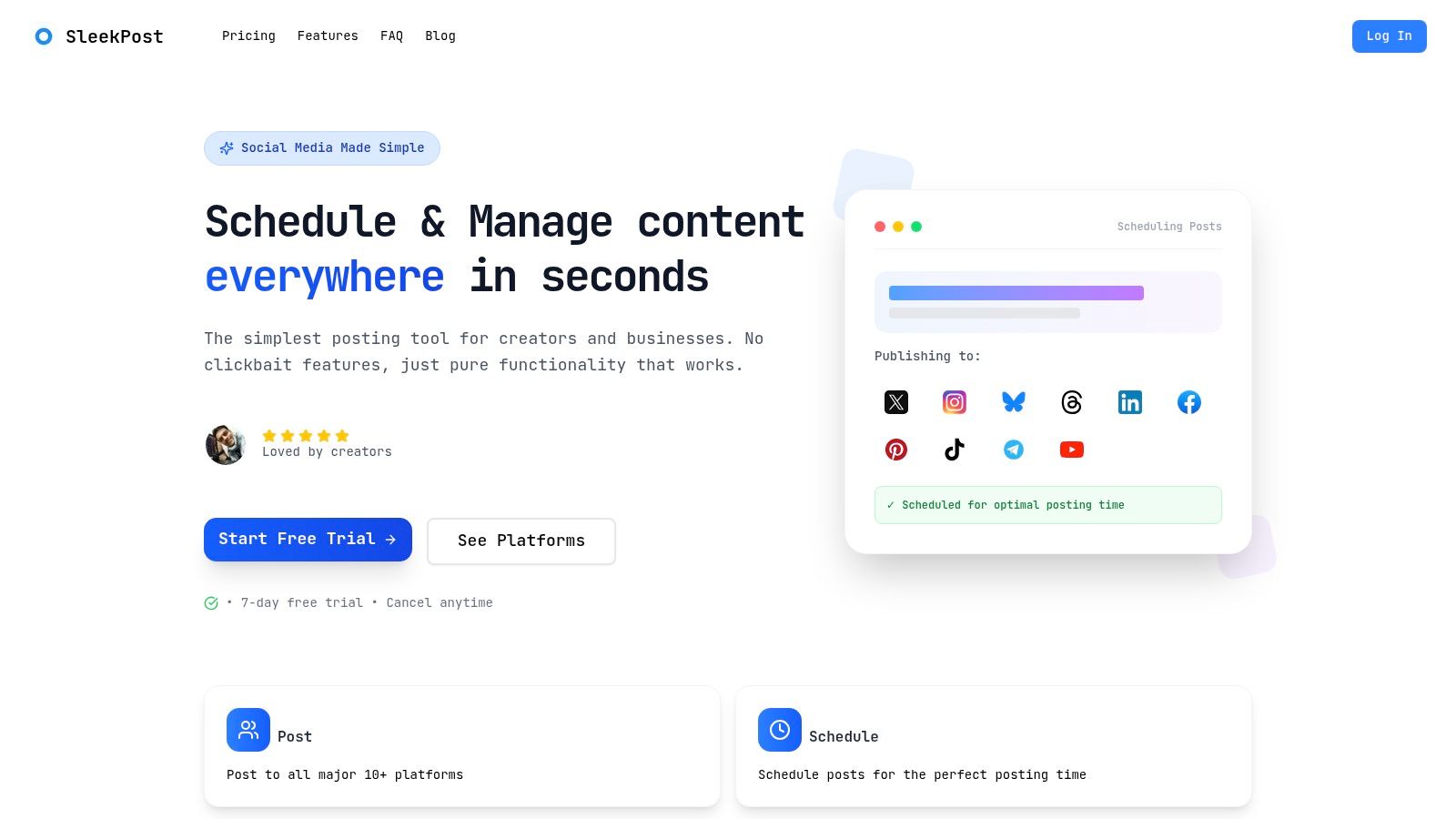
A social media management tool such as SleekPost lets creators draft, customize, schedule, and publish from one dashboard. Its stated feature set includes Instagram and other platforms, platform-specific copy and media, recurring posts, auto-reposts, carousels, videos, reels, and text updates. For guidance on how this type of workflow fits together, see the guide to choosing a social media scheduler app.
A practical scheduler workflow
Keep a plain-text source version outside the scheduler. Write the hook first, divide the body into short paragraphs, and place the call to action where readers can find it quickly. Spacing improves scanability, but every blank line uses part of the opening visibility budget. If the first approximately 125 characters do not explain why the post matters, tighten the opening before adding more separation.
Then create the Instagram-specific copy inside the publishing tool. Platform-specific fields prevent a LinkedIn or Facebook revision from replacing Instagram's intentional paragraph breaks, hashtags, or caption length. This separation matters because networks can normalize whitespace differently when one shared text field is reused.
SleekPost also includes an AI Content Generator that can turn links or prompts into platform-oriented posts. Treat generated copy as a draft. Check the opening characters, remove unnecessary spacing, preserve deliberate breaks, and confirm that mentions and hashtags remain intact before scheduling.
| Native Instagram composer | Dedicated scheduling workflow |
|---|---|
| Fast for immediate posting | Useful for planned and repeated publishing |
| Formatting is handled near publication | Copy and media can be prepared ahead of time |
| Suited to one-off edits | Better for multiple accounts and platforms |
| One caption version at a time | Separate copy fields for each network |
Use the scheduler for organization and platform-specific preparation, not as a guarantee that every client will render whitespace identically. Keep the source caption clean so you can adjust spacing without hunting for invisible characters.
Troubleshooting Common Formatting Failures
Most lost line breaks come from a small set of mistakes. The fix depends on whether the problem is the return itself, the blank line around it, or the editor used before pasting.
If a paragraph break disappears
Check the end of the line above it first. Remove any trailing spaces, place the cursor immediately after the final character, and press Return or Enter again. If a visibly empty line still vanishes, insert one tested zero-width character on that line instead of filling it with ordinary spaces.
If consecutive blank lines collapse, reduce the spacing and ask whether the extra gap is helping the reader. More separation can make a caption easier to scan, but it can also push the useful opening below the feed preview. A compact structure with one deliberate break is often more effective than a caption padded with several empty lines.
If paste formatting looks different
Word processors can carry hidden formatting and nonstandard whitespace. Rebuild the caption in a plain-text editor, then paste it into Instagram or your scheduler. Keep the original unformatted copy, because invisible characters can be difficult to locate when you need to revise a sentence.
Before publishing, run this check:
- Inspect the opening: Make sure the first approximately 125 characters communicate the post's value.
- Count the caption: Include every separator, emoji, hashtag, mention, line break, and spacer within Instagram's 2,200-character ceiling, as advised by this Instagram caption formatting guide.
- Review the expanded version: Tap “more” and confirm that paragraphs, calls to action, mentions, and hashtags appear in the intended order.
- Check the live post: Verify the result on mobile and web when the caption matters to a client or campaign.
- Save the source: Retain a clean version without invisible spacers for future edits.
For planned publishing, this guide to scheduling Instagram posts can help you build the final preview into your workflow rather than treating formatting as an afterthought.
SleekPost gives creators, marketers, and small businesses one place to draft, customize, schedule, and publish social posts while keeping Instagram copy separate from each platform's formatting needs. Visit SleekPost to prepare cleaner captions, manage line breaks before publishing, and reduce the formatting surprises that turn polished copy into a wall of text.